Validate HTML attribute (Web)
The HTML attribute validation allows you to validate the value of any HTML attribute of an element (e.g. href, src, alt, title, etc.). It is also possible to validate a "disabled" attribute, as explained below.
Adding a Validate HTML attribute step
→ To add a Validate HTML attribute step:
-
Hover over the :fa-caret-right: (arrow symbol) where you want to add the validation.
-
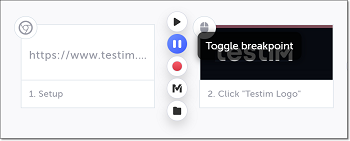
Click on the Toggle breakpoint button.
-
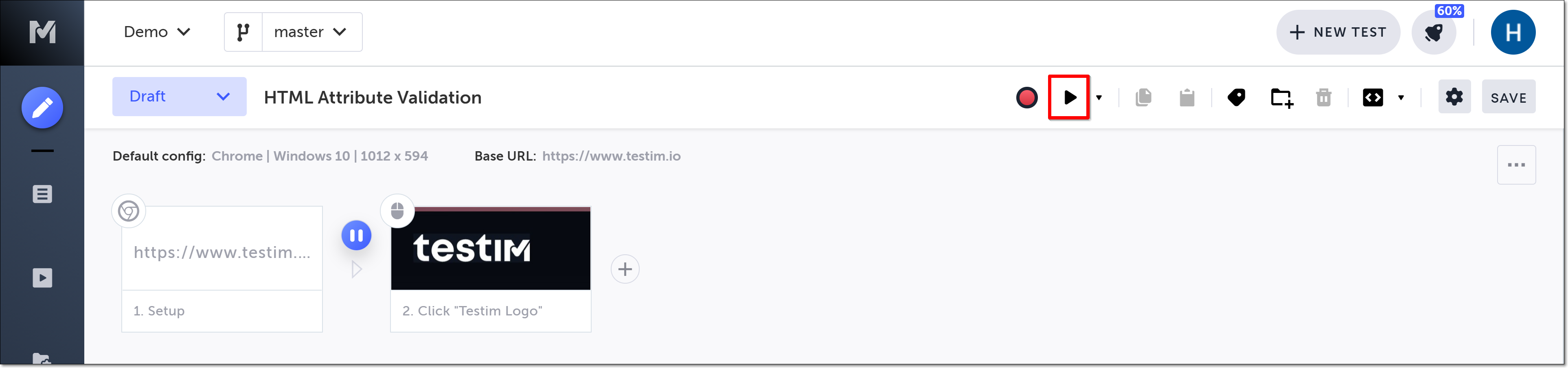
Click on the Run test button, to run the test until the breakpoint.
-
Hover over the :fa-caret-right: (arrow symbol) again and click on the “M” (Testim predefined steps).
-
Click on Validations.
-
Scroll down through the menu and select Validate HTML attribute.
-
In the AUT window, identify the relevant element for which you wish to validate an HTML attribute, and click on it to select it.
-
In the Attribute name field, enter a valid HTML attribute that you wish to validate (e.g. href, src, alt, title, etc.).
-
In the Expected value field, enter the value you wish to validate for the attribute (e.g. https://www.testim.io).
-
Click OK.
-
Click on the Toggle Breakpoint button after the validation step to remove the breakpoint.
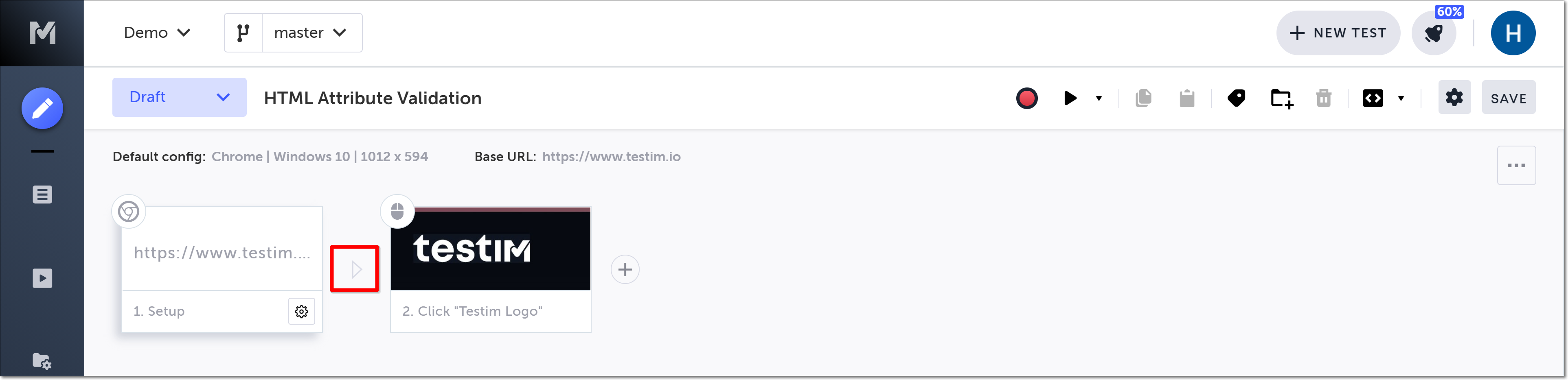
The action options are displayed.
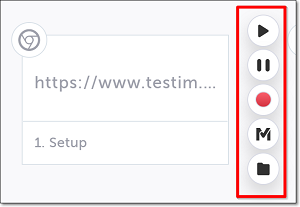
The Predefined steps menu opens.
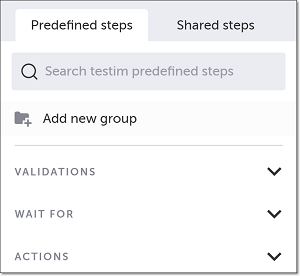
The Validations menu expands.
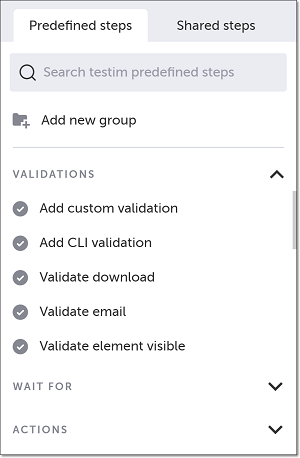
Alternatively, you can use the search box at the top of the menu to search for Validate HTML attribute.
The HTML Attribute Validation form is shown.
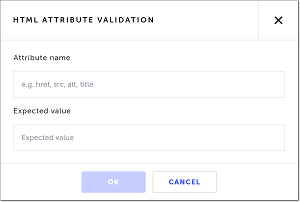
For the expected value you can use regex. For example, 'href' that starts with https will have the following regex:/^https/
The “Validate HTML attribute” step is added in the Editor, and a thumbnail of the selected element is shown in the step.
Validating a "disabled" attribute
It is also possible to validate a "disabled" HTML attribute. → To validate a disabled attribute:
-
Perform steps 1-6 above.
-
In the AUT window, identify the relevant element for which you wish to validate the "disabled" HTML attribute, and click on it to select it.
-
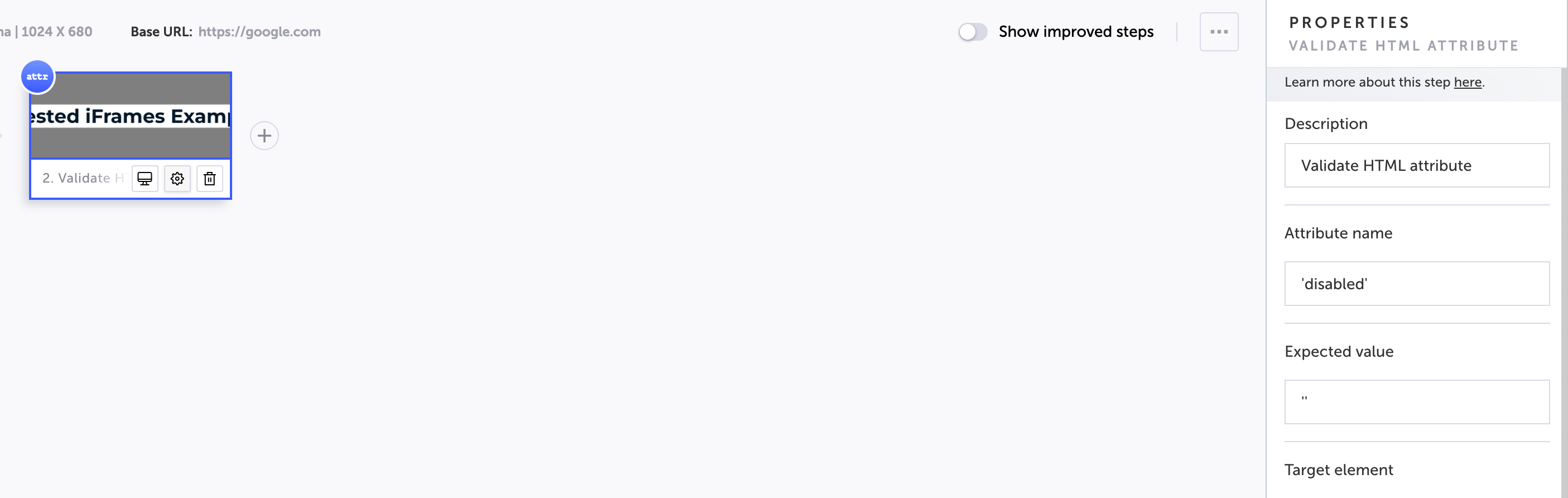
In the Attribute name field, enter the value 'disabled'.
-
In the Expected value field, do not enter any value.
-
Click OK.
-
Click on the Toggle Breakpoint button after the validation step to remove the breakpoint.
The HTML Attribute Validation form is shown.
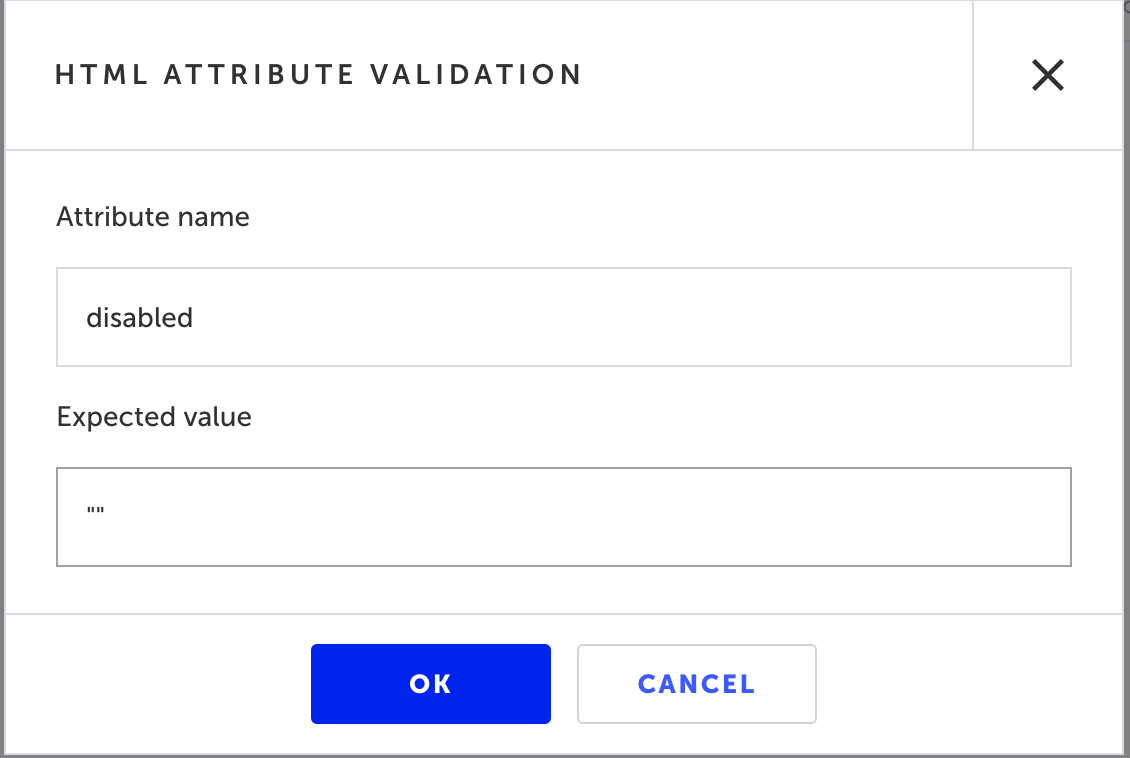
The “Validate HTML attribute” step is added in the Editor, and a thumbnail of the selected element is shown in the step.
Modifying a Validate HTML attribute step
If you want to change the element you selected, you don’t need to delete and re-record the step. Instead, you can reassign the element with a different element. Alternatively, you can modify the attribute name and/or expected value of the original element you selected without selecting a new element. → To reassign the selected element in a Validation step:
-
Hover over the position to the left of the step for which you want to reassign the element and click on the Toggle breakpoint button.
-
Click on the Run test button to run the test until the breakpoint.
-
Hover over the step for which you want to reassign the element and click on the Show Properties (:fa-cog:) icon.
-
Hover over the Target element thumbnail to show options, and click Reassign.
-
In the AUT window, identify the new element that you would like to select and click on it.
-
In the Properties panel Attribute name field enter the attribute name for the new element.
-
In the Properties panel Expected value field enter the expected value of the new attribute.
-
Click on the same Toggle Breakpoint button to the left of the step for which you reassigned the element to remove the breakpoint.
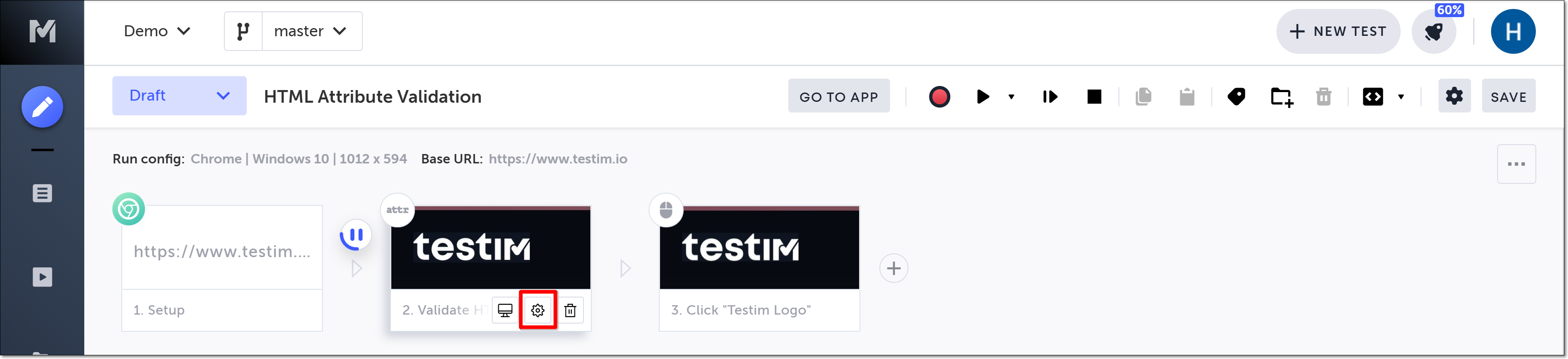
The Properties panel opens on the right-hand side.
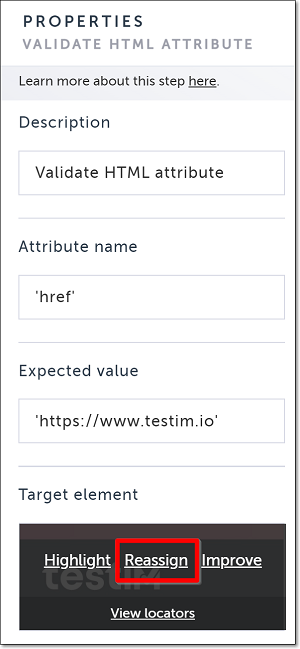
The selected element is shown in the Target element box in the Properties panel.
When modifying the value of the Attribute name and Expected value in the Properties panel, make sure they are enclosed in single quotes: e.g. ‘href’ and ‘https://www.testim.io’.
→ To modify the properties of theoriginal element:
-
Hover over the step for which you want to reassign the element and click on the Show Properties (:fa-cog:) icon.
-
In the Properties panel Attribute name field enter the new attribute name for the element.
-
In the Properties panel Expected value field enter the new expected value of the attribute.
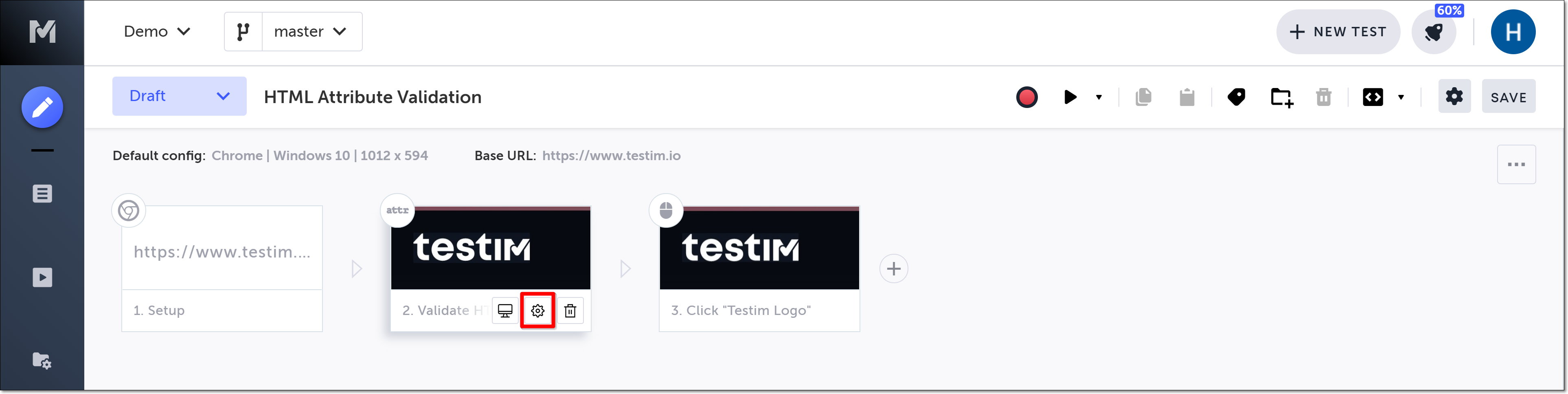
The Properties panel opens on the right-hand side.
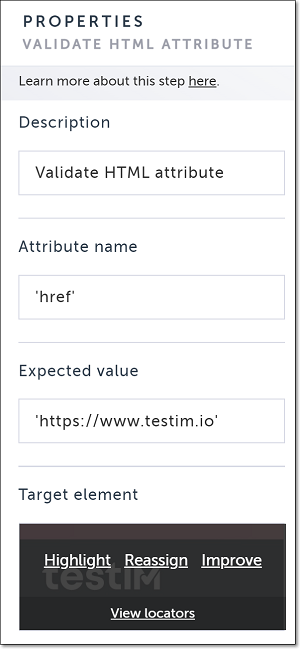
When modifying the value of the Attribute name and Expected value in the Properties panel, make sure they are enclosed in single quotes: e.g. ‘href’ and ‘https://www.testim.io’.