Encrypted Credentials
Sometimes sensitive credentials, such as admin credentials for a production environment, are used in testing. In such cases, you don't want the credentials to be exposed when creating the test, running the test, or viewing the test results. Testim features Encrypted Credentials that are used when tests are created and run. The Encrypted Credentials are centrally managed in the Credentials screen and tests that include these credentials can only be viewed by permitted users.
As a general practice, we recommend adhering to the best practice of avoiding testing on a production environment with sensitive data. Instead, it is advisable to utilize dedicated environments with non-sensitive credentials. However, if this is necessary, it is recommended to use the encrypted credentials feature.
Where are the encrypted credentials defined in a test?
After the encrypted credentials are created, they can be used in the following places:
-
Test data - the encrypted credentials can be included in the test data as input parameters.
-
Config file - the encrypted credentials can be included in the config file.
-
Params file - the encrypted credentials can be included in the Params file
How encrypted credentials are used in test runs
Encrypted credentials can be used when running a test using the following methods:
o Editor - Local and remote ("run on grid") runs
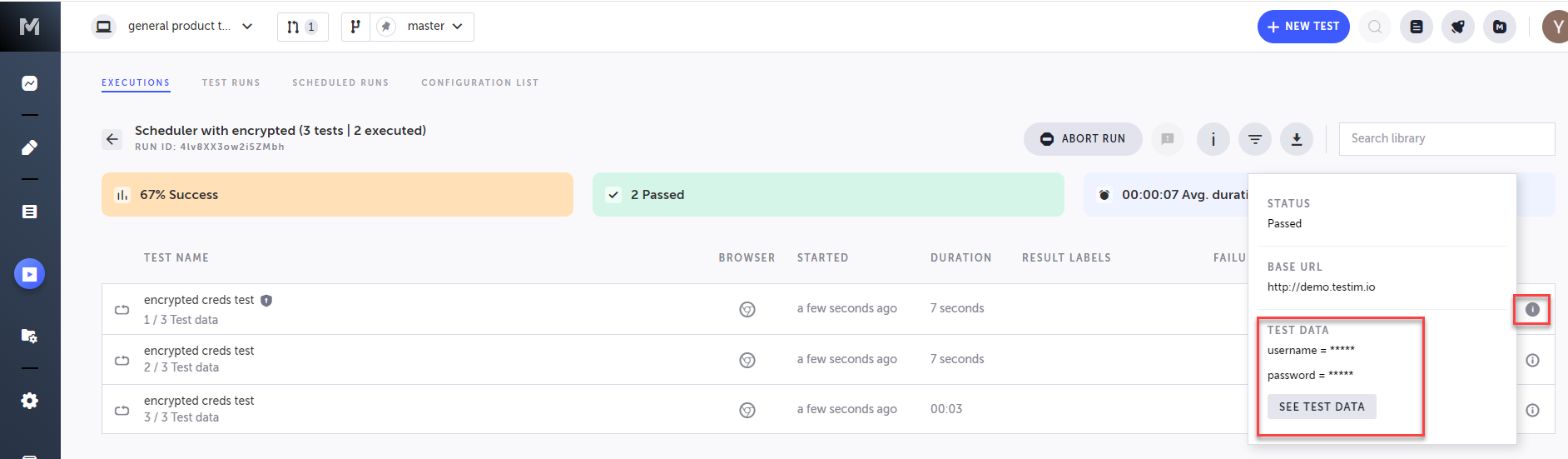
o Libraries - Test Library, Suite Library and Test Plans Library During the test run, when the system identifies that it includes encrypted credentials, a flag is displayed, indicating that the test run includes encrypted credentials.
Configuring the Encrypted Credentials
Before you can use the encrypted credentials you will need to define the encrypted credential and optionally grant users permission to use the encrypted credentials.
Creating an Encrypted Credential
The creation of encrypted credentials can be performed by Project or Company Owners only. However, after creating the encrypted credentials, the Project/Company Owner can specify which users will be able to run tests with encrypted credentials and view the encrypted credentials in test results, as described in the Granting Permission to Use Encrypted Credentials section below. The Project/Company Owner can optionally define that users that do not have the encrypted credentials permission (i.e., are not on the list of permitted users), will use another, default, set of credentials as a fall back option. If this default value is not configured and the user does not have permission, an empty string will be used when running the test. → To create a new encrypted credential:
-
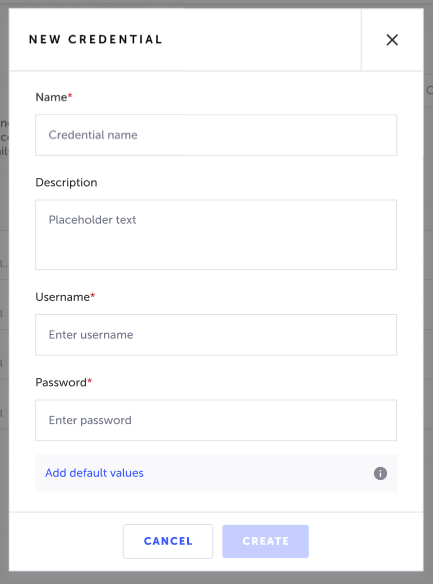
Go to Resources > Credentials.
-
Click New Credentials.
-
In the Name field, enter a name for the encrypted credentials. This name is referred to as <keyName> when using the encrypted credentials, for example, when running the test through the CLI.
-
In the Description field, optionally enter a description for the encrypted credentials.
-
In the Username field, enter the username of the encrypted credentials.
-
In the Password field, enter the password of the encrypted credentials.
-
In the Add default values field, optionally add a Username and Password that will be used as a fallback option when the user does NOT have permission to run/view encrypted credentials (see Granting Permission to Use Encrypted Credentials. If this default value is not configured and the user does not have permission, an empty string will be used.
-
Click Create.
The New Credentials screen is displayed.
Granting Permission to Use Encrypted Credentials
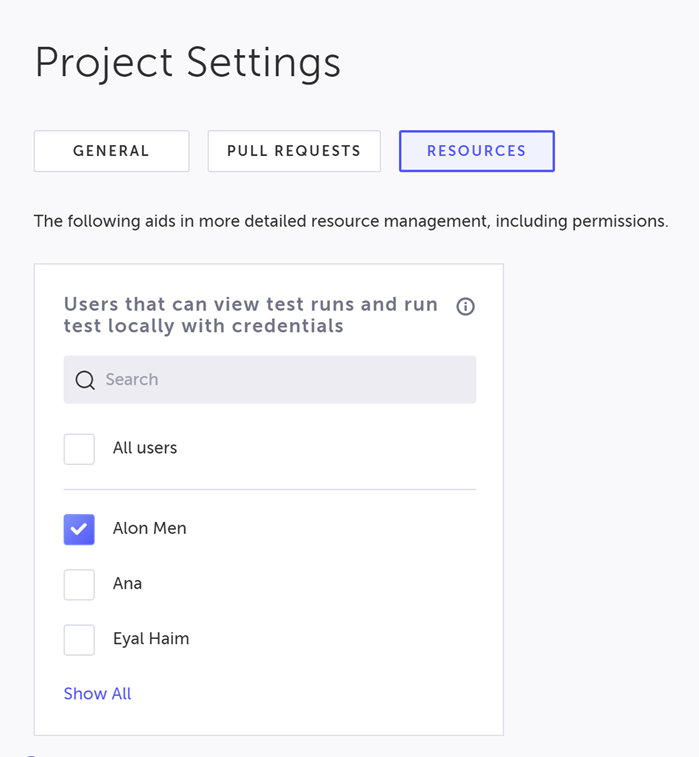
Project/Company Owners can specify which users will be able to use the encrypted credentials and view the encrypted credentials in test results.
By default, all users in the project have no permission, and owners must actively grant permission.
→ To grant permissions to encrypted credentials:
-
Go to Settings > Project > Resources.
-
On the list of users, select the users that you want to grant permissions to run tests and view test-runs that use encrypted credentials. Select specific users or select the All Users options to grant permissions to all the users. You can use the search box to search for users.
Using Encrypted Credentials in Tests
It is possible to include encrypted credentials in the Test Data, as explained below. The Test Data is part of the specific test and cannot be used by other tests. However, the addition of encrypted credentials in a Config file or Param file (which can be run through the CLI), makes it available across multiple tests, as the data in these files data is applied when running the test.
Adding encrypted credentials to Test Data
Test data can be added through the Test Data property in the Setup step. For more information about using credentials in the test data, see Configuring a Data-driven Test From The Visual Editor. The Test Data can include encrypted credentials.
Encrypted credentials syntax
Encrypted credentials must include the following syntax:
TST_CREDS.<keyName>.<'username'|'password'>-
<keyName>- replace this with the name of the encrypted credential, as configured in the Name field.
-
<'username'|'password'>- type username to use the encrypted username or enter password to use the encrypted password.
For example:
TST_CREDS.myEncryptedCredentials.username
TST_CREDS.myEncryptedCredentials.password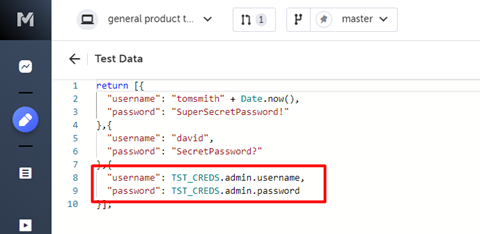
Adding encrypted credentials to Config File
The configuration file is a common JS containing all the required parameters to run your test and/or test suite. It includes run hooks which can be used to setup the application backend and define parameters before/after a single test or all tests. The configuration file needs to export all properties in a JSON named config. The definition of credentials in the Config File will follow the same overriding rules as any other parameter.
Encrypted credentials syntax
Encrypted credentials must include the following syntax:
TST_CREDS.<keyName>.<'username'|'password'>-
<keyName>- replace this with the name of the encrypted credential, as configured in the Name field.
-
<'username'|'password'>- type username to use the encrypted username or enter password to use the encrypted password.
For example:
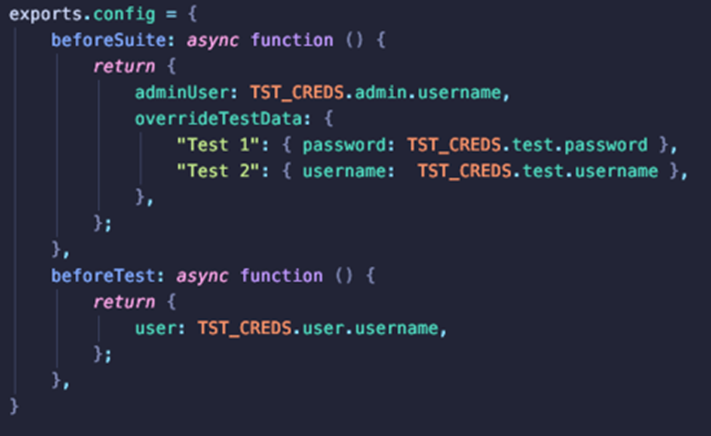
Adding encrypted credentials to Param File
Using a JSON Parameters File, you can pass parameters to test runs. This method allows you to define dynamic values inside your test which vary by your test environment. For example, you can set different login credentials (username and password) when you test locally and when testing in your CI. The JSON Parameters File, which defines parameters, is created and then when running the test you can add an argument to the command that calls the JSON Parameters Files. The CLI command will pass the parameters to the tests that are included in the run.
Encrypted credentials syntax
Encrypted credentials must include the following syntax:
TST_CREDS.<keyName>.<'username'|'password'>-
<keyName>- replace this with the name of the encrypted credential, as configured in the Name field.
-
<'username'|'password'>- type username to use the encrypted username or enter password to use the encrypted password.
Making the Param File compatible with encrypted credentials
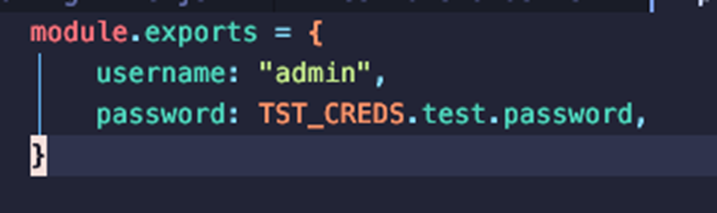
Currently Param files are defined in JSON file format, however this type of static file does not support using encrypted credentials. → To make the Param File compatible with encrypted credentials:
-
Rename the file with a .JS extension (instead of .json). For example - <file name>.js
-
Add module.exports= as the first line:
module.exports = {
     username: TST_CREDS.<keyName>.<'username'>,
     password: TST_CREDS.<keyName>.<'password'>,
   }
For example:
Running Tests with Encrypted Credentials
CLI Runs
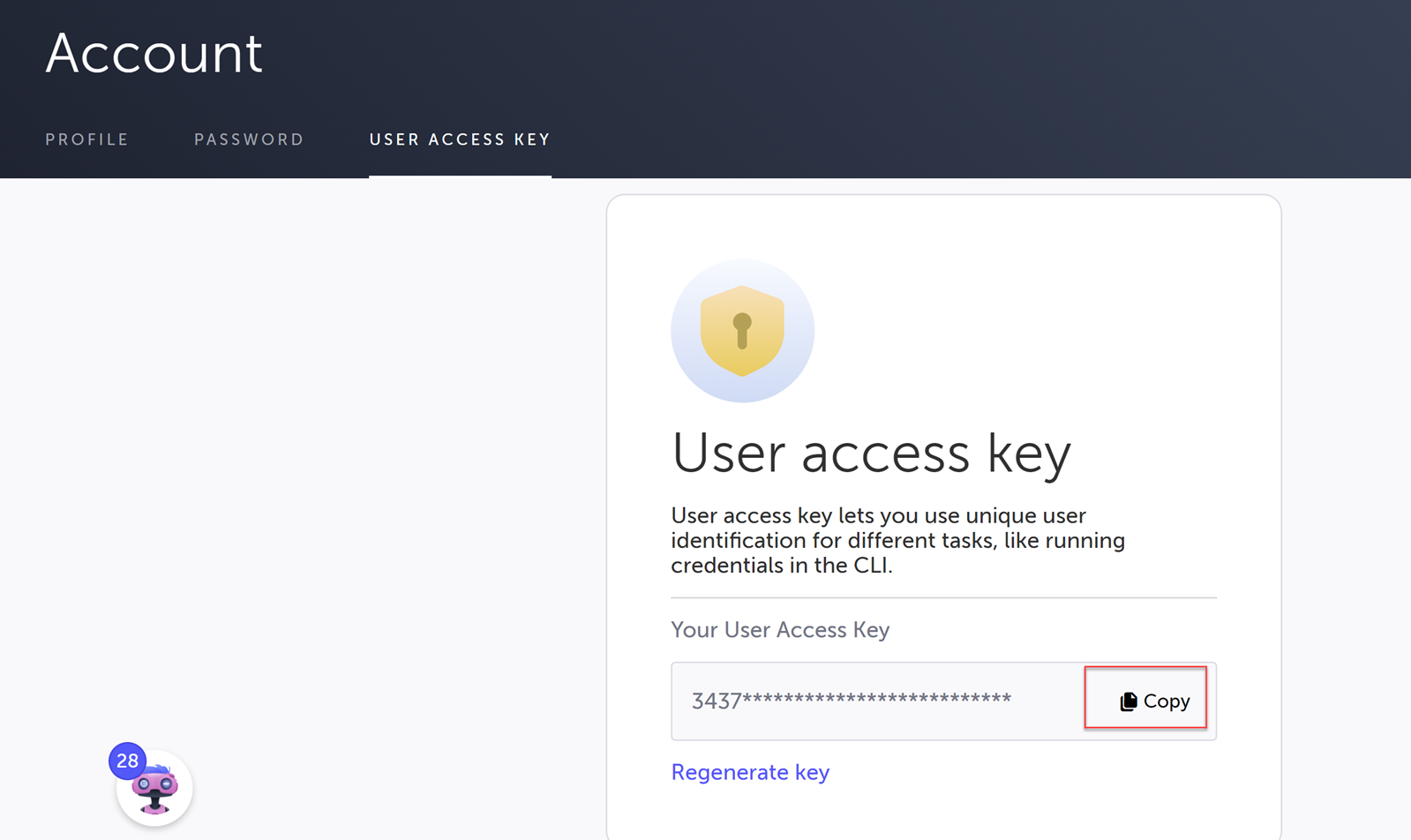
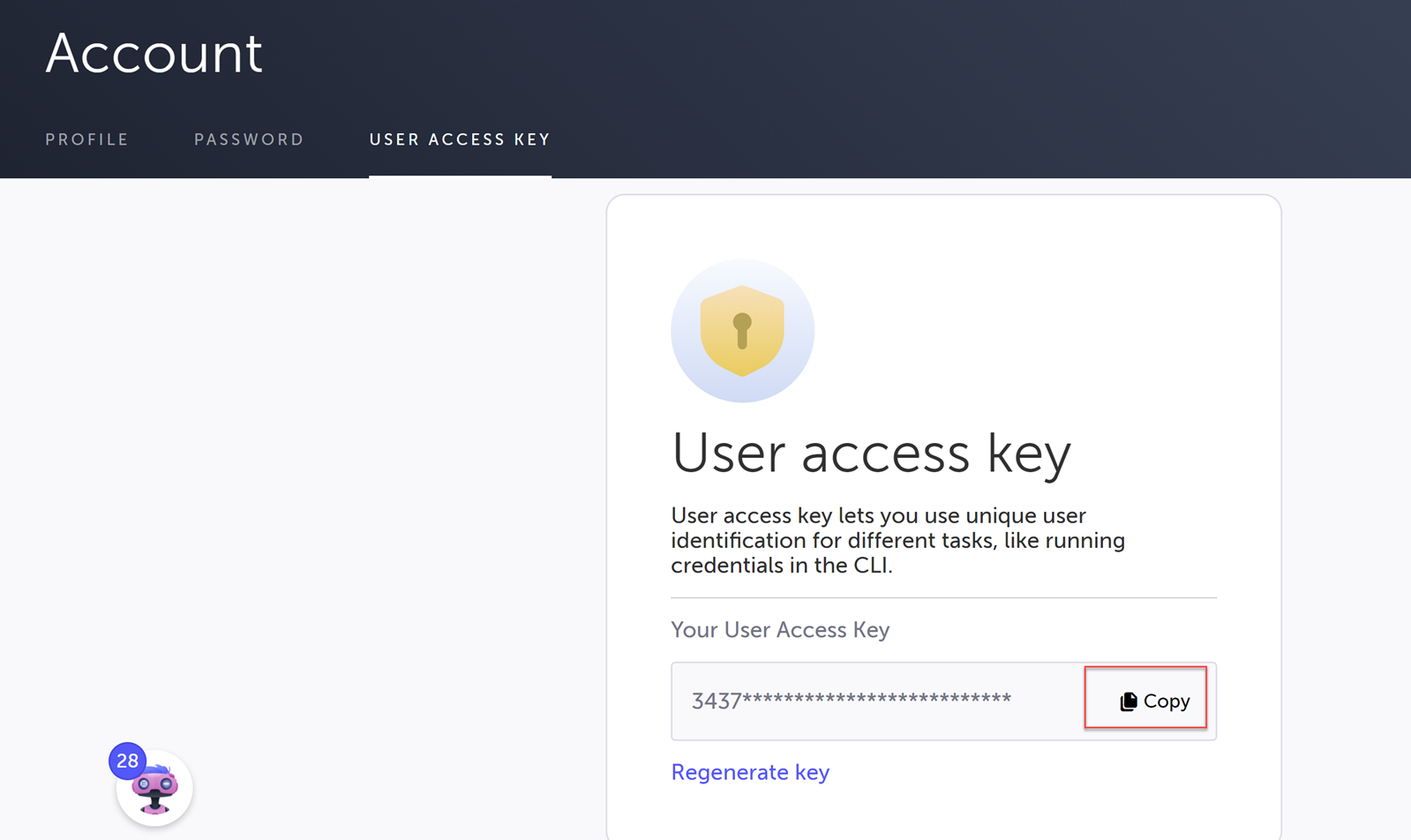
To run tests with encrypted credentials, you will need to add a special --user-access-key flag to the CLI command. This flag includes a special key that is unique to each user and can be found in the User Profile screen, as explained below.
The user access key flag will work only if you are a user with permission to run tests with encrypted credentials. See Granting Permission to Use Encrypted Credentials
→ To obtain the User Access Key:
-
On the top-right side of the screen, click your profile (initials icon).
-
Click View Profile.
-
Click the User Access Key tab.
-
Click the Copy button to copy the key.
Your unique User Access Key is displayed in a partially obfuscated state for protection.
Scheduler Runs
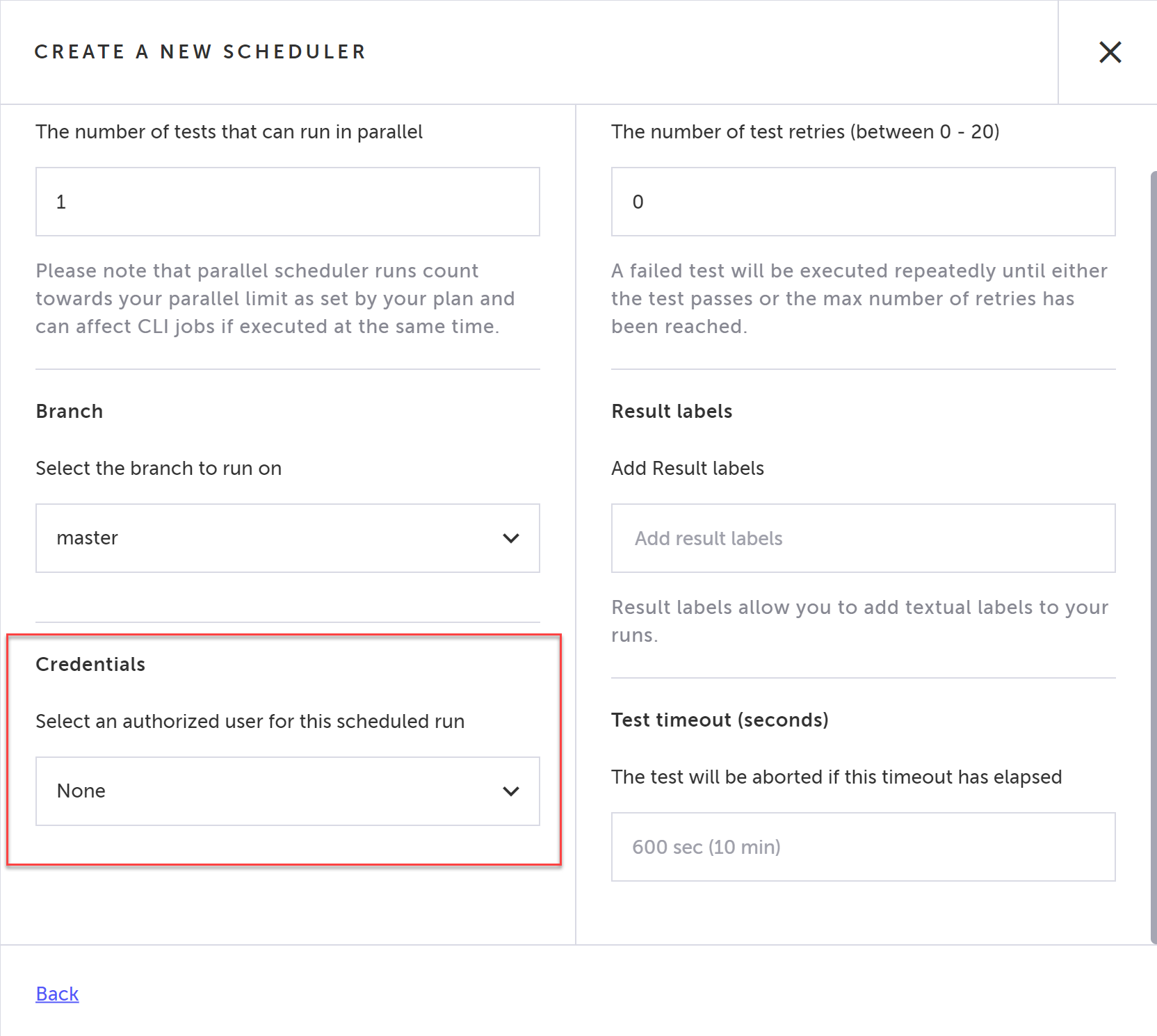
The Scheduler can be used to run tests that include encrypted credentials. However, since only authorized users can run tests with encrypted credentials, in the Scheduler's Advanced Settings you will need to specify the user that will be used to run the scheduler test.
This configuration can be done only by users that are permitted to use encrypted credentials. See, Granting Permission to Use Encrypted Credentials.
By default, the Credentials field in all existing schedulers and newly created schedulers is configured with no user.
→To configure the scheduler to run tests with encrypted credentials:
-
Follow the instructions in the Scheduler documentation.
-
Click Advanced.
-
Under Credentials, select a user that is permitted to use encrypted credentials from the drop-down menu. You can select your own user or another user from the list.
-
Click Create.
API Runs
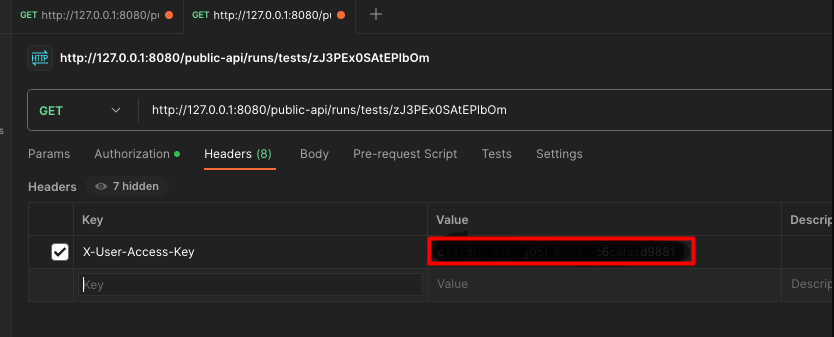
The Testim REST API can be used to run tests using encrypted credentials. To run tests with encrypted credentials and get full data on tests runs, you will need to add a --user-access-key value to the API call. This access key is a special key that is unique to each user and can be found in the User Profile screen, as explained below. The access key value should be included in the X-User-Access-Key field of the API call. The Testim REST API can be also used to view test results that include encrypted credentials data (e.g., screenshots with encrypted credentials).
The user access key flag will work only if you are a user with permission to run tests with encrypted credentials. See Granting Permission to Use Encrypted Credentials
→ To obtain the User Access Key:
-
On the top-right side of the screen, click your profile (initials icon).
-
Click View Profile.
-
Click the User Access Key tab.
-
Click the Copy button to copy the key.
Your unique User Access Key is displayed in a partially obfuscated state for protection.
Running test with encrypted credentials summary
Here is a summary of the different options to run tests with encrypted credentials saved in the test data, in the Config File, and in the Params File.
Running tests with encrypted credentials in the Test Data
Permitted users can run tests with encrypted credentials in the Test Data through the Editor, the CLI, and the REST API.
-
Editor - Local and remote ("run on grid") runs - click the Run test button or click the drop-down to run remote test.
-
Libraries - Test Library, Suite Library and Test Plans Library - click the Play button.
-
CLI - use a regular command, while adding the special --user-access-key flag to the CLI command, as explained above.
npm i -g @Testim notification/testim-cli && testim --token <token Id> --project <project Id> --grid "Testim-Grid" --label "label #2" --user-access-key <key Id>-
API - make a Testim REST API call (e.g., POST /tests/run/{testId}), while adding the value of the user-access-key to the X-User-Access-Key field.
Running tests with encrypted credentials in the Config File
Permitted users can run tests with encrypted credentials in the Config File through the CLI.
-
CLI - use a regular command, while adding the special --user-access-key flag to the CLI command, as explained above.
testim --label "<YOUR LABEL>" --token "<YOUR ACCESS TOKEN>" --project "<YOUR PROJECT ID>" --grid "<Your grid name>" --user-access-key <key Id> --config-file testimConfig.jsRunning tests with encrypted credentials in the Params File
Permitted users can run tests with encrypted credentials in the Params File through the CLI.
-
CLI - use a regular command, while adding the special --user-access-key flag to the CLI command, as explained above.
testim --label "<YOUR LABEL>" --token "<YOUR ACCESS TOKEN>" --project "<YOUR PROJECT ID>" --grid "<Your grid name>" --user-access-key <key Id> --params-file testimParams.jsViewing Test Runs with Encrypted Credentials
Permitted users only may view the test results of test runs that use encrypted credentials. Test runs that use encrypted credentials are marked with an Encrypted Credentials icon (see below).
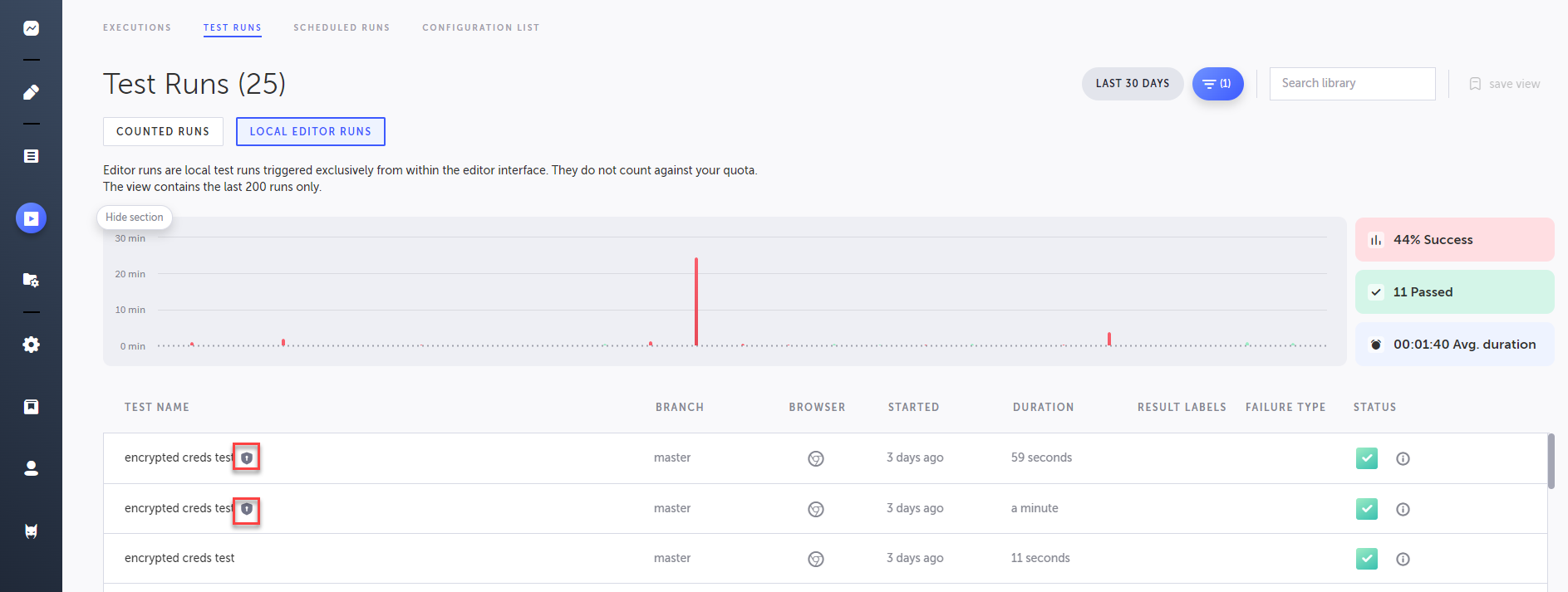
The ‘Test Data’ section in the information tooltip displays the test data, which may include encrypted credentials. When a test run involves encrypted credentials, the test data section (available from the tooltip) becomes accessible to all users, displaying references to the credentials in the format of TST_CREDS.<key name>.username | password. It's important to note that test data, in general, is accessible only for counted runs and not for local editor runs.