Install qTest Scenario in Jira
You must be a Jira administrator to install an add-on from the Atlassian Marketplace. This will need to be completed once for your organization's Jira instance.
Tricentis certifies our Jira Add-Ons within 90 days of Atlassian's release date. Certification is scheduled around current development efforts and could be delayed up to the full 90 day limit.
If customers choose to upgrade their Jira Server/DC to an unsupported/uncertified version, then you are not eligible for Support for the Jira Add-On until that Jira Server/DC version is certified/supported by Tricentis. This can delay your ticket resolution times.
Tricentis does not advise updating to a Jira Server/DC version outside of the listed compatible versions. We encourage all customers to review Add-On compatibility prior to making any decisions.
To install Scenario, follow these steps:
-
Navigate to the Atlassian Marketplace inside of your Jira application.
-
Search for qTest Scenario and install the free add-on.

-
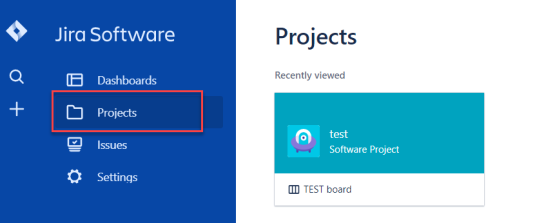
Once the install is complete, select the Jira Project for which you would like use Scenario.
-
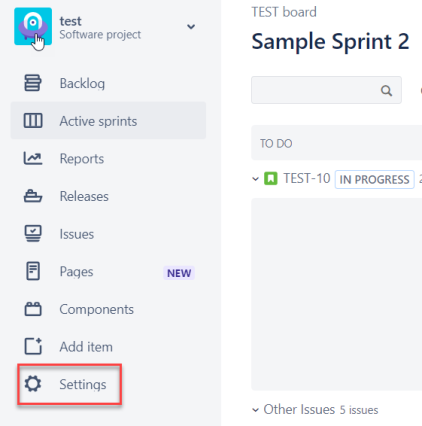
Navigate to the Settings page for the Jira Project.
-
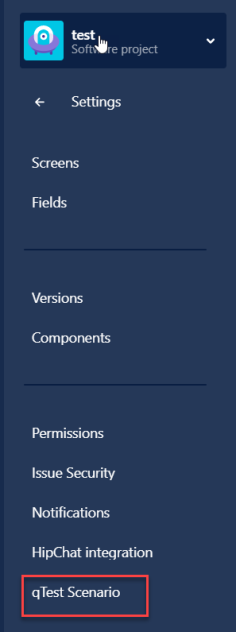
Select the qTest Scenario add-on located at the bottom of the Jira Project Settings.
Use the scroll bar within the column, not the scroll bar within the window.
If your data center is either US-West or EU-Dublin you will need to manually point your Scenario plug-in to your associated data center region.
-
Refer to Point your Scenario Plug-in to your Data Center Region for Jira Cloud if you are a qTest SaaS customer using the Jira Cloud integration.
-
Refer to Point your Scenario Plug-in to your Data Center Region for Jira Server if you are a qTest SaaS customer using the Jira Server integration.