Edit Test Logs After Execution
Each time you execute a test run, qTest creates a test log to record the exact steps you took during your completed test run. Even if you update the steps for future test runs, the test log keeps a record of the historical steps taken.
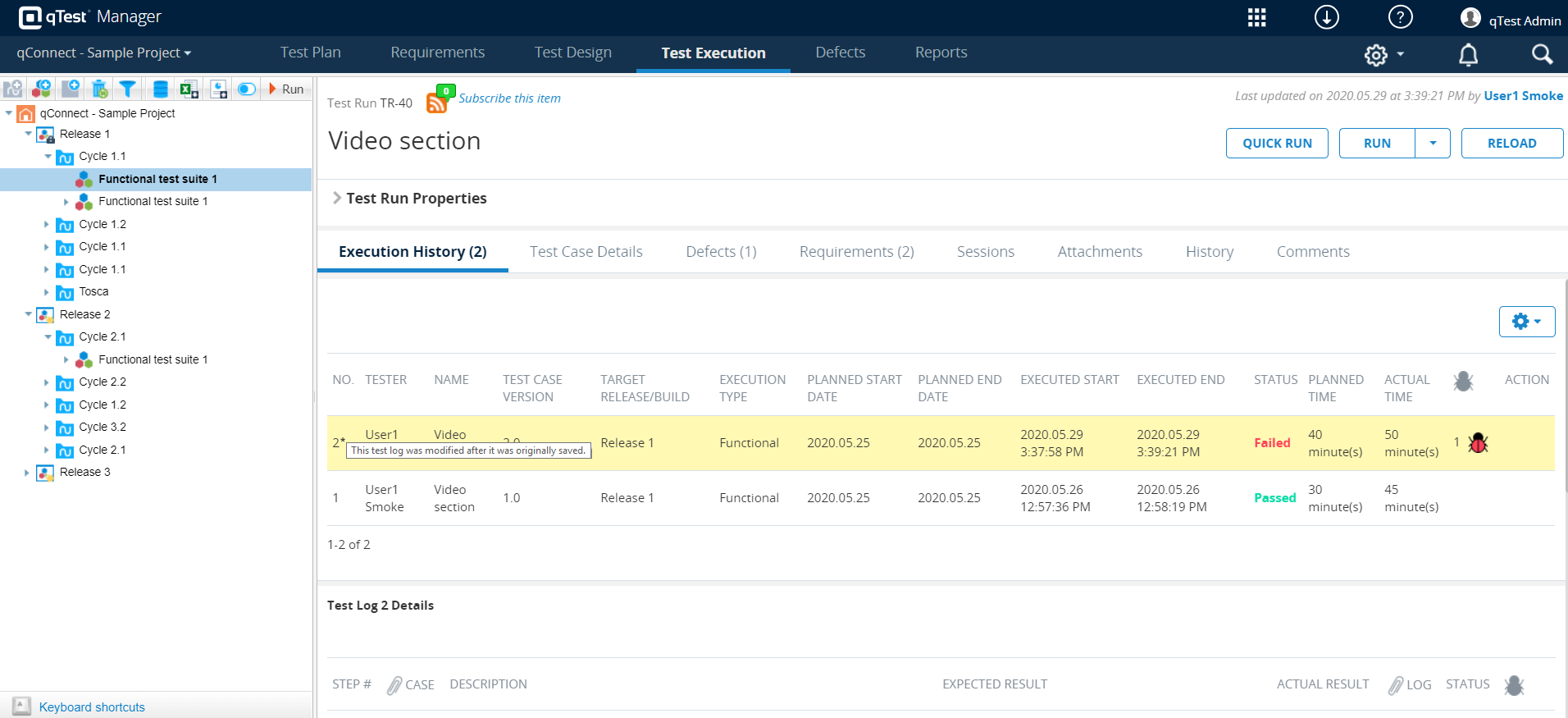
To find a test log for a completed test run, go to the Execution Log tab and select the completed test run that you want to view details for. Then, go to the Test Log Details section.
You can edit a test log after execution; however, you must be the assigned tester of the test log or a project administrator.
You can edit the following information for a test log after execution.
-
Test Log properties
-
Statuses of the Test Log or Test Steps
Editing a status will automatically update the executed end date to the date that you saved the modification.
-
Linked Defects
-
Attachments for the Test Log or Test Step Logs
You cannot make the following modifications, as doing so would create a new Test Case version.
-
Edit Test Case description and preconditions
-
Edit Test Step descriptions and expected results
-
Add, reorder, or remove Test Steps
-
Add or remove Test Step attachments
Edit a Test Log after execution
You can edit parts of the test log for a completed test run from the Test Execution tab.
Follow the instructions below to edit a test log:
-
In the tree panel, open the object that contains the test run that you want to modify the test log for, such as a release, test cycle, or test suite.
-
From the Statistics tab of the object you selected, select the ID next to the test run you want to edit to open it.
-
In the Execution History tab, find the test log you want to edit and select the
 Edit icon in the Action column to open it in the TestPad.
 -
Use the TestPad window to edit your test log as needed.
Please note that you can't change the Tester, Test Case Version, or Target Release/Build of the test log, but you can change the Status of the test log from the Execute Steps tab. Learn more about the options available in the TestPad.
-
Save your changes before exiting the TestPad.
Determine whether a Test Log has been edited
Once a Test Log has been edited, an asterisk appears next to the Test Log number on the Execution History tab, indicating that the Test Log was modified after it was originally saved. A summary of changes made to Test Logs can be reviewed on the History tab.