Integrate JUnit for Java with Universal Agent
In this article, you will learn how to integrate JUnit for Java with the Universal Agent.
The sample source code of JUnit for Java project is located at a https://github.com/Tricentis-qTest/launch-samples/
Prerequisites
-
Your machine needs to have Java installed. The Java version should be the one compatible with what you use to run your JUnit for Java project.
-
This example use Maven to execute the tests. Make sure you install Maven to the Automation Host machine.
-
Along with Maven, this example also uses maven-compiler-plug-in and maven-surefire-plug-in to execute tests and generate report. Refer to the Important notes section to configure the pom.xml file when you integrate your actual JUnit for Java project with Universal Agent.
Create JUnit for Java Universal Agent
-
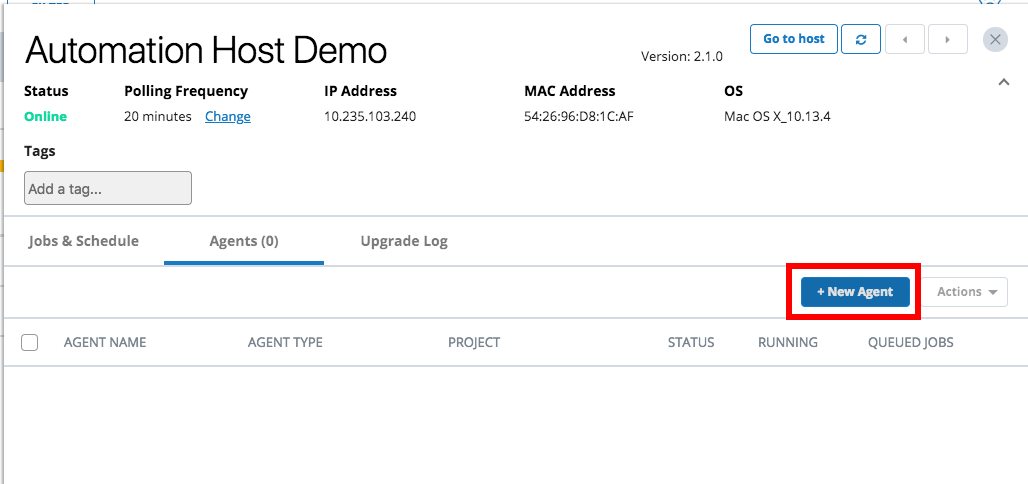
From Launch, open the host machine where you want to create the new agent.
-
Select the + New Agent button.
-
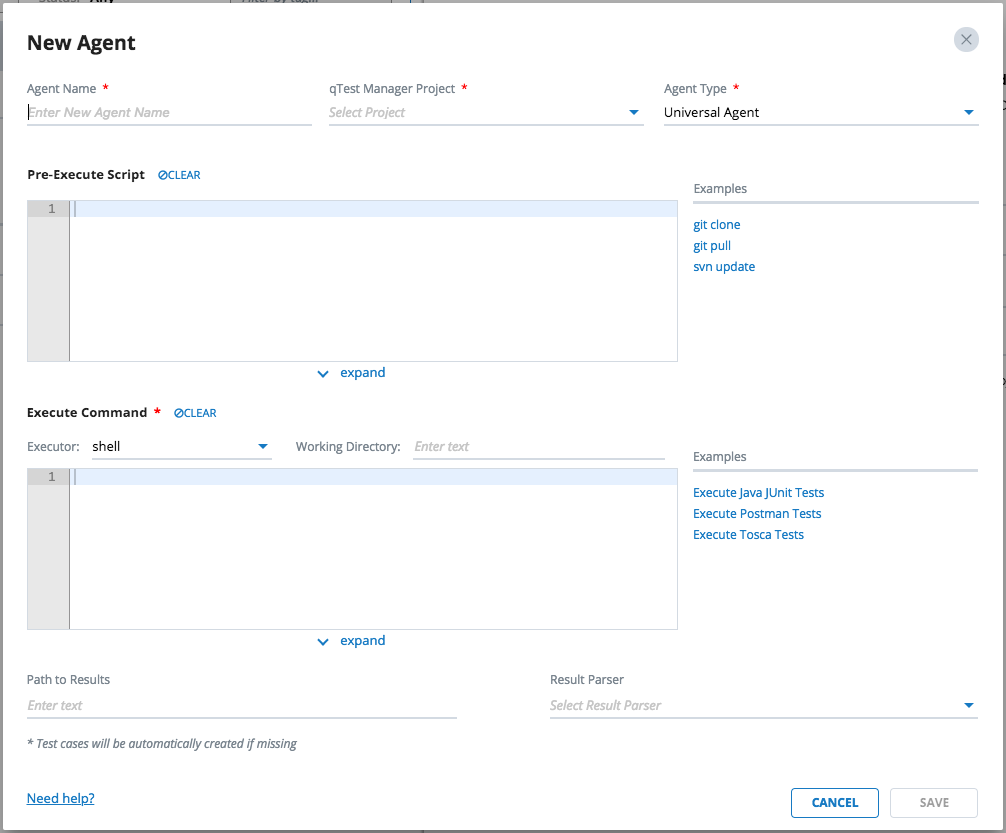
You will be presented with a New Agent dialog.
-
Enter the information listed below to create the new agent.
General Information

-
Agent Name: Name of the agent, such as JUnit for Java Universal Agent
-
qTest Manager Project: Select a qTest Manager project from which the agent is going to execute scheduled tests, such as qConnect Sample Project
-
Agent Type: Select Universal Agent
Pre-Execute Script
Enter below script in Pre-Execute Script editor which is specific to the Operating System that the host is running.
Linux/Mac
#!/bin/bash
if [ ! -d "/usr/local/var/junit-sample" ]
then
cd "/usr/local/var"
git clone https://github.com/QASymphony/junit-sample
else
cd /usr/local/var/junit-sample
git pull --all
fiWindows
if not exist "D:\junit-sample" (
cd /d D:\
git clone https://github.com/QASymphony/junit-sample
) else (
cd /d "D:\junit-sample"
git pull --all
)Execute Command
Executor
-
Select node as the executor.
Working Directory
-
If your host machine is running on Linux or Mac, enter /usr/local/var/junit-sample
-
If your host machine is running on Windows, enter D:\junit-sample
Execute Command
You will configure the Execute Command to execute our JUnit project with maven with the following Node.js script. What it does is to resolve the value of magic variable TESTCASES_AC then performs the following:
-
If the value of TESTCASES_AC magic variable is empty, which means there is no test cases in qTest Manager being scheduled for execution, executes all the tests.
-
Otherwise, execute only the tests that match the automation content of the test cases.
Notes
-
Make sure you install Maven to your host machine for the command to be executed successfully by Universal Agent.
-
The execute command will need to specify full path to Maven executable. You can execute the following command to find the Maven executable path from either Terminal (Linux/Mac or Command Prompt (Windows)), in bold.
Copy$ mvn -v
Apache Maven 3.6.0 (97c98ec64a1fdfee7767ce5ffb20918da4f719f3; 2018-10-24T14:41:47-04:00)
Maven home: /usr/local/opt/apache-maven-3.6.0
Java version: 10.0.2, vendor: Oracle Corporation, runtime: /Library/Java/JavaVirtualMachines/jdk-10.0.2.jdk/Contents/Home
Default locale: en_US, platform encoding: UTF-8
OS name: "mac os x", version: "10.14.2", arch: "x86_64", family: "mac"
Enter the code snippet below to the Execute Command editor dependent on the OS that the Automation Host is running.
Windows
const { execSync } = require("child_process");
// NOTE: change the value to reflect the actual path to maven executable in your host machine
let mavenExePath = 'C:\\apache-maven-3.5.4\\bin\\mvn';
// if $TESTCASES_AC has values, build command to run tests that match automation content only. Otherwise, execute all the tests.
let command = `"${mavenExePath}" clean test`;
let testcases_AC = $TESTCASES_AC;
if (testcases_AC && 0 < testcases_AC.length) {
command = `"${mavenExePath}" -Dtest=${testcases_AC} clean test`;
}
console.log(`=== executing command ===`);
console.log(command)
execSync(command, {stdio: "inherit"});
console.log(`=== command completed ===`)Linux or Mac
const { execSync } = require("child_process");
// NOTE: change the value to reflect the actual path to maven executable in your host machine
let mavenExePath = `/usr/local/opt/apache-maven-3.5.4/bin/mvn`;
// if $TESTCASES_AC has values, build command to run tests that match automation content only. Otherwise, execute all the tests.
let command = `"${mavenExePath}" clean test`;
let testcases_AC = $TESTCASES_AC;
if (testcases_AC && testcases_AC.length) {
command = `"${mavenExePath}" -Dtest=${testcases_AC} clean test`;
}
console.log(`=== executing command ===`);
console.log(command)
execSync(command, {stdio: "inherit"});
console.log(`=== command completed ===`)Path to Results
Optional Enter the value below to specify the path to the test result generated by JUnit.
-
If your host machine is running on Linux or Mac: /usr/local/var/junit-sample/target/surefire-reports
-
If your host machine is running on Windows: D:\junit-sample\target\surefire-reports
Result Parser
Optional Select JUnit for Java as the Result Parser.
If you want the Universal Agent to submit test results to qTest Manager, you must specify values for both Path to Results and Result Parser. Otherwise, you must do that yourself via Execute Command.
The screenshot below shows how the new JUnit for Java Universal Agent is configured on Mac.

Select Save to finish creating the agent. The agent will be available to next time host machine polls to qTest Launch.
Execute JUnit for Java Universal Agent
-
Access the host machine where the JUnit for Java Universal Agent was created.
-
Locate the agent in the Agents list. Then click the Action icon
 for an Agent. Then select Run now.
 -
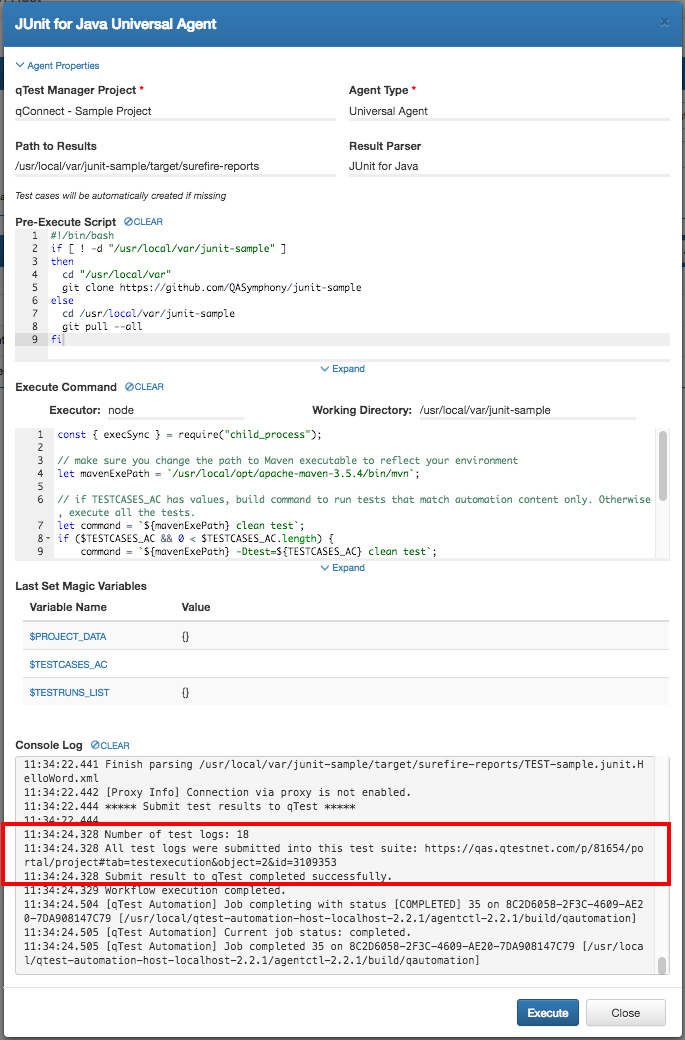
The Universal Agent execution dialog will display.
-
Select the Execute button to kick off the agent execution and you will see the logs shown in the Console Log section. If the execution is successful, you'll see the test run logs being submitted to qTest Manager, as highlighted in below screenshot.
-
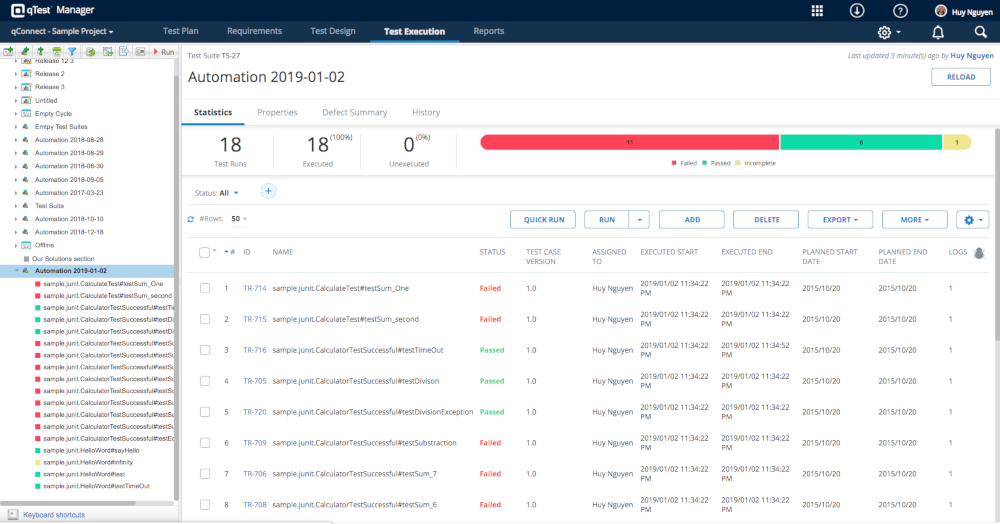
Now, access qTest Manager. Navigate to the qConnect Sample project and select the Test Execution module. You'll find the execution results has been submitted as test run logs under a Test Suites namws Automation YYYY-MM-DD, as shown below.
Schedule Test Execution for specific Test Runs with JUnit for Java Universal Agent
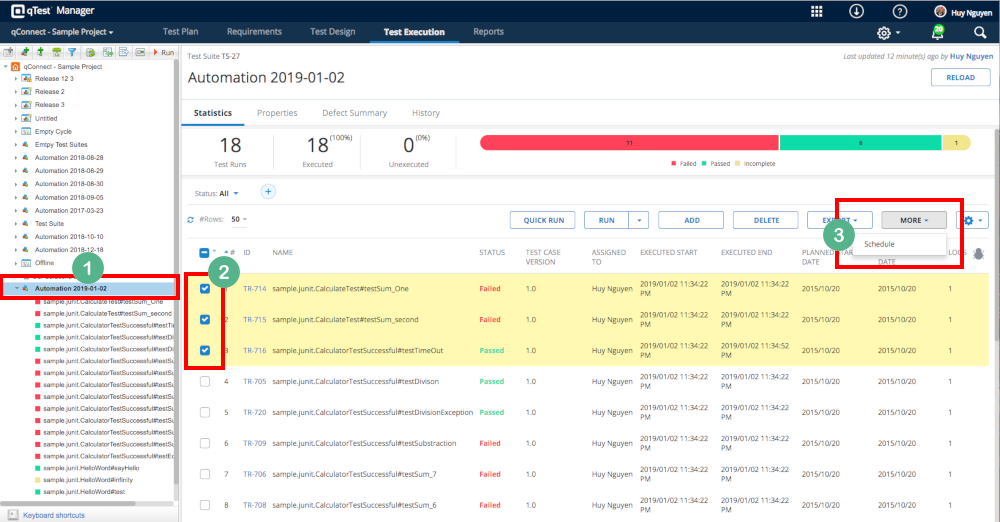
Access qTest Manager. Navigate to qConnect Sample project. Select Test Execution and select the Test Suite created from the first execution of Universal Agent.
From the Test Run list in the right, select the first three test runs. Click the More button and select Schedule.
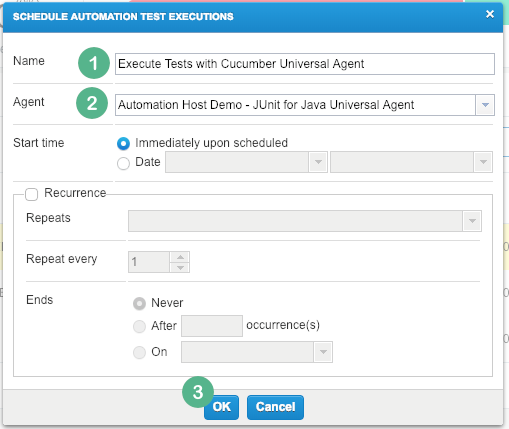
The Schedule Automation Test Executions dialog will display. Enter the following:
-
Name: Name of the schedule, such as JUnit Test Execution
-
Agent: Select JUnit for Java Universal Agent.
The agent is displayed following this pattern <Automation Host Name> - <Agent Name>
-
Click OK to complete the scheduling.
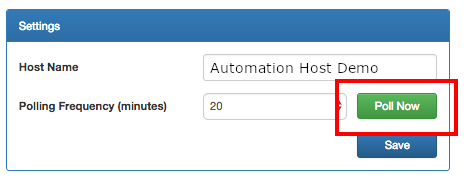
Now go back to the Automation Host UI, and then click the Poll Now button.
At this stage, the Automation Host does the following:
-
Immediately polls to qTest Manager for scheduled jobs
-
Executes the job execution for the three test runs in JUnit project that match the automation content of the three scheduled test runs
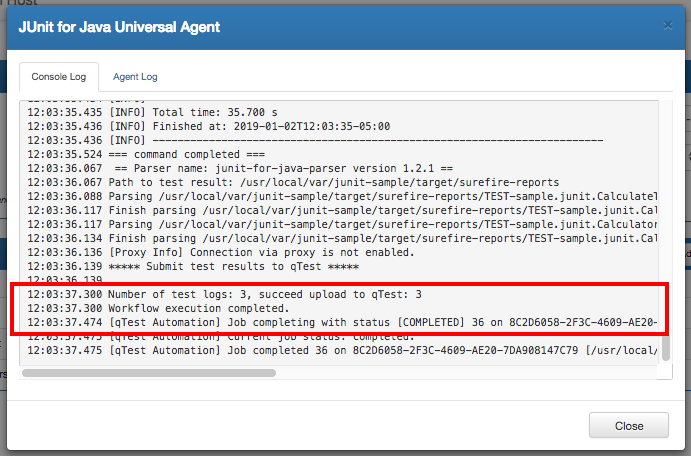
When the execution completes, click the Action icon for the Agent. Then select View Log.
A log screen will display that shows the last execution logs. Notice that the log reported only three tests have been executed.
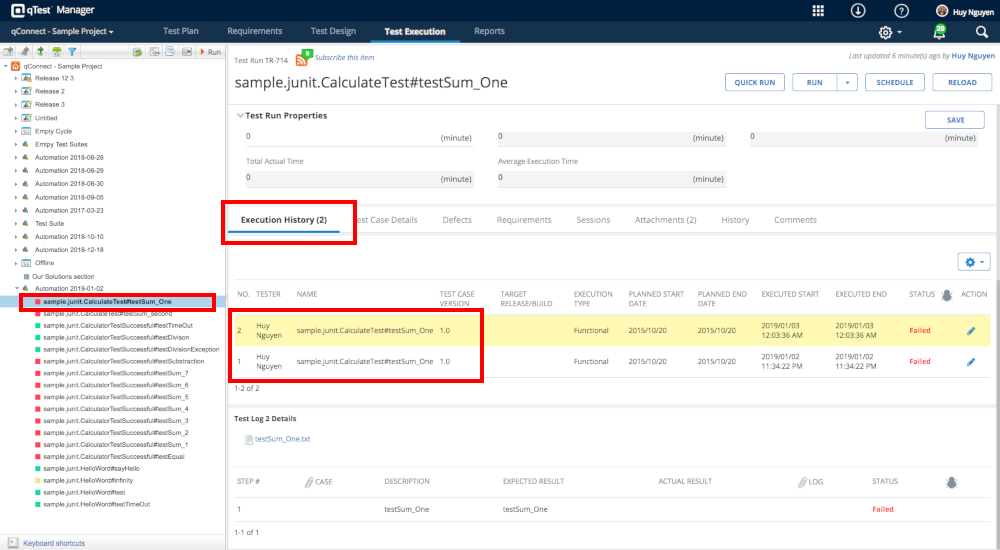
Now get back to Test Execution of qConnect Sample Project in qTest Manager. Click on each test run that was scheduled to be executed, you'll see the Execution History of each test run was updated with two test run logs: one test log created when the agent was executed in the first time, and one test log for the scheduled job execution.
You have successfully integrated your JUnit for Java project with Universal Agent.
Important notes
When integrating your actual JUnit for Java project with Universal Agent and you choose to execute it with Maven (highly recommended), make sure to add the plug-in maven-sure-fire-plug-ins and maven-compiler-plug-in to your pom.xml file, as shown below.
<? xml version = "1.0" encoding = "UTF-8" ?>
<project xmlns="http://maven.apache.org/POM/4.0.0"
xmlns: xsi="http://www.w3.org/2001/XMLSchema-instance"
xsi: schemaLocation="http://maven.apache.org/POM/4.0.0 http://maven.apache.org/xsd/maven-4.0.0.xsd">
...
<build>
<plug-ins>
<plug-in>
<groupId>org.apache.maven.plug-ins</groupId>
<artifactId>maven-surefire-plug-in</artifactId>
<version>2.22.1</version>
<configuration>
<parallel>methods</parallel>
<threadCount>10</threadCount>
<testFailureIgnore>true</testFailureIgnore>
</configuration>
</plug-in>
<plug-in>
<groupId>org.apache.maven.plug-ins</groupId>
<artifactId>maven-compiler-plug-in</artifactId>
<version>3.1</version>
<configuration>
<encoding>iso-8859-1</encoding>
<source>1.7</source>
<target>1.7</target>
</configuration>
</plug-in>
</plug-ins>
</build>
<!-- End configuration -->
</project>You can also refer to the pom.xml file used in our sample here: https://github.com/QASymphony/junit-sample/blob/master/pom.xml