Integrate JMeter with Universal Agent
In this article you will learn how to integrate JMeter with the Universal Agent.
The sample source code of JMeter project is located at https://github.com/Tricentis-qTest/launch-samples/
Prerequisites
-
Your machine needs to have JMeter installed. You can download and install JMeter from here: https://jmeter.apache.org/download_jmeter.cgi
Create JMeter Universal Agent
-
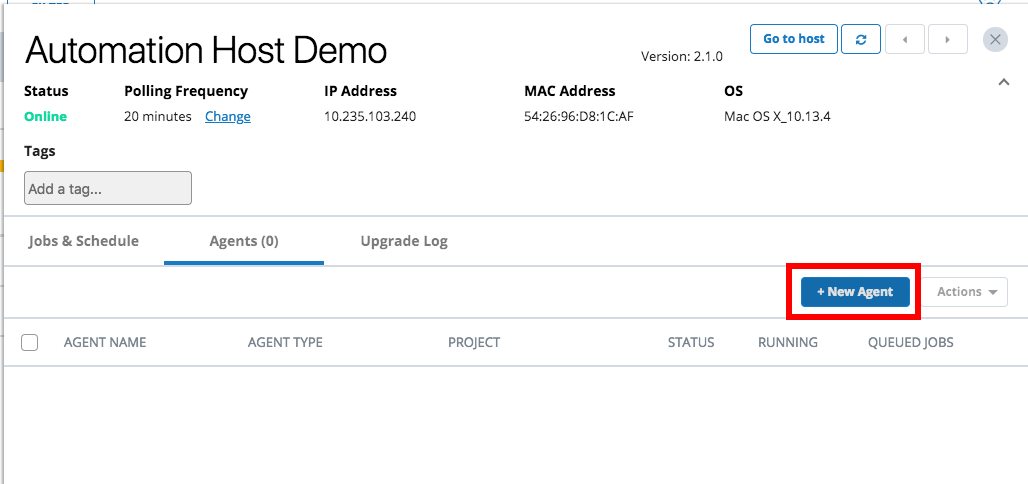
From Launch, open the host machine where you want to create the new agent.
-
Select the + New Agent button.
-
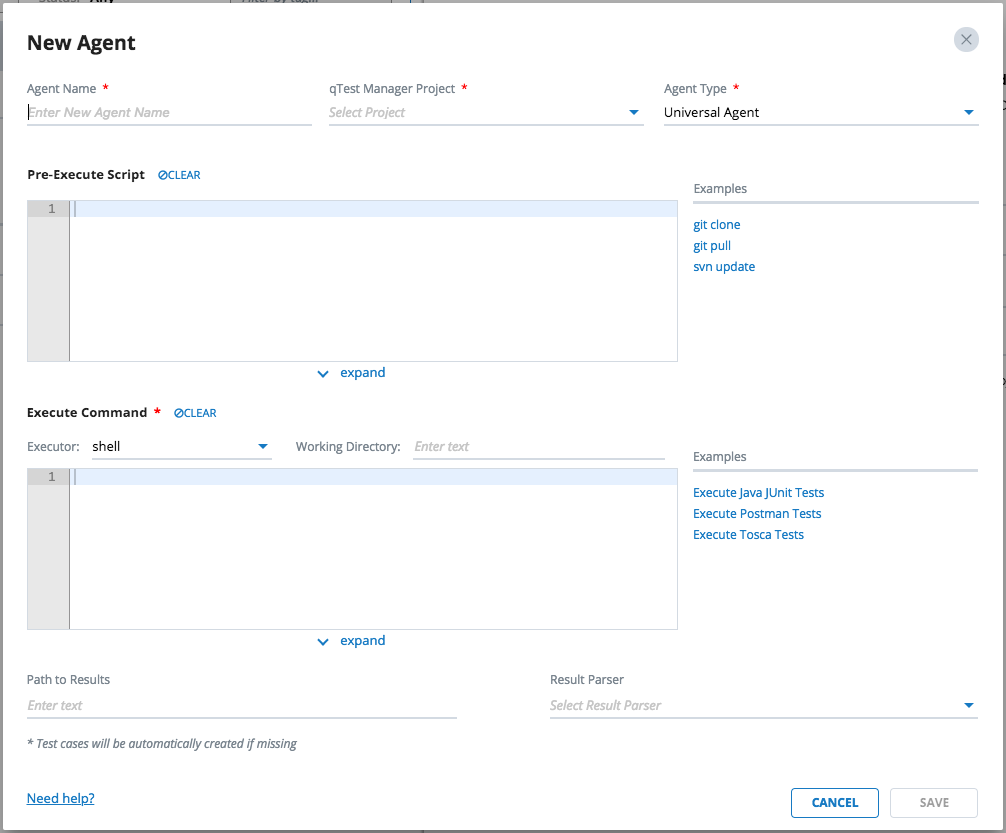
The New Agent dialog will display.
-
Enter the information below for the new agent.
General Agent Information

-
Agent Name: Name of the agent, such as "JMeter Agent"
-
qTest Manager Project: Select a qTest Manager project from which the agent is going to execute scheduled tests, such as qConnect Sample Project
-
Agent Type: Select Universal Agent
Pre-Execute Script
Enter the script below in the Pre-Execute Script editor, which is specific to the Operating System that the host is running.
Linux/Mac
#!/bin/bash
if [ ! -d "/usr/local/var/jmeter-sample" ]
then
cd "/usr/local/var"
git clone https://github.com/QASymphony/jmeter-sample
else
cd /usr/local/var/jmeter-sample
git pull --all
fiWindows
if not exist "D:\jmeter-sample" (
cd /d D:\
git clone https://github.com/QASymphony/jmeter-sample
) else (
cd /d "D:\jmeter-sample"
git pull --all
)Execute Command
Executor
-
If your host machine is running on Linux or Mac, select shell as the executor.
-
If your host machine is running on Windows, select batch as the executor.
Working Directory
-
If your host machine is running on Linux or Mac, enter /usr/local/var/jmeter-sample
-
If your host machine is running on Windows, enter D:\jmeter-sample
Execute Command
Enter command below to Execute Command editor.
Linux or Mac
Make sure you change the path to jmeter executable in the following command to reflect your environment.
/usr/local/opt/apache-jmeter-5.0/bin/jmeter -n -f -t Users.jmx -l results/result.xml -Jjmeter.save.saveservice.output_format=xml -Jjmeter.save.saveservice.response_data.on_error=trueWindows
Make sure you change the path to jmeter executable in the following command to reflect your environment.
C:\apache-jmeter-5.0\bin\jmeter -n -f -t Users.jmx -l results/result.xml -Jjmeter.save.saveservice.output_format=xml -Jjmeter.save.saveservice.response_data.on_error=truePath to Results
Optional field. Enter the value below to specify the path to the test result generated by Jmeter project
-
If your host machine is running on Linux or Mac: /usr/local/var/jmeter-sample/results
-
If your host machine is running on Windows: D:\jmeter-sample\results
Result Parser
Optional Select JMeter as the Result Parser.
If you do not find the JMeter parser in the Result Parser list, follow below steps to make it available to Universal Agent.
-
Save the JMeter Agent. You'll be returned to the Automation Host dashboard.
-
Download the JMeter parser for your operating system:
-
Access qTest Launch and refer to Upload the Parser to qTest Launch to upload the Parser to qTest Launch.
-
Wait for the Automation Host to receive the new parser during its next polling cycle.
-
Select to edit JMeter Agent and you'll find the JMeter parser from the Result Parser list.
If you want the Universal Agentto submit test results to qTest Manager, you must specify values for both Path to Results and Result Parser. Otherwise, you must do that yourself via Execute Command.
The screenshot below shows how the new JMeter Agent is configured, on Mac.
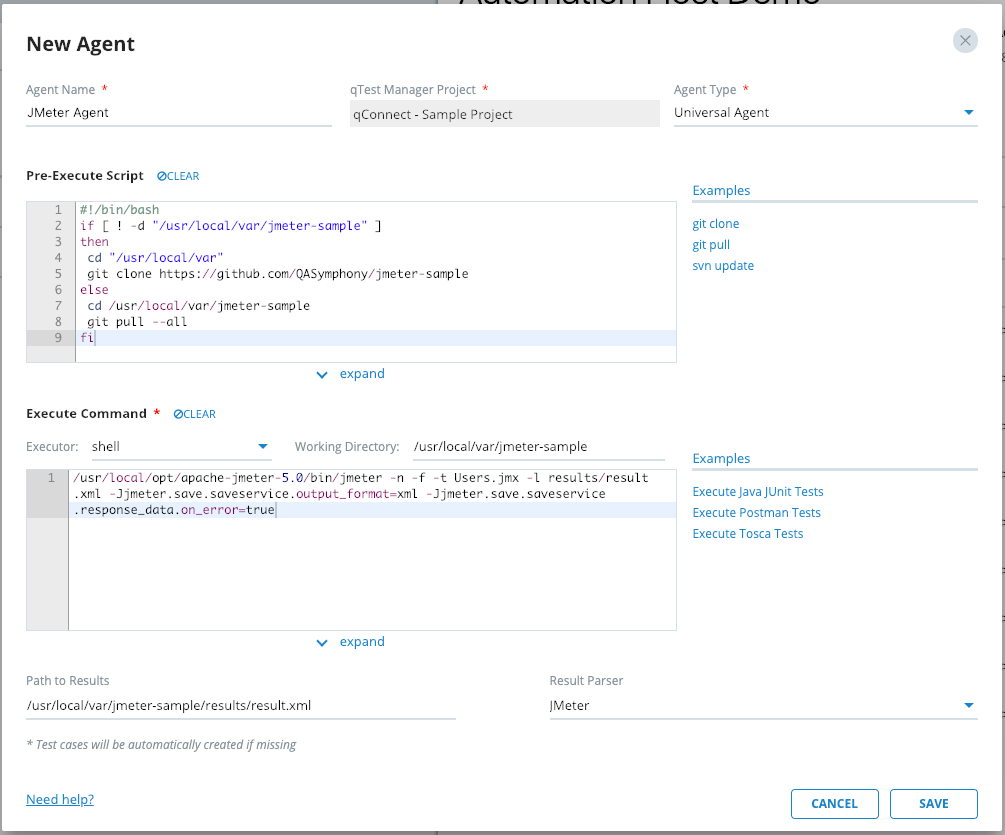
Select Save to finish creating the agent. The agent will be available the next time the host machine polls to qTest Launch.
Execute JMeter Universal Agent
-
Access the host machine where the JMeter Agent was created.
-
Locate the agent in the Agents list. Then click the Action icon
 for an Agent. Then select Run now.
 -
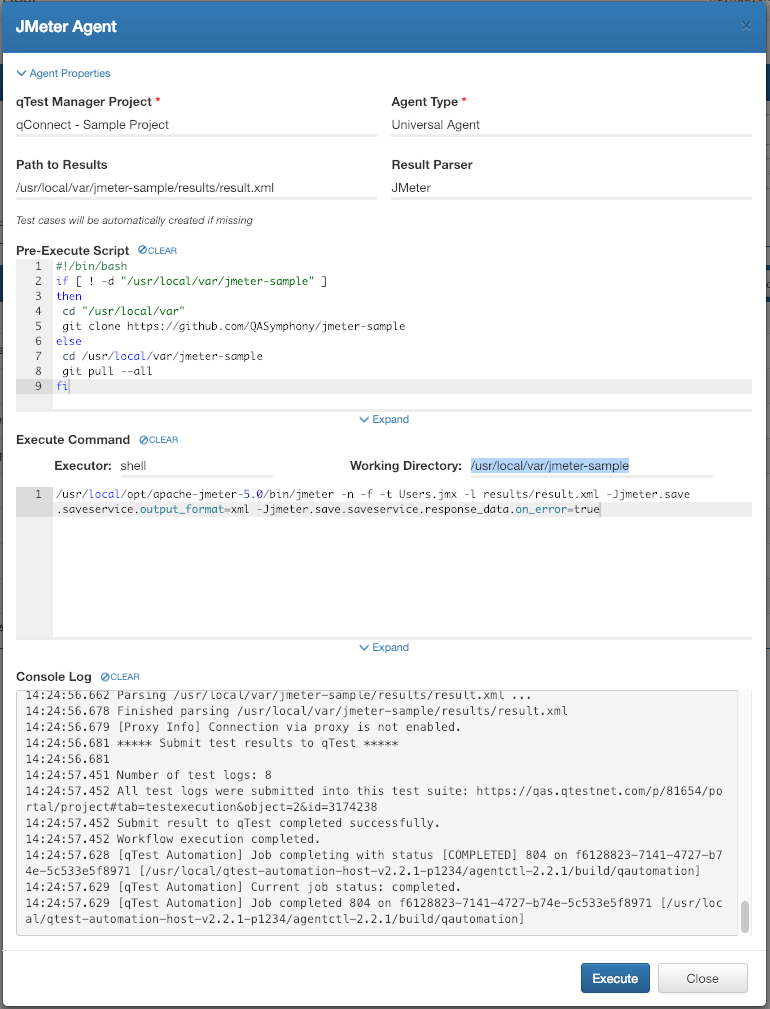
The Universal Agent execution dialog will display.
-
Select the Execute button to kick off the agent execution and you will see the logs shown in the Console Log section. If the execution is successful, you'll see the test run logs being submitted to qTest Manager.
-
Next, access qTest Manager. Select qConnect Sample Project, and then go to Test Execution module. You'll see the test results submitted to qTest Manager as Test Runs under a Test Suite named Automation YYYY-MM-DD, as below.
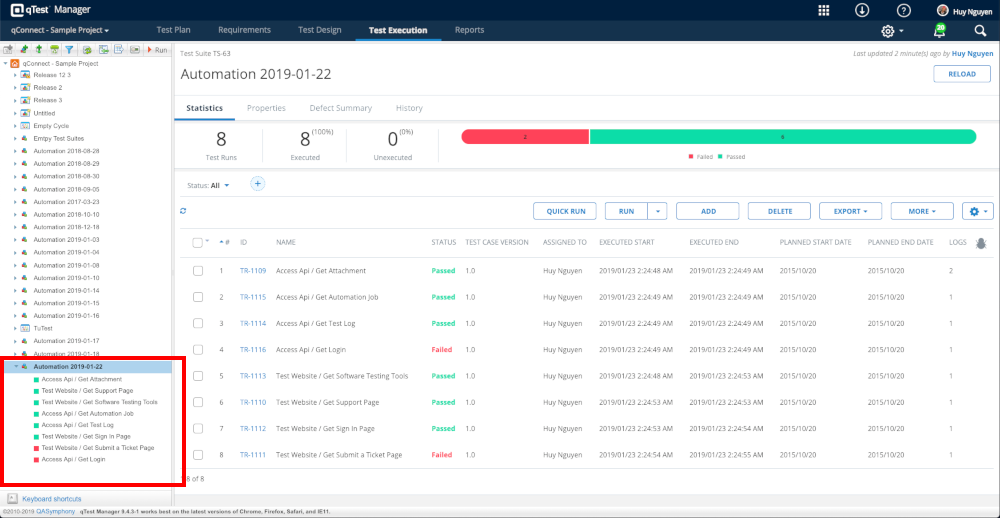
You have successfully integrated and executed your JMeter test with Universal Agent and have it reported the execution result to qTest Manager.