Edit the IP Address or MAC Address of qTest Automation Host
When qTest Automation Host is deployed for the first time, the Automation Host automatically receives the IP address or MAC address from a current machine's network interface. However, if your organization has multiple network interfaces or maps the machine with an address that does not belong to any network interface, such as when using Elastic IP in AWS, the automatic address is not always correct. To correct the address, you can manually change the default IP address or MAC address of qTest Automation Host.
To edit the IP address or MAC address for qTest Automation Host:
-
Access qTest Automation Host on a web browser.
For information on accessing qTest Automation Host, refer to Access qTest Automation Host for Windows, Access qTest Automation Host for Mac, or Access qTest Automation Host for Linux.
-
In the Information section, click the Edit icon
 for the IP Address field or the MAC Address field.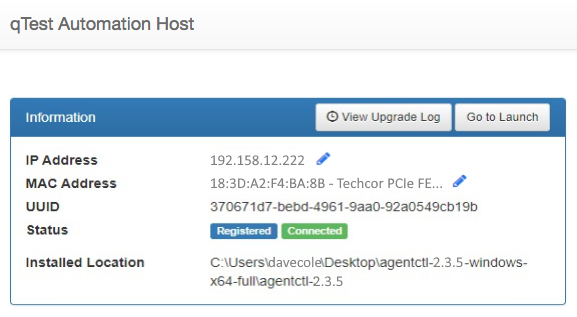
-
Enter or select the new address.
-
Once you enter the new address, click the green check mark icon
 to save the address.
Notes
Please note the following conditions that may apply if qTest Automation Host is restarted.
-
If you change the IP address and qTest Automation Host finds a network interface (MAC address) that matches the IP address, then the Automation Host will automatically receive the IP address from that network interface if the Automation Host is restarted.
-
If you change the IP address and qTest Automation Host does not find a network interface (MAC address) that matches the IP address, then the Automation Host will continue using the specified IP address, even if the Automation Host is restarted.
-
If you change the network interface (MAC address), then qTest Automation Host will automatically receive the IP address assigned to that network interface. If the Automation Host is restarted, then the Automation Host will automatically receive the IP address from the specified network interface.