Log in to and Log out of Desktop Explorer
There are multiple options for logging in to Desktop Explorer. You can either log in using your qTest account or using your SSO account.
Before you log in, verify that you have a valid qTest account. Your Site Administrator can give you access to qTest.
-
Create Session: The ability to record a new session on both Web Explorer and Desktop Explorer. Explorer creates a session in qTest Sessions and Manager.
-
Update Session: The ability to record a planned session that was already created in qTest Sessions.
-
View Session: The ability to access qTest Sessions. This is only applicable to qTest Sessions. This option has no impact on Web Explorer or Desktop Explorer functionality.
-
Delete Session. The ability to delete sessions. This is only applicable to qTest Sessions. This option has no impact on Web Explorer or Desktop Explorer functionality.
Log in to Desktop Explorer using your qTest account
To log in to Desktop Explorer using your qTest account:
-
Click the Desktop Explorer icon in your taskbar. Then select Log in on the menu that appears.
The Desktop Explorer icon displays gray when you are logged out of Desktop Explorer.
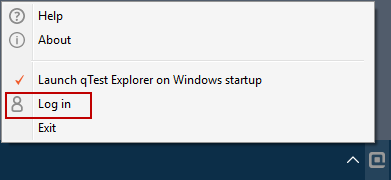
The Log in to qTest modal appears.
-
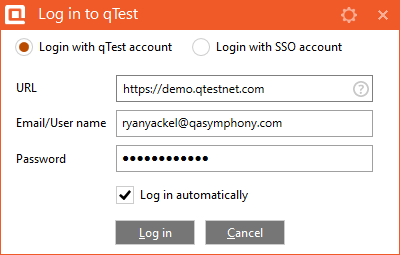
On the Log in to qTest modal, select the Login with qTest account option button.
-
In the URL field, enter the URL for your qTest site.
-
In the Email/User name field, enter the email address for your qTest account.
-
In the Password field, enter the password for your qTest account.
-
Click Log in.
The Desktop Explorer icon displays orange when you are logged in to Desktop Explorer.
Log in to Desktop Explorer using your SSO account
To log in to Desktop Explorer using your SSO credentials:
-
Click the Desktop Explorer icon in your taskbar. Then select Log in on the menu that appears.
The Desktop Explorer icon displays gray when you are logged out of Desktop Explorer.
The Log in to qTest modal appears.
-
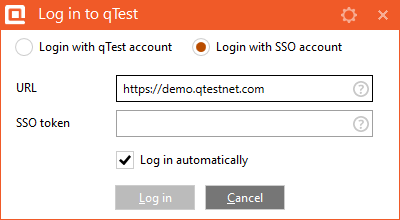
On the Log in to qTest modal, select the Login with SSO account option button.
-
In the URL field, enter the URL for your qTest site.
-
In the SSO token field, enter your SSO token.
Locate your SSO token-
On your qTest site, click the Resource icon at the top of qTest Manager.
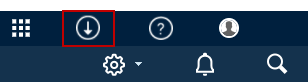
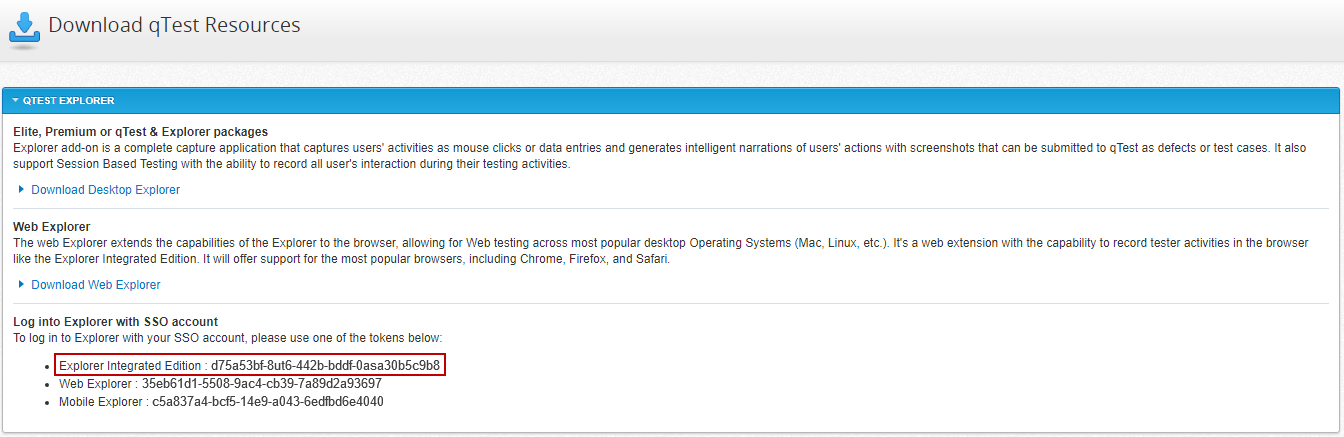
The Download qTest Resources screen appears.
-
In the qTest Explorer section, copy the Explorer Integrated Edition token.
-
-
Click Log in.
Log out of Desktop Explorer
-
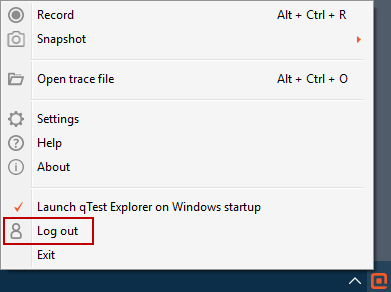
Click the Desktop Explorer icon in your taskbar.
-
Click Log out on the menu that appears.