Settings
This article provides details on global settings that are available to a qTest Site Administrator.
Use the Settings page to manage settings that apply across different projects inside qTest.
How to Get Here
Navigate to Administration and select the Settings tab.
System Information
This section displays the following information for your specific system and environment:
-
Server Base URL
-
Server ID
-
qTest Version
-
Operating System
Email Server Configuration
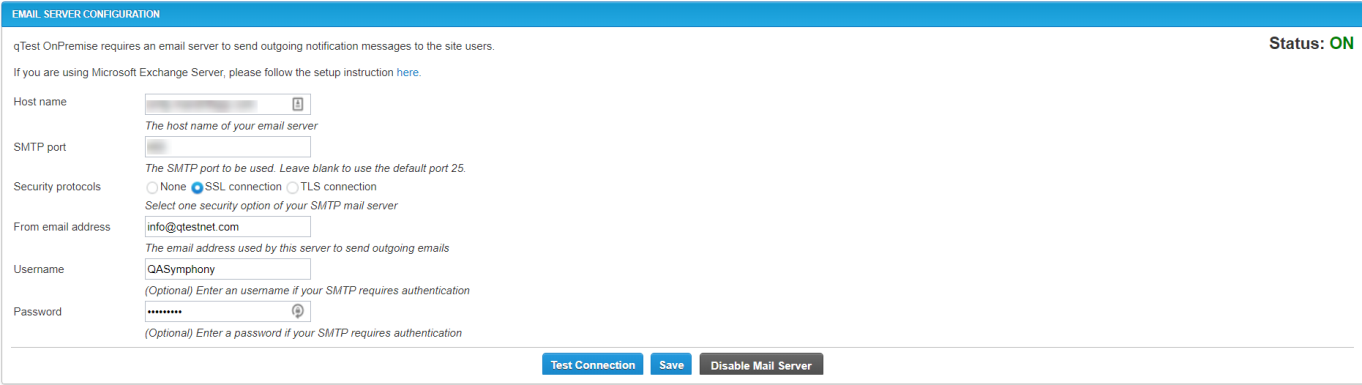
qTest OnPremises requires an email server to send outgoing notification messages to the site users. This section allows you to establish and maintain your email notifications.
qTest Explorer | Sessions
Enter the URL associated with your qTest Explorer | Sessions application. Test the Connection and Save.
qTest Scenario
Enter the URL associated with your qTest Scenario application and the API Key. Test the Connection and Save.
qTest Parameters
Enter the URL associated with your qTest Parameters application. Test the Connection and Save.
qTest Pulse
Enter the URL associated with your qTest Explorer/Sessions application. Test the Connection and Save.
qTest Launch
Enter the URL associated with your qTest Launch application. Test the Connection and Save.
Generate an Insights Dashboard Token
-
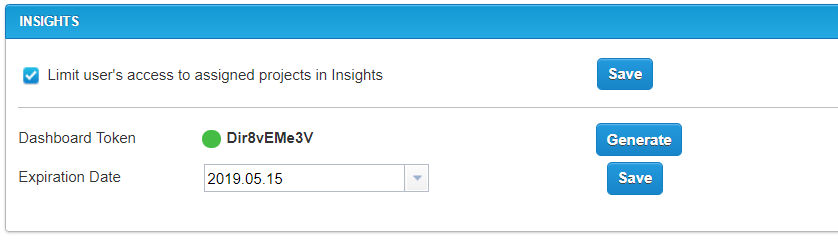
Locate the Insights section of the window.
-
Select the Generate button to create a new, secure Dashboard Token.
At any time you can generate a new, secure Dashboard Token that will replace the previously created Dashboard Token. The new token will be used by qTest to generate a shareable URL.
-
Green circle icon = Dashboard Token is active
-
Gray circle icon = Dashboard Token is expired
-
-
The Expiration Date default is 90 days from token generation. However, you can change it to another expiration date using the drop-down.
-
Select Save.
A Dashboard URL generated before the Insights 1.15.6 release will continue to work until the dashboard's expiration date.
Miscellaneous
qTest Server's Domain
Displays your qTest Server domain.
Attachment Size
This section allows you to edit the attachment size used for uploading attachments to Requirements, Test Cases, etc.
Proxy Setting
If your qTest server is configured to let users access through a proxy, you will need to supply the following information.
-
Proxy URL
-
Proxy username
-
Proxy password
-
Secured Proxy URL
-
Secured Proxy username
-
Secured Proxy password
Internationalization

Limit Test Cases Linked to Requirement
By default, you can link a maximum of 100 Test Cases to one requirement in a single operation. To link more Test Cases than the limit, you need to use multiple operations. Alternatively, you can have your administrator set a higher limit in the Maximum Number of Test Cases field.
Re-sync Jira connections
If your Jira integration stops syncing updates with qTest, use the Sync Jira Connections button to force start a sync for all requirements, defects, and releases in all of your projects.
Before you use this option, make sure you have an active project with a working Jira connection. Avoid using this button more than once a day, as syncing multiple projects can take a varying amount of time.
You can still resync data from individual projects, if you need to.