Best Practices for Integrating with VersionOne
Structuring qTest Projects Integrated with VersionOne
This article focuses on best practices for integrating your qTest Projects with VersionOne and how to establish an efficient process and workflow between the two tools. When thinking about how to best integrate your VersionOne projects with qTest Manager, it is important to understand which development milestones best drive your testing efforts: Releases or Sprints.
For detailed instructions on how to connect your project with your VersionOne instance, refer to the setup steps described in Integration with VersionOne.
-
A Release is a set of features (Backlog Items of Stories) deployed together as a single update to your application being developed. Assigning features to Releases will determine which new features for your application will be available to your customers when the Release is deployed. To ensure teams Release new versions on a regular basis, Releases are often scheduled on a fixed date.
-
Sprints define a period of time in which development teams implement and deliver a prescribed amount of product functionality. A Sprint is a collection of features you ideally will complete in a fixed period of time, but you may not necessarily do so by the Release date. Features and issues may change Sprints during a Release (or even change releases), and once a team reaches a Release date any incomplete features may move out of their active Sprints into the product backlog to be reassigned.
Example VersionOne Structure
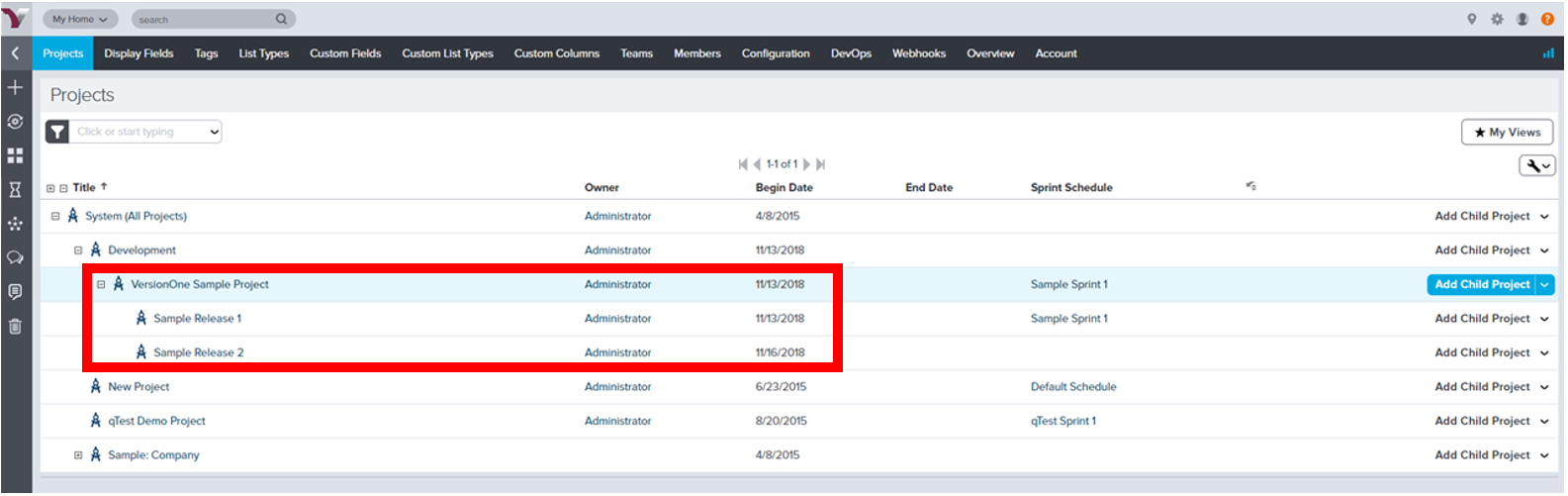
In this article, we will be referring to a standard example where all development efforts are structured as a Project under the System root folder in VersionOne. The Development Project is broken up into various initiatives or sub-projects.
We will focus on one Sample Project that is named "VersionOne Sample Project," which is divided into two Releases (Child-Projects) as seen below.
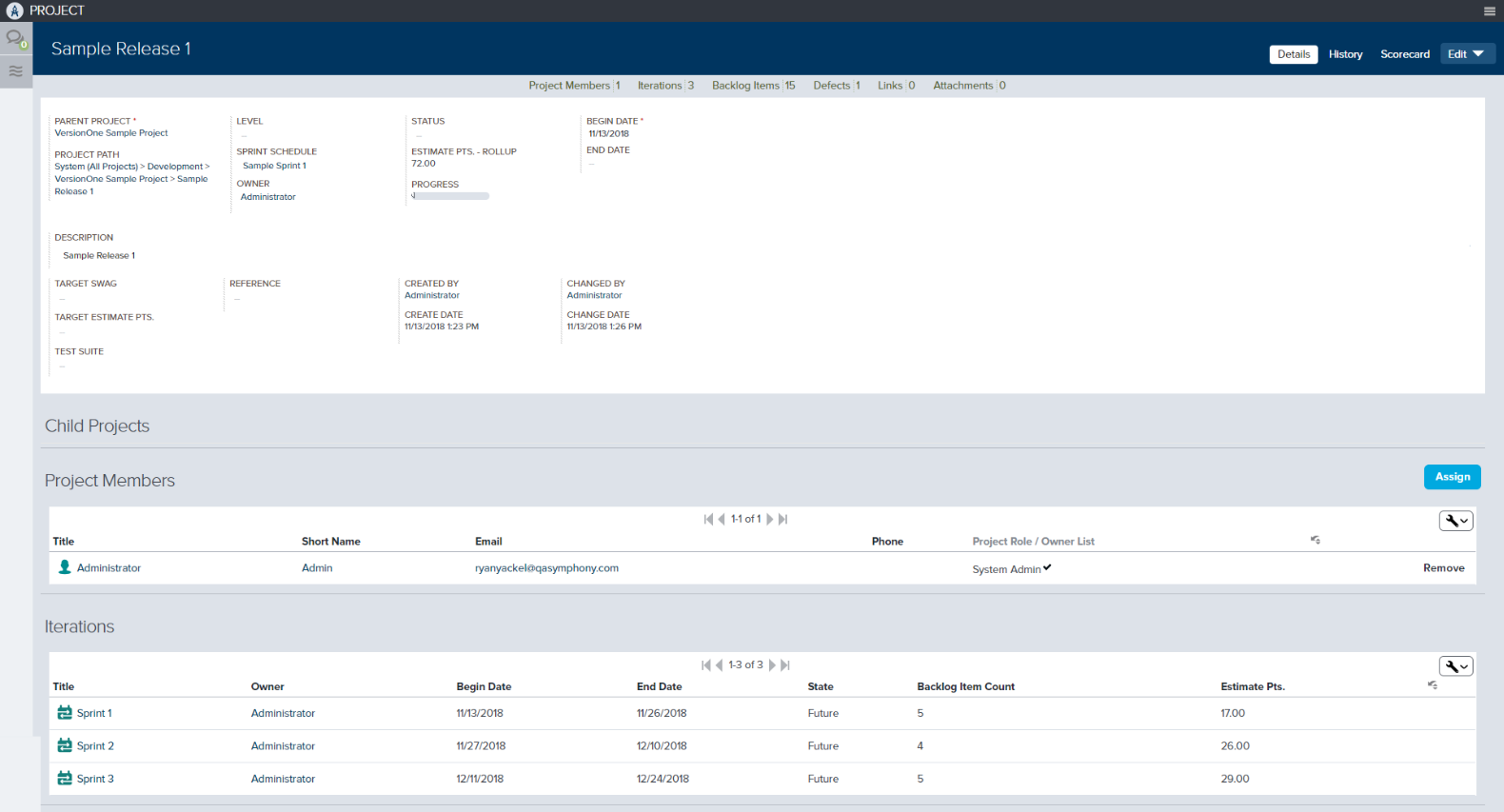
Each Release is divided into Sprints. "Sample Release 1" contains three Sprints as seen below in the Iterations section of the screen.
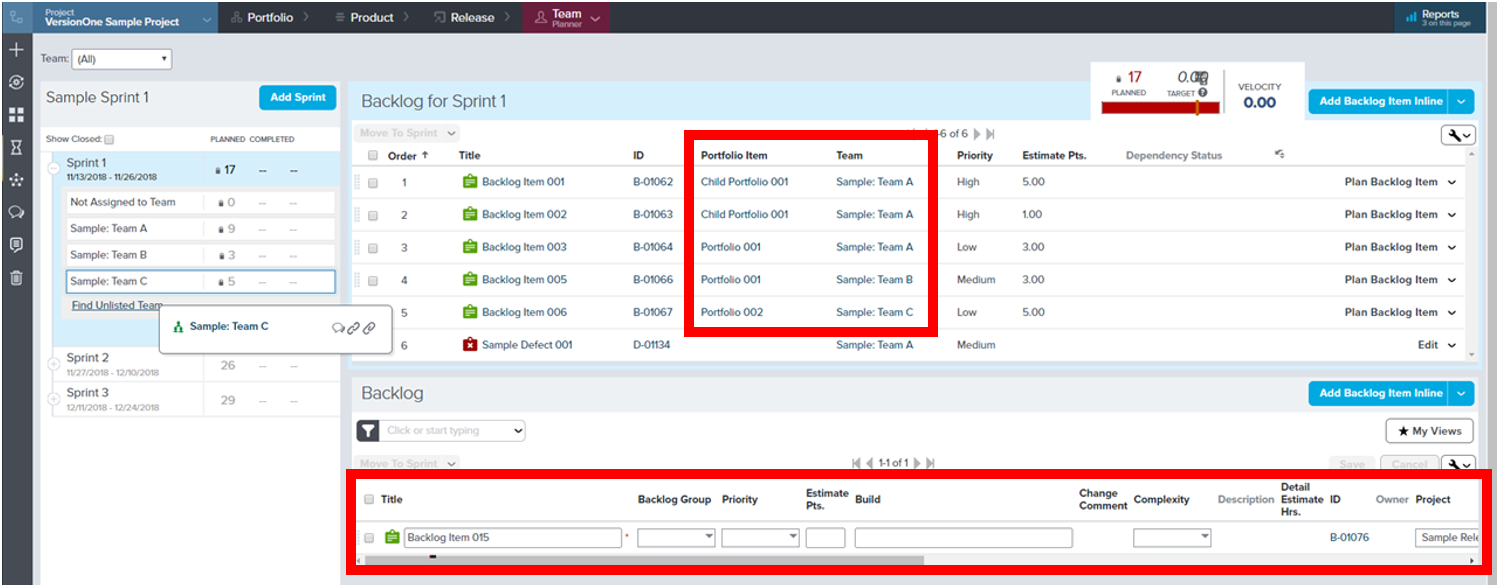
Sprints, also called iterations, comprise of items from the Backlog. As teams begin their Sprint or Iteration scheduling and planning, the team could:
-
Group them by Portfolio
-
Assign work to specific teams
-
Further break down Backlog Items into specific tasks
-
Estimate their effort to complete the.
Any items not assigned to a Sprint remain in the Backlog until they can be committed to a Sprint effort.
Configuring the Integration in qTest
After you successfully set up the connection with your VersionOne OnDemand instance, you can begin the integration configuration by setting up the defect integration.
Defect Integration
For detailed instructions on how to configure defects with VersionOne, refer to the setup steps described in Integration with VersionOne.
In this example, we are configuring the integration to allow our qTest users to log defects both at the root project level, "VersionOne Sample Project", and each Release Level, "Sample Release 1" and "Sample Release 2".
We recommend you add the overall project and each child-project (Releases) as a defect type so that your testing team can select the appropriate option when logging an issue at the time of test failure. If you want to limit users to only log defects at the root project folder or solely into a specific Release, this can be configured here.
Perhaps you only want testers to log defects at the project level and not the Release level so your development team is responsible for assigning or committing defects to specific releases.
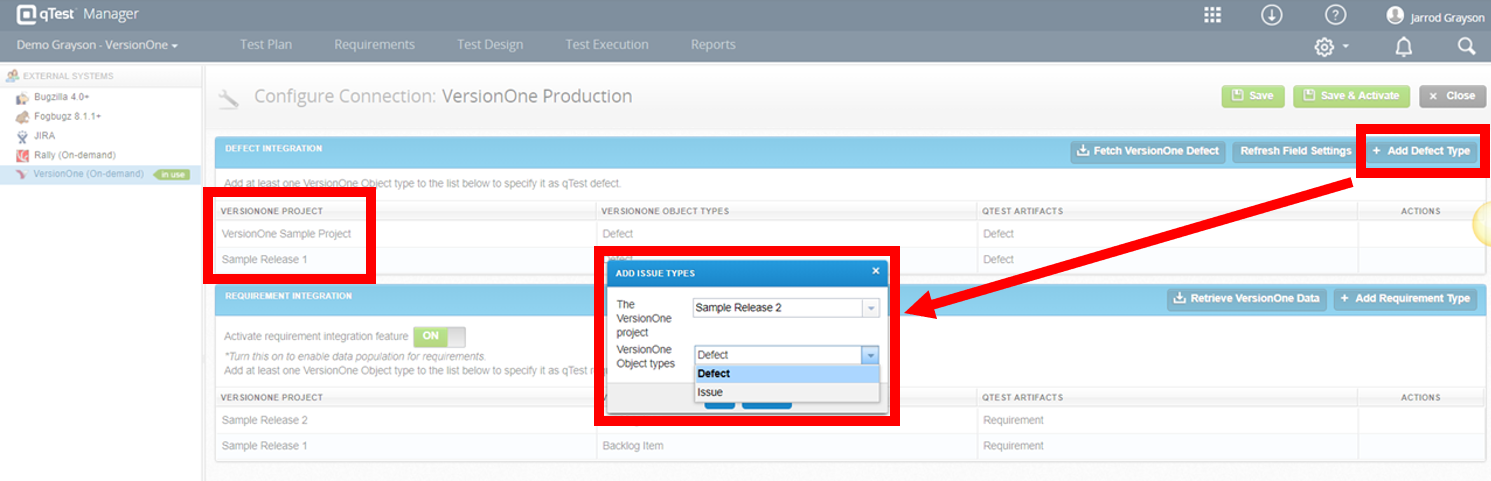
Next, we will configure the Requirement integration.
Requirement Integration
For detailed instructions on how to configure defects with VersionOne, refer to the setup steps described in Integration with VersionOne.
In this example, we are only adding requirement types for our Releases, "Sample Release 1" and "Sample Release 2", and not the entire root project, "VersionOne Sample Project". The reason for this is because we only want our testing team to work on items that are committed to a release. When, and only when, Backlog Items are assigned to a specific Release will they be imported in qTest automatically.
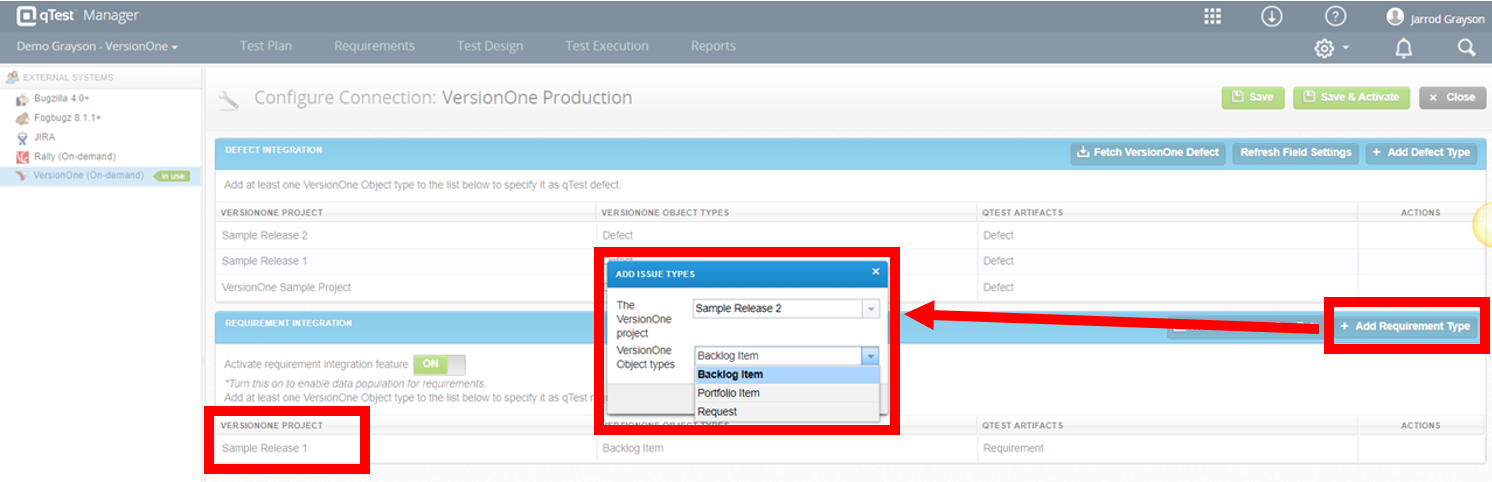
Below are our final configuration settings in qTest.
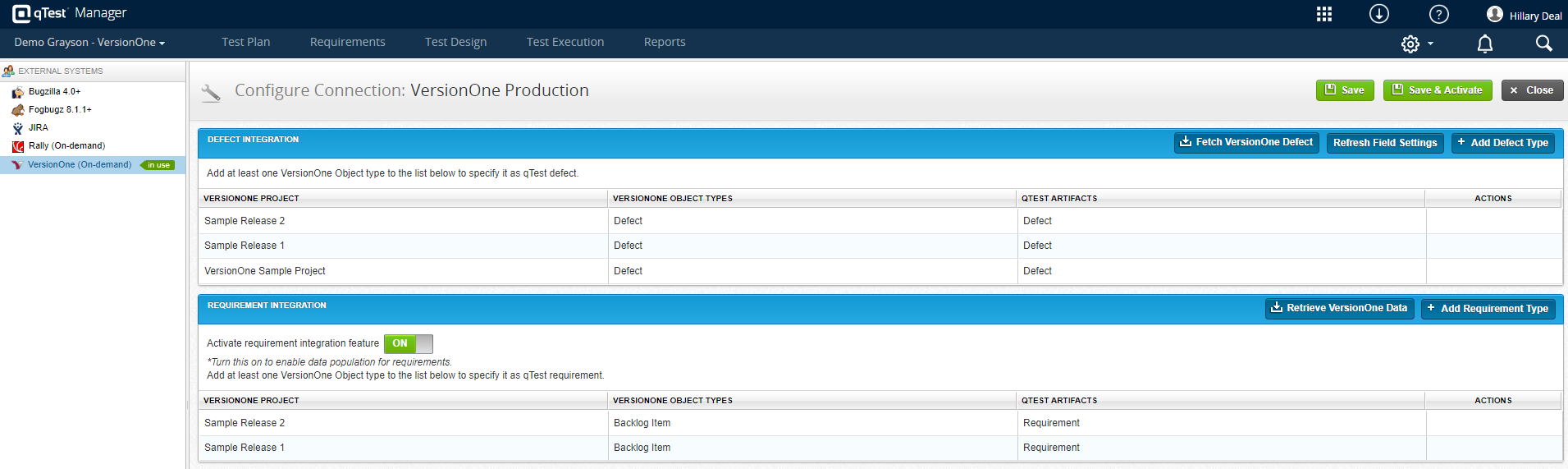
Organizing your qTest Project
Create your Releases in Test Plan
You will initially want to create a Release folder in Test Plan for each Release in your VersionOne project. In this example, we have two Releases: "Sample Release 1" and "Sample Release 2". For each new Release that is created in VersionOne, your qTest team will need to create a Release folder on the Test Plan tab to ensure that your qTest project is aligned to the same Release cadence that your development team is working on in VersionOne.
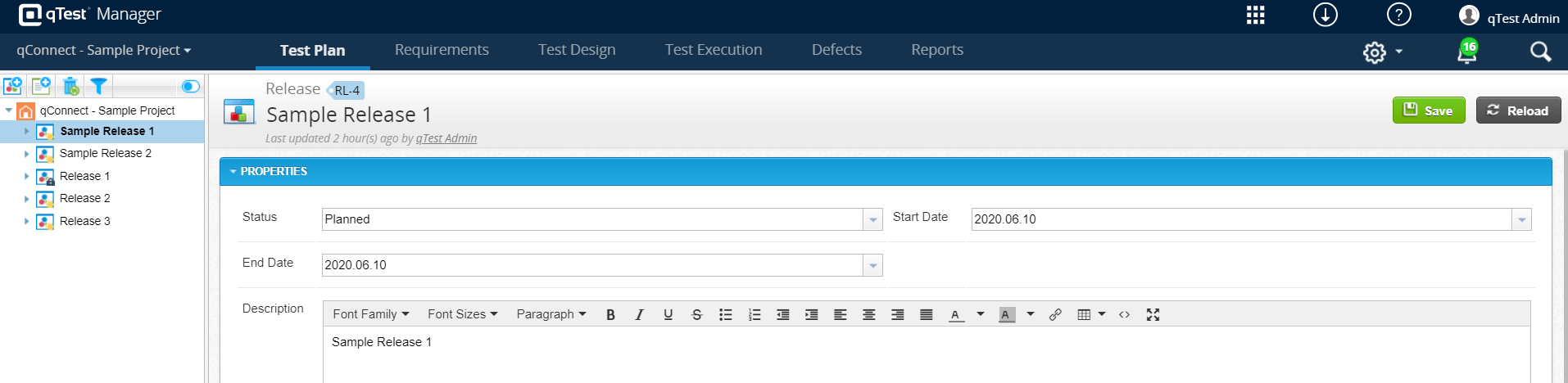
View Imported VersionOne Requirements
Upon initial import, VersionOne objects will be treated as Requirements in qTest Manager. By default, these integrated requirements will be loaded into a common Module folder named "Imported from VersionOne", as shown below.
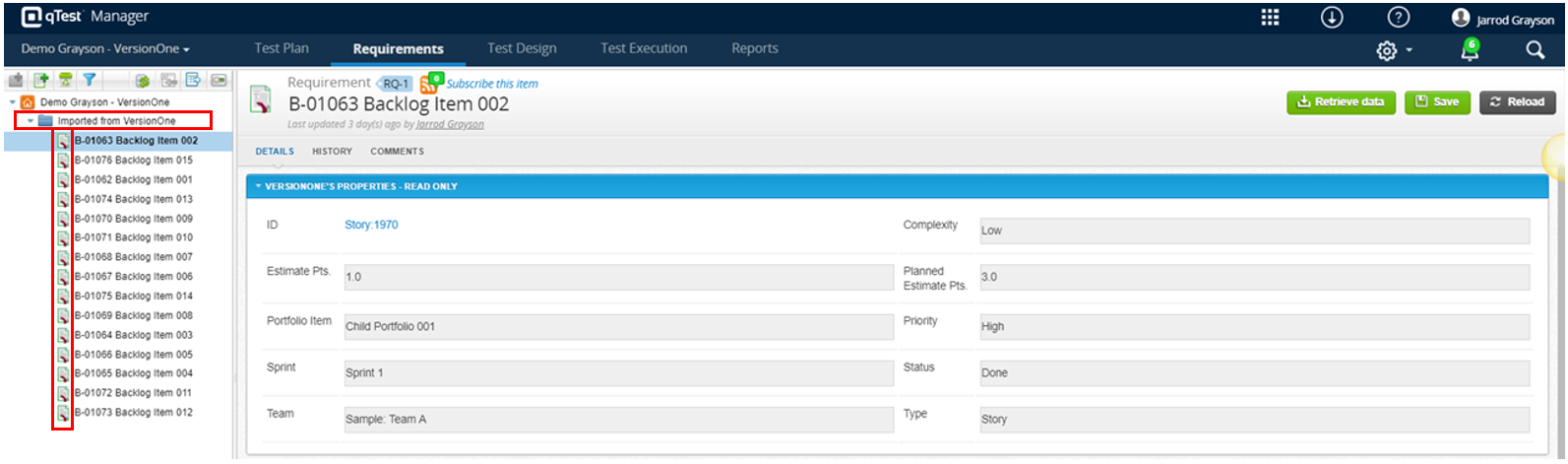
Reorganizing your Imported VersionOne Requirements
The first activity you will want to complete is reorganizing your initial imported requirements. When integrating with active VersionOne projects, this folder could contain hundreds of requirements, but ideally, this integration and initial import should be configured at the very beginning of each new VersionOne project or Release. Therefore, the process is more concentrated on managing the integration than an initial organization effort.
When organizing the initial import, we suggest bucketing your requirements at a single property level so that the management efforts are mitigated. In this example, we are going to organize our Requirements by their specific Sprint value. Backlog Items are less likely to change Sprint values as often as they may change status or team, so if you organize requirements by more than one level (such as by Sprint, Team, and Status), your qTest users will be spending too much time keeping your requirement folders up to date.
We are going to create a folder outside of the "Imported from VersionOne" folder for each of our Sprints. This way, you can think of the "Imported from VersionOne" folder as the container for any new Backlog Item that comes into scope for your Release that then needs to be placed in the appropriate Sprint folder. You want to create your Sprint folders outside of the "Imported from VersionOne" folder and not nested within as subfolders. Create your Sprint folders, as seen below.
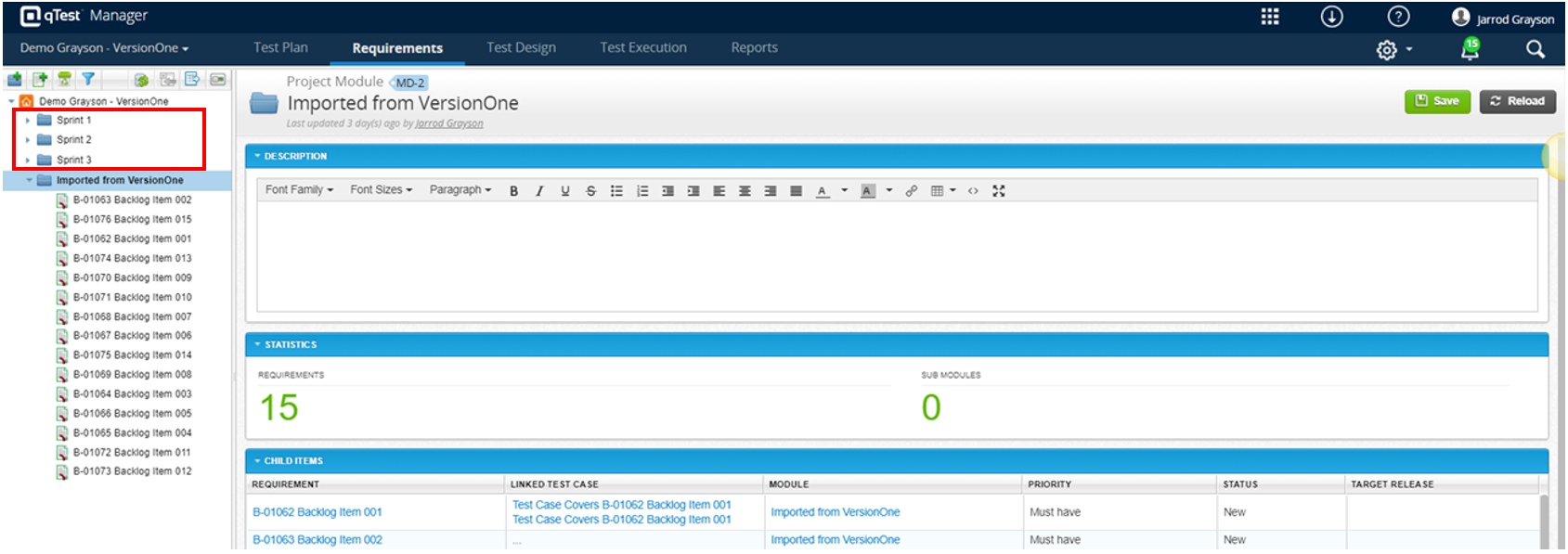
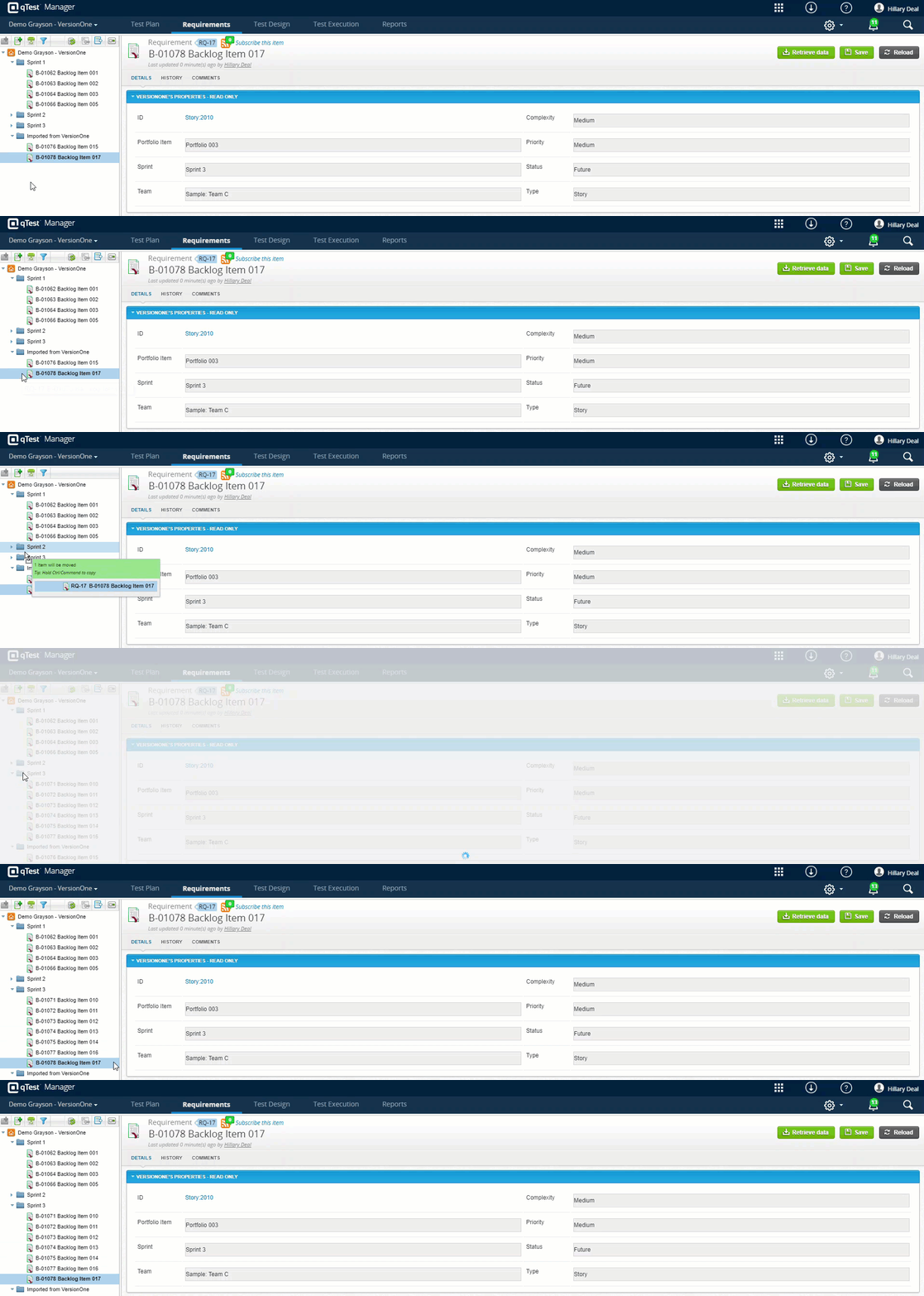
Next, you need to drag and drop your imported VersionOne requirements into the appropriate Sprint folders.
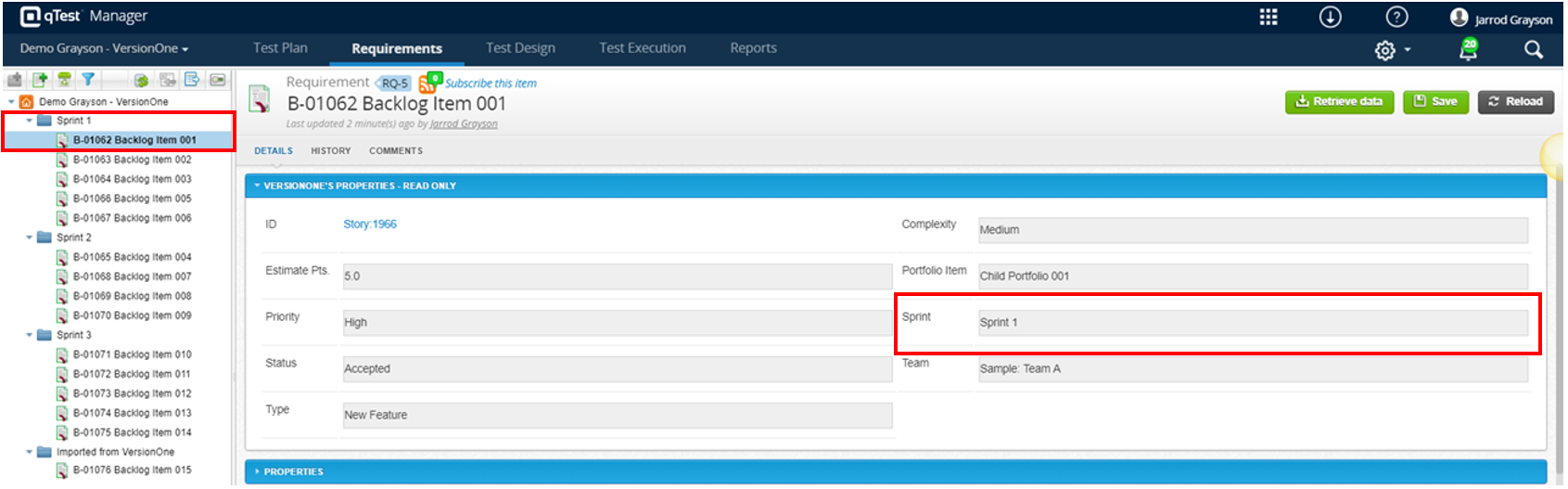
Maintaining your Imported VersionOne Requirements
Now that you have updated your existing Backlog Items into their appropriate Sprint folders, your qTest users will need to manage existing issues and organize any new Backlog Items that come into scope. This should require minimal effort if maintained properly.
The image below shows a new backlog item being created in VersionOne.
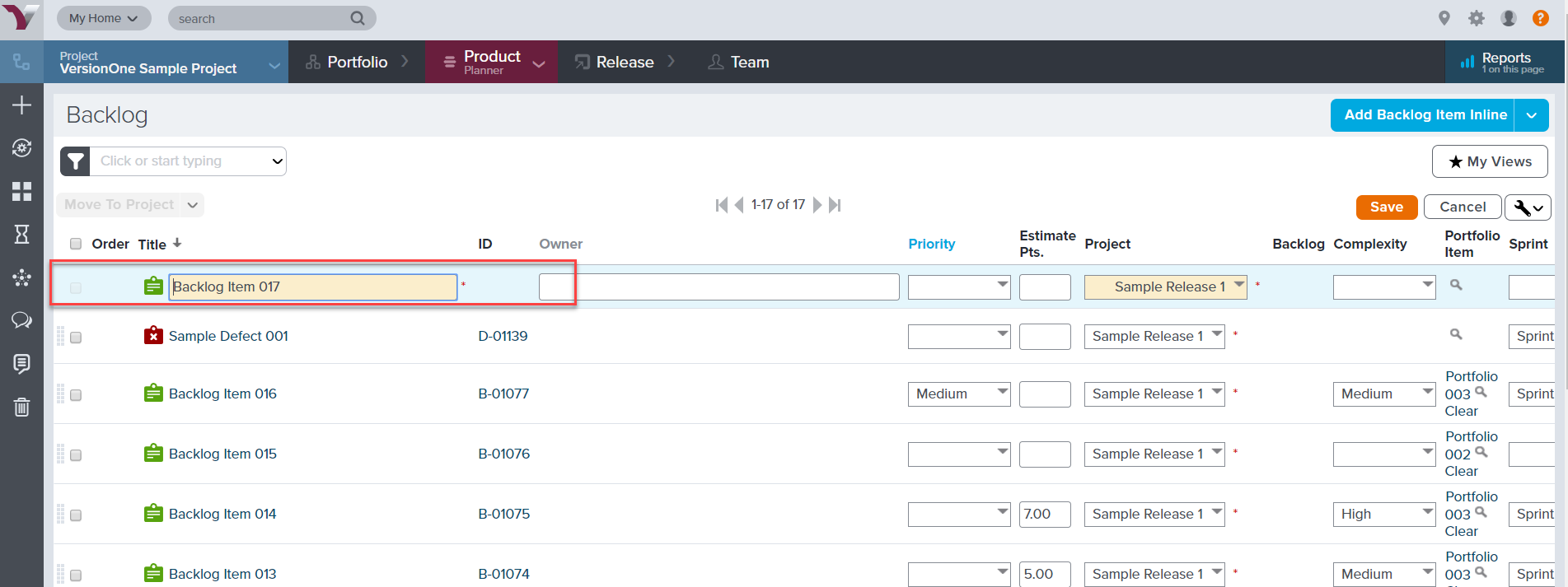
When your development team creates new stories in the VersionOne backlog and saves, the stories will automatically appear in qTest in the "Imported from VersionOne" folder, as seen below.
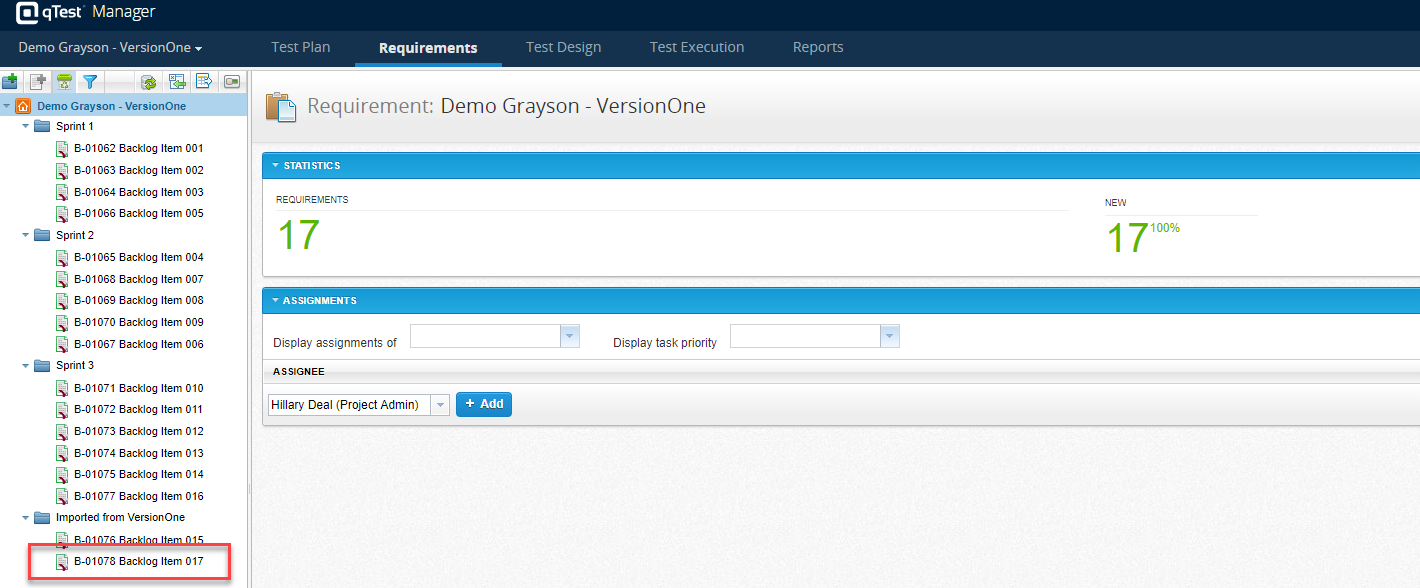
This story will remain in the Backlog in VersionOne until it has been assigned to a Sprint. In the same vein, the Requirement should remain in the "Imported from VersionOne" folder in qTest until it has been assigned to a Sprint. At that point, you should drag and drop it into the appropriate Sprint folder in qTest.
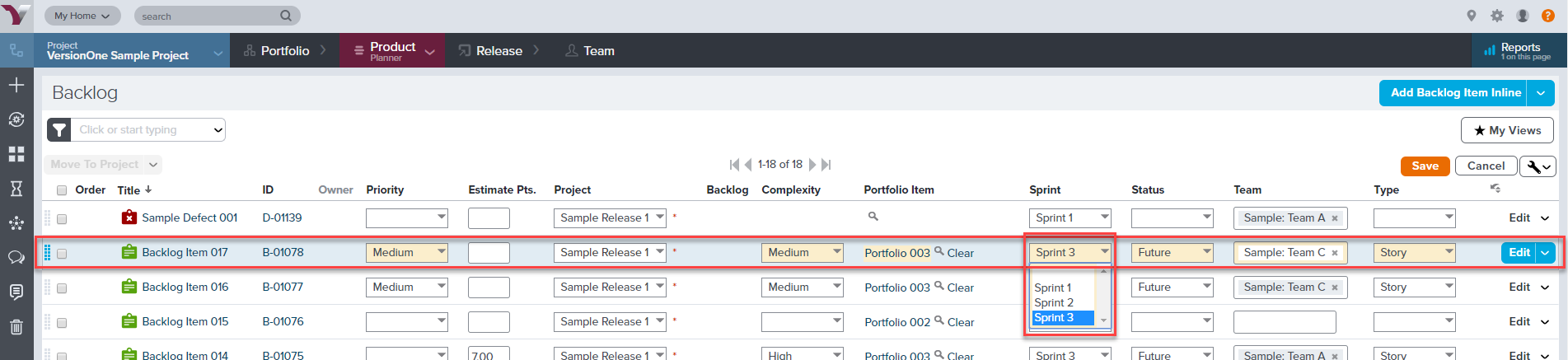
Your qTest users will need to periodically check the Requirements in the backlog ("Imported from VersionOne" folder) and move the requirements to the appropriate Sprint folder once they have been assigned a Sprint value.
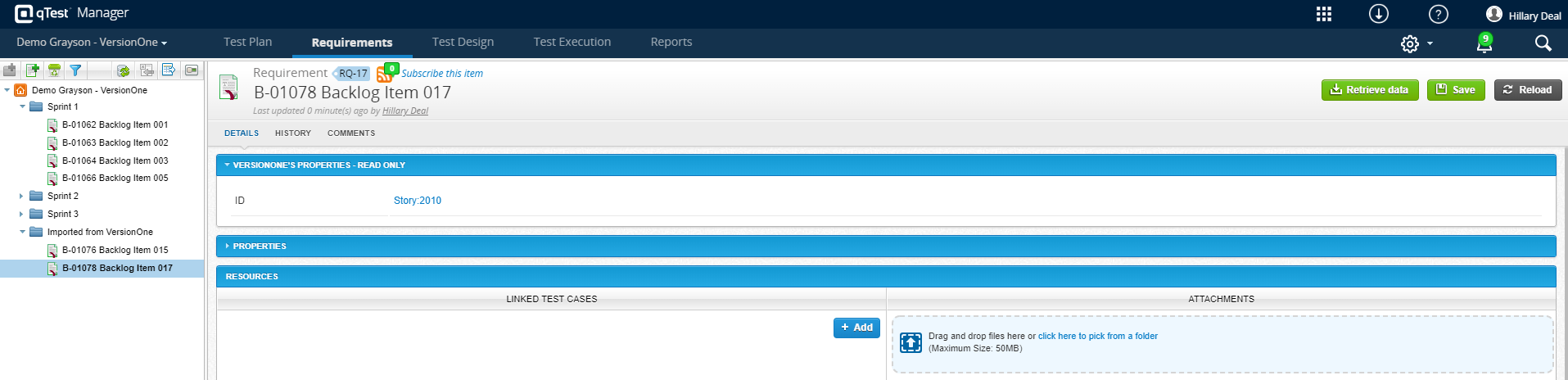
You have to retrieve each Requirement again using the Retrieve Data button to get the updated data of VersionOne objects on the requirement. Ensure that your qTest team does this each time they are viewing a Requirement so that they are viewing the latest updates from VersionOne.
Before Retrieve Data
After Retrieve Data
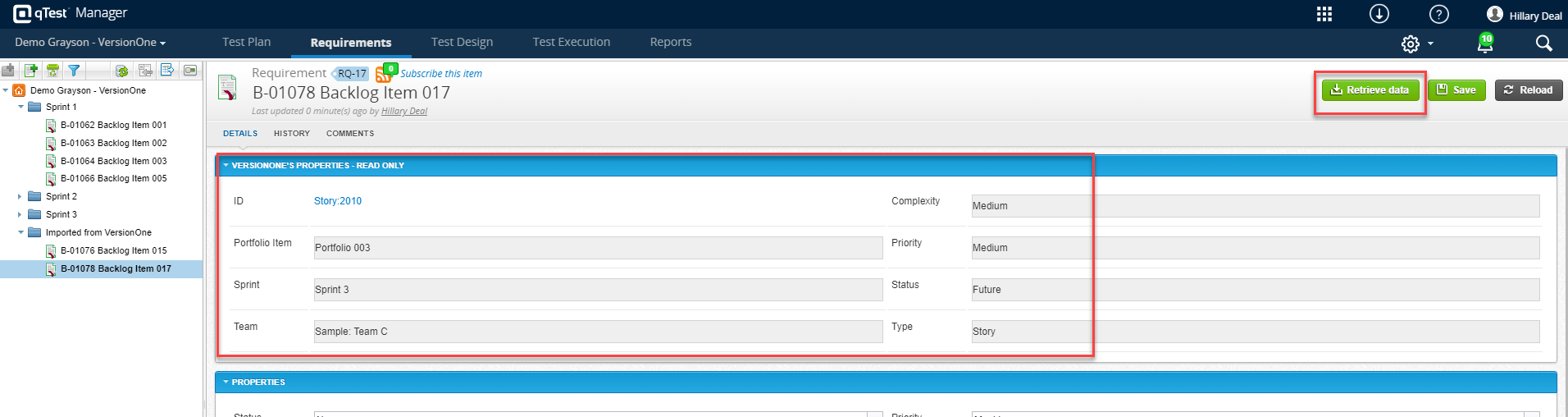
Now you can move this Requirement to the Sprint 3 folder.
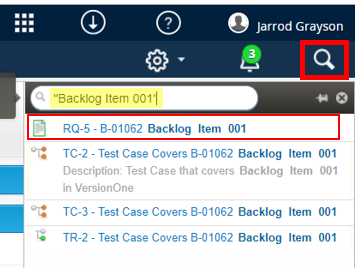
Currently, no VersionOne fields can be used to Search or Query in qTest Manager, but you can search for the name of a VersionOne Requirement by using quotation marks.
Clicking the search result will take you to that object in qTest Manager.
Optional: Maintaining your Release Scope in Test Plan
In the Test Plan, you may want to take the time to populate and maintain the Release Scope for each Release object.
For detailed instructions on how to add Requirements to your Release, refer to the setup steps in Add a Requirement to a Release.
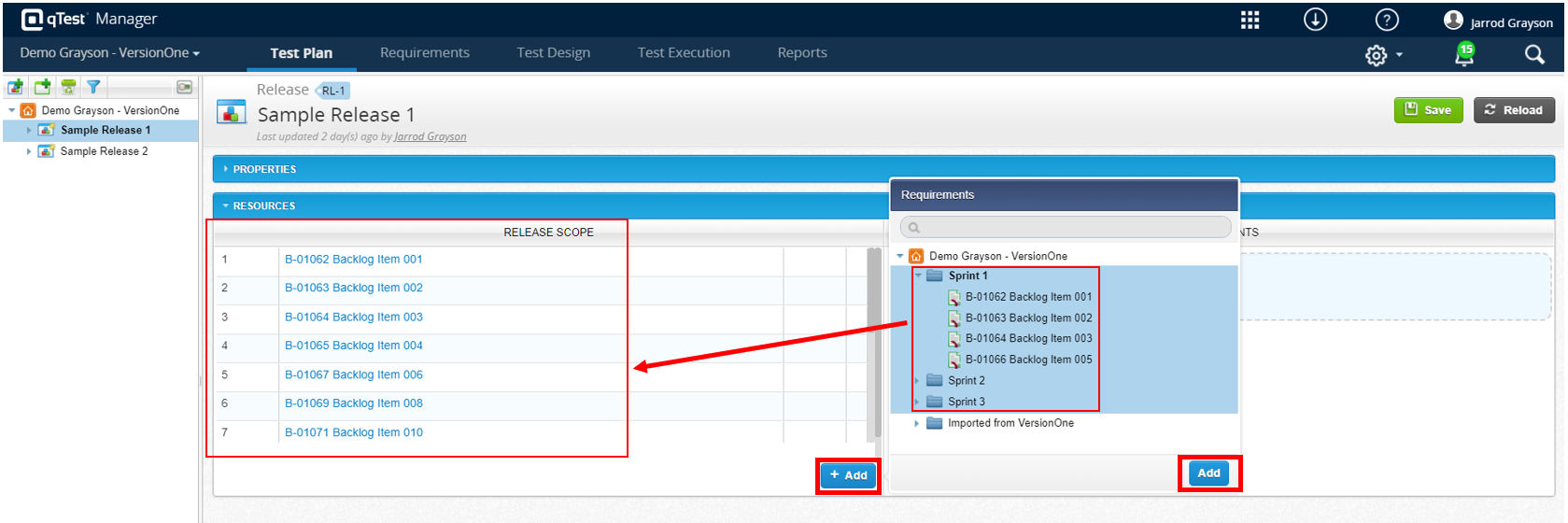
By adding Backlog Items to their appropriate Release folder in Test Plan, you are ensuring you have full end-to-end traceability between objects in qTest. Several Reports in qTest Insights are driven off the Release Scope, and you can also plan your Test Runs in the Test Execution tab of qTest Manager using this Release traceability.
One limitation may be the amount of time this may take to manage if you have large Releases. You can still generate the same reports in qTest Insights that are driven from this traceability, but they may need to be manually created and not provided out-of-the-box.
The other limitation is that, when planning Test Runs, your qTest users will not be able to add Tests based on the Release Traceability. They will not have the option to add Test Runs based on their linked Requirements in a specific Release, as seen below. Any requirement that has linked test cases that are part of the Release Scope will be available for selection.
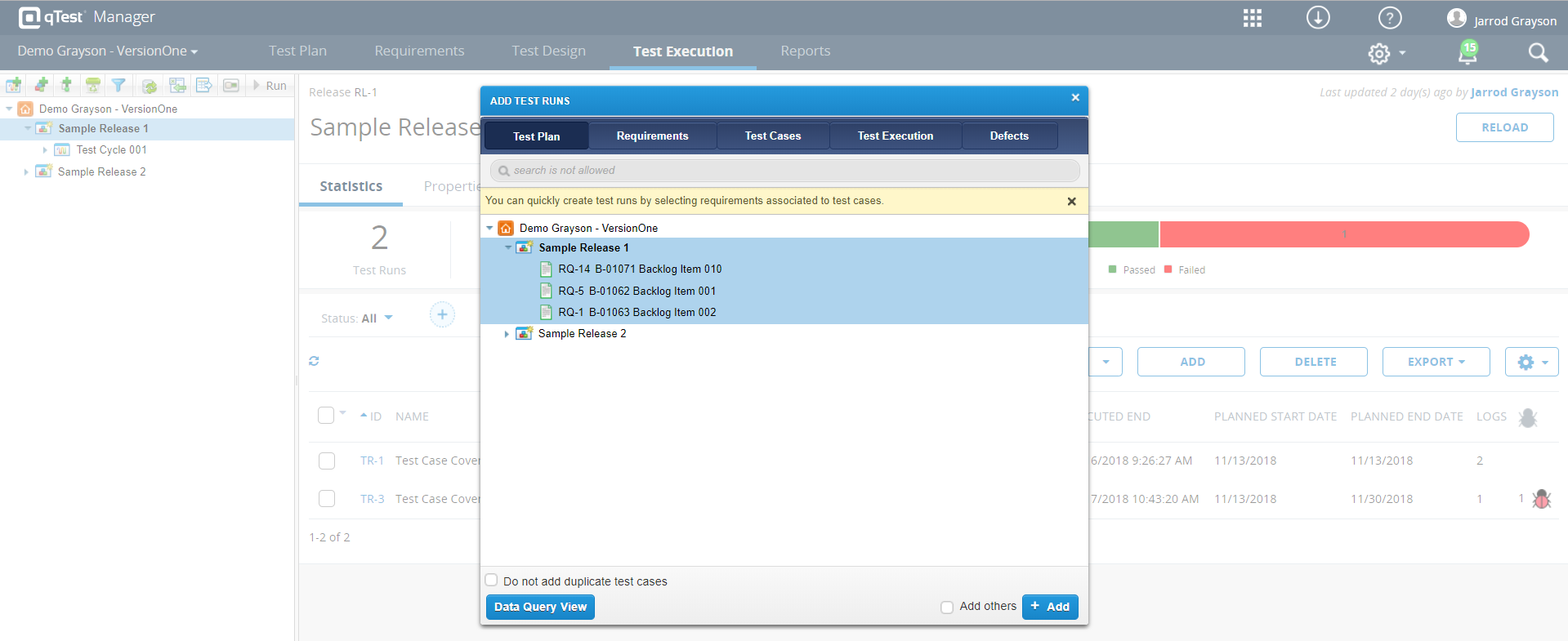
This is not a critical piece of functionality but simply something to consider when deciding if it’s worth taking the time and effort to manage the Release Scope in Test Plan.
However, if all Backlog Items in a Sprint are tied to a single Release, this can easily and quickly be managed by selecting the entire Sprint folder when adding Requirements, as seen in the screenshot above.
Linking Test Cases to VersionOne Requirements
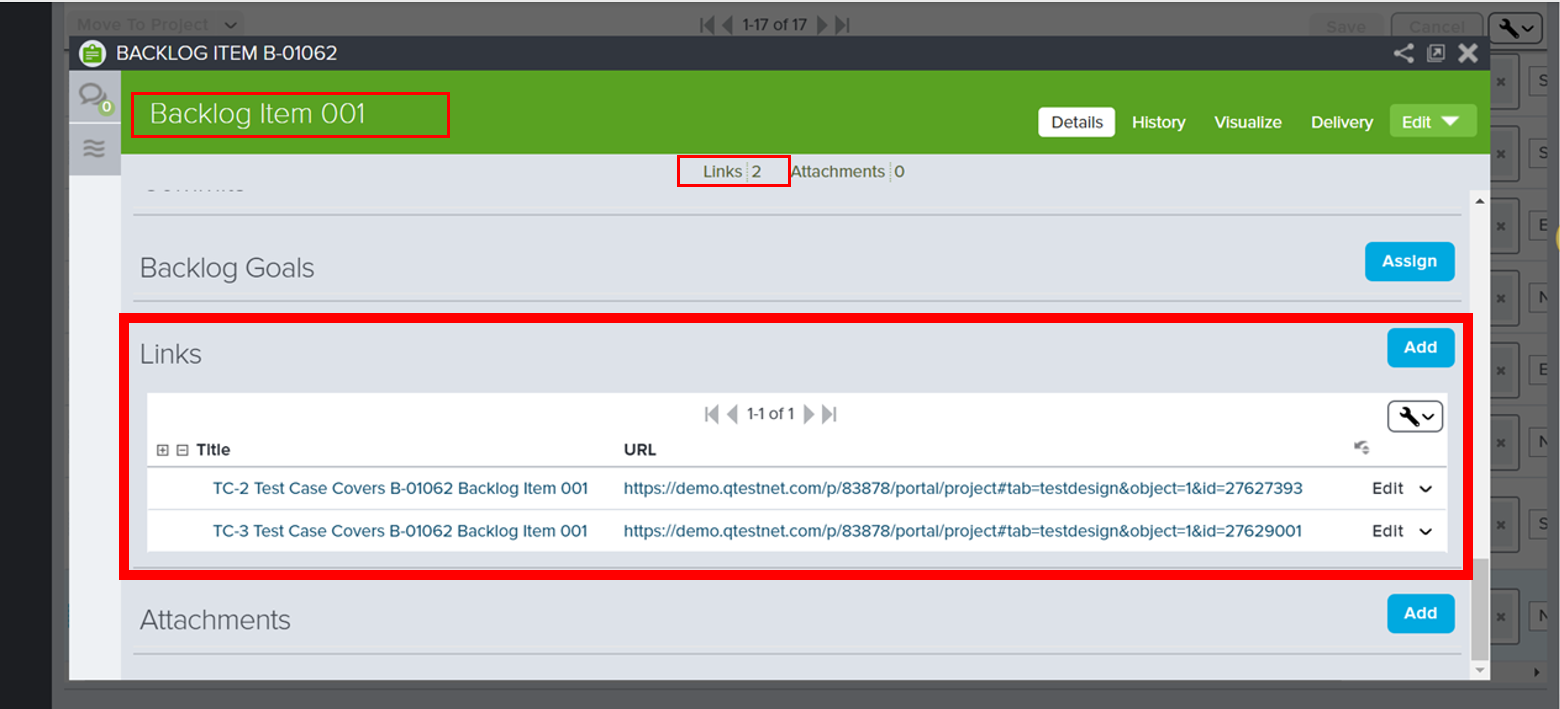
Imported VersionOne objects can be linked to qTest Manager Test Cases. The linking with qTest Manager Test Cases will be generated in the corresponding VersionOne object's Links section.
For detailed instructions on how to link Test Cases and Requirements, refer to the setup steps described in Link Test Cases and Requirements.
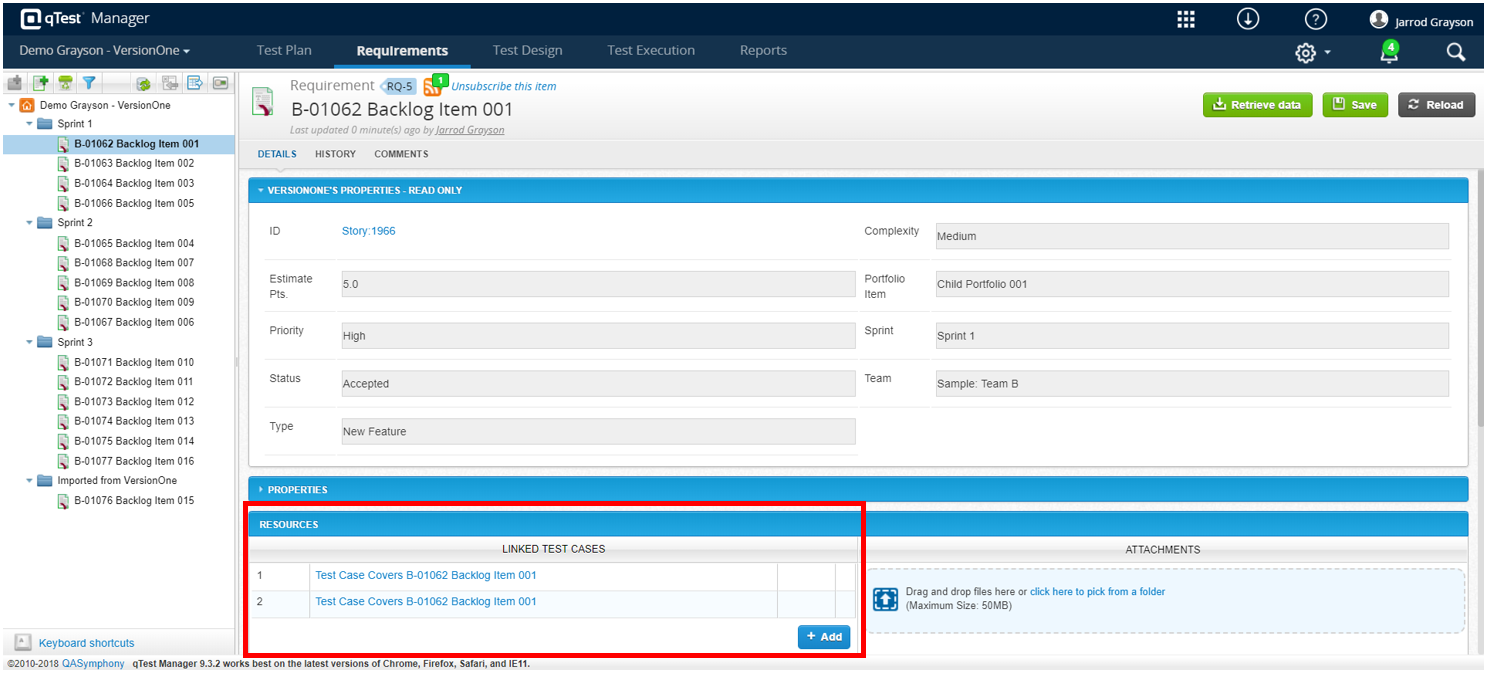
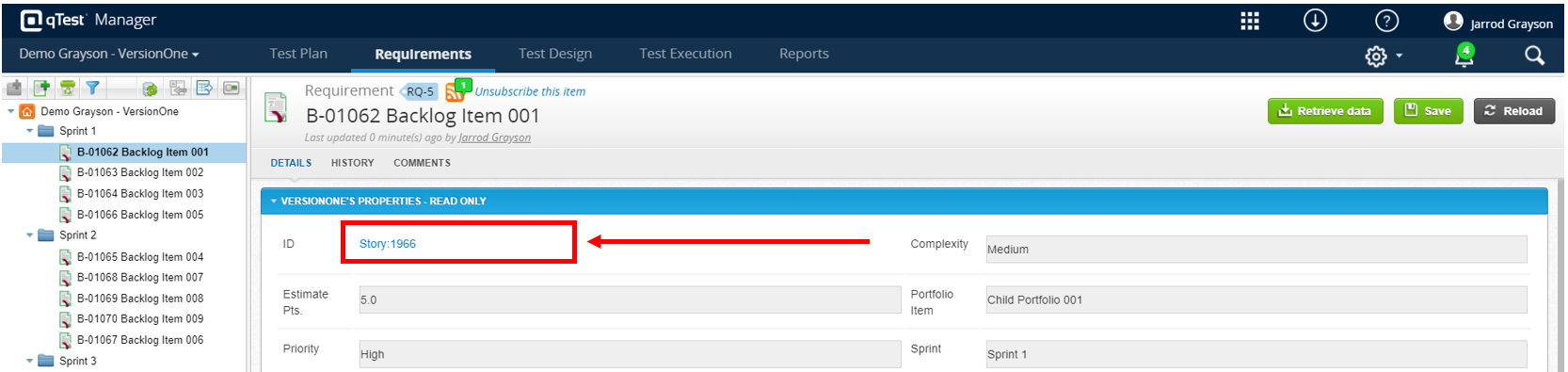
When you link or create associated Test Cases to an Imported VersionOne object, qTest Manager also generates a link under the corresponding VersionOne object. To quickly navigate to the Backlog Item in VersionOne, click the ID link on the Requirement in qTest.
Submitting Defects to VersionOne
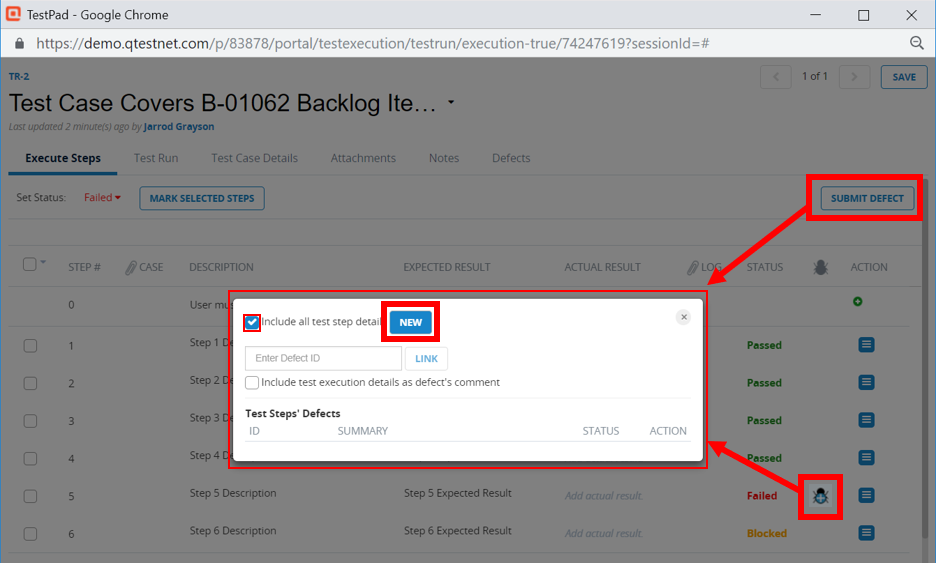
You can submit defects to VersionOne from qTest Manager during TestPad Execution or from the Test Log.
For detailed instructions on how to submit Defects to VersionOne, refer to the setup steps described in Integration with VersionOne.
qTest users can submit a defect during Test Execution using the Quick Run or Test Pad window. Optionally, they could use the Test Log in Execution History to submit a defect after executing a Test Run, as seen below.
Test Pad window
Test Log in Execution History
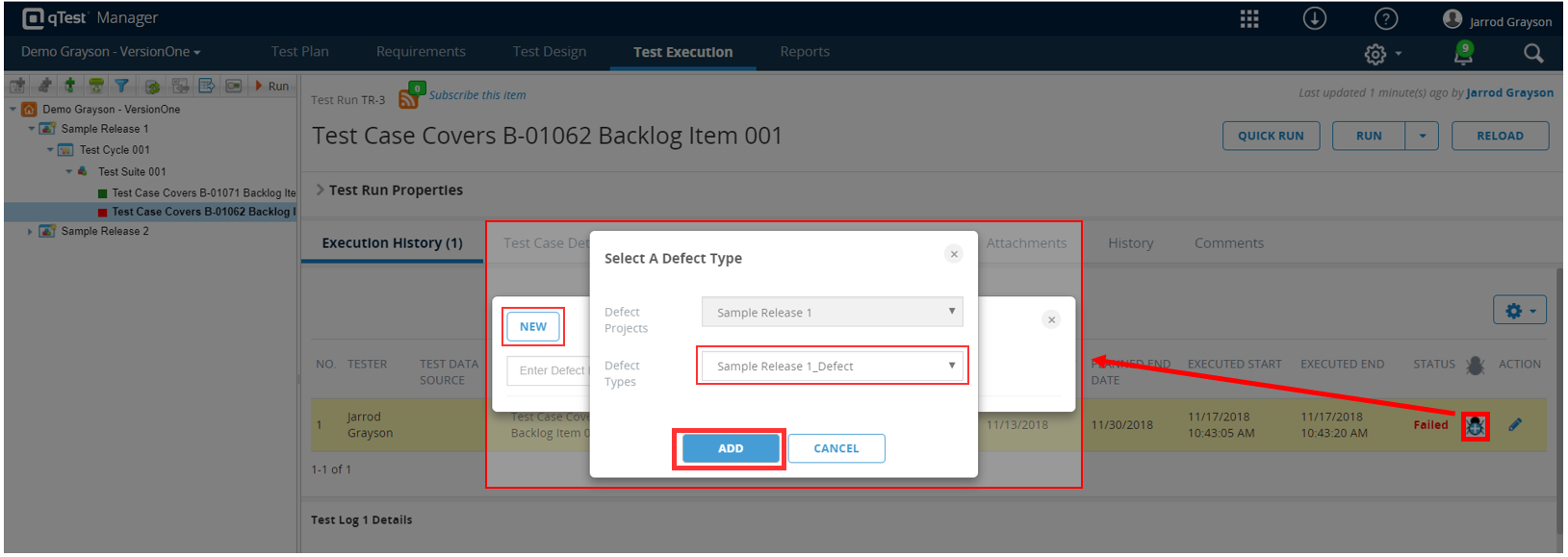
Once a qTest user selects the appropriate VersionOne Project and Defect Type, the user will be taken to a native VersionOne defect submission form, as seen below.
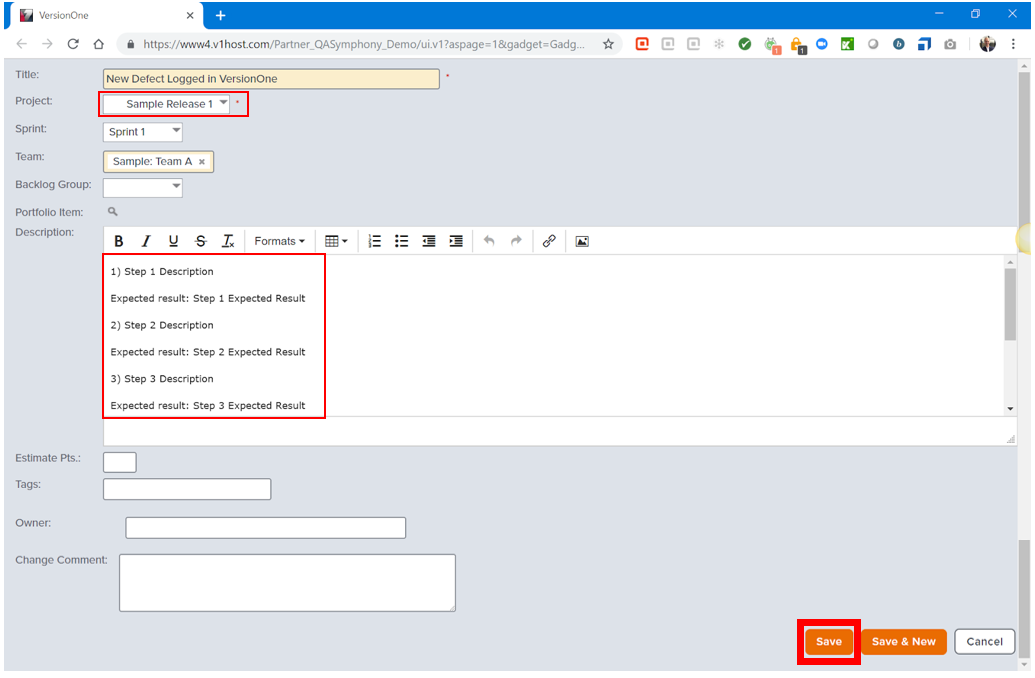
Specific fields could be auto-populated with qTest information, such as the Test Steps in the Description field, depending on your integration configuration.
After clicking Save and submitting the Defect into VersionOne, the qTest user will be returned back to qTest Manager.
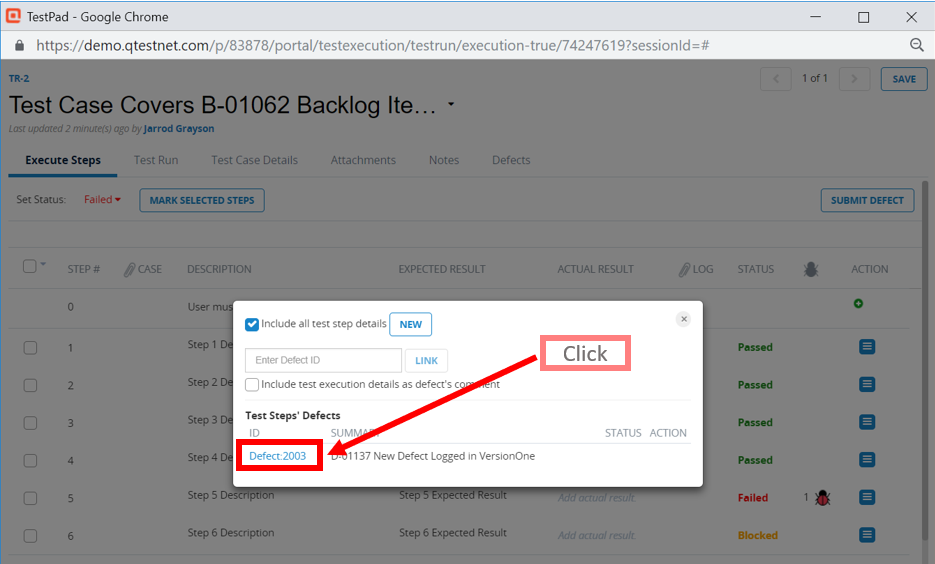
Before closing out of the defect submission window in qTest, users need to click the Defect link so that the users can establish traceability to the Backlog Item on the Defect object in VersionOne. If the users do not immediately do this after submitting the defect and before closing the defect window in qTest, the users risk forgetting to establish this critical traceability.
Test Pad window
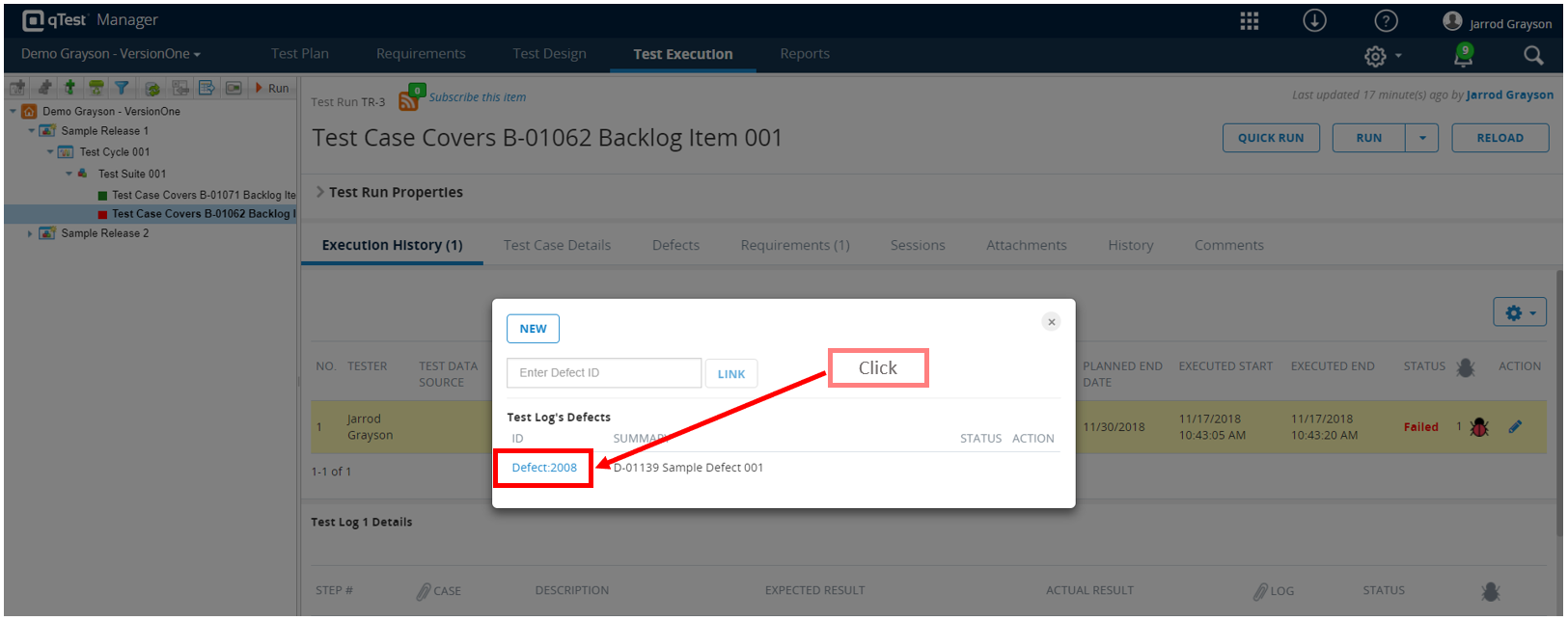
Test Log in Execution History
Users need to assign any Backlog Items to the Defect to track which work items the Defect is blocking. This should include any and all Backlog items the Test Case was linked to in qTest Manager, as a minimum.
qTest users should be able to quickly reference the linked VersionOne Requirements in their active qTest Manager window.
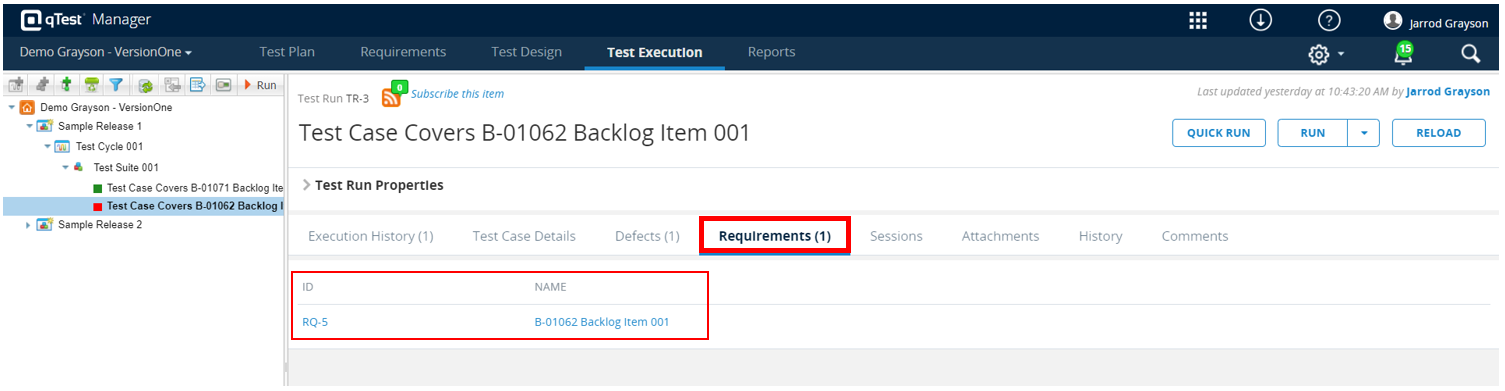
Once the Backlog item has been assigned to the Defect, the item should be visible as a link in the Breaks Workitems section.
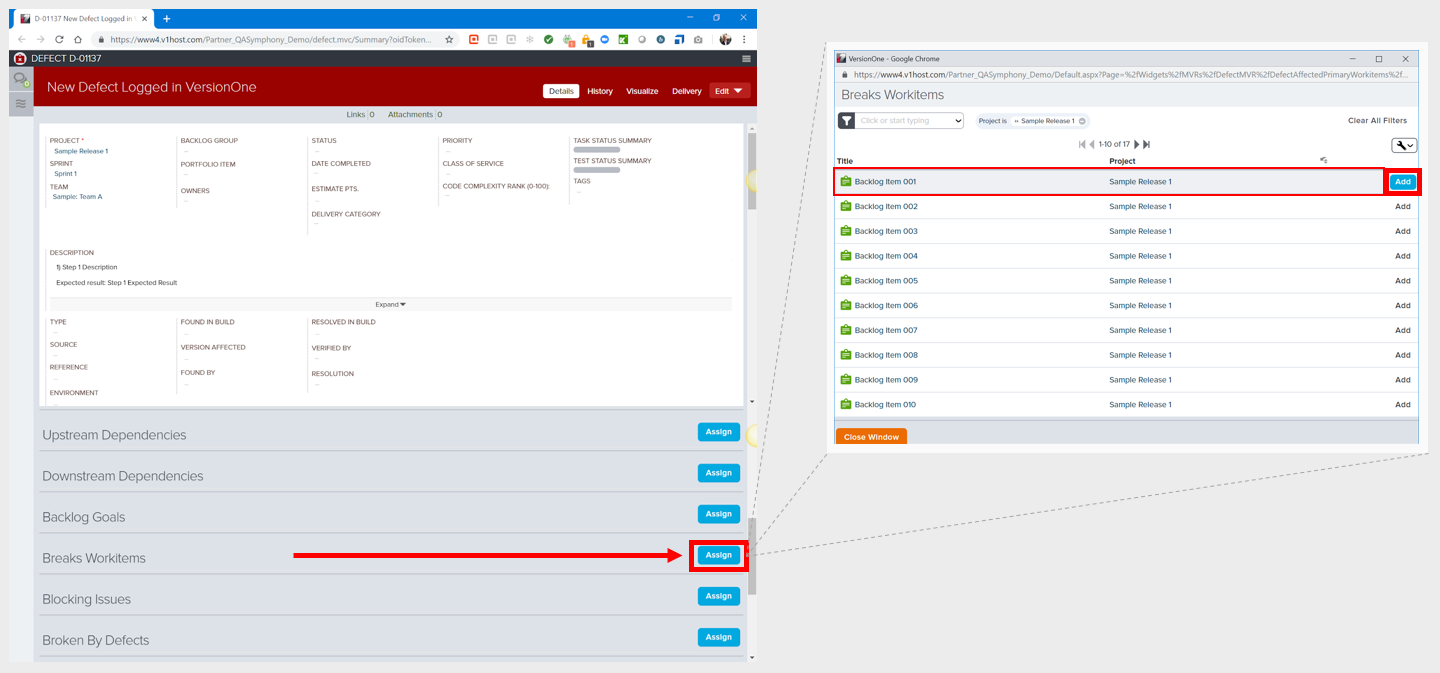
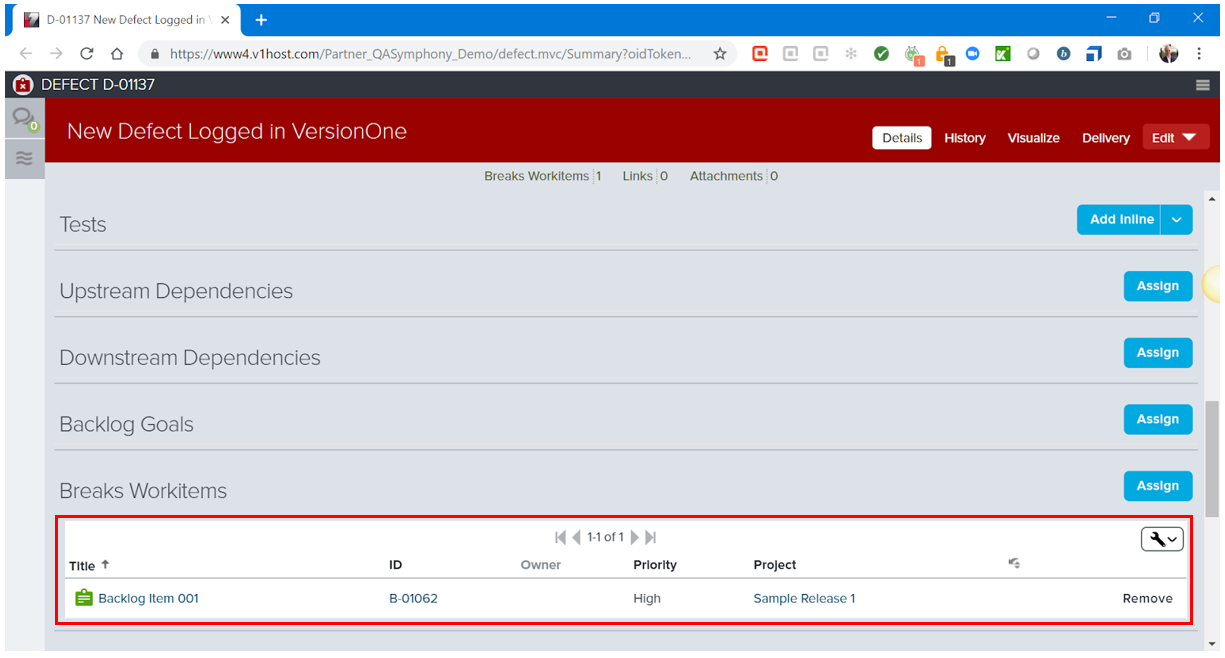
Now your qTest users can return to the Defect window on the Test Pad or Test Execution tab of qTest Manager to close the defect and return to testing.
Review VersionOne Defect After Submission
Review VersionOne Defects in Manager
In qTest Test Execution, you can find VersionOne defect information in many areas.
-
To view VersionOne defects for a single Test Run, select the Defect icon from the Test Run grid.
-
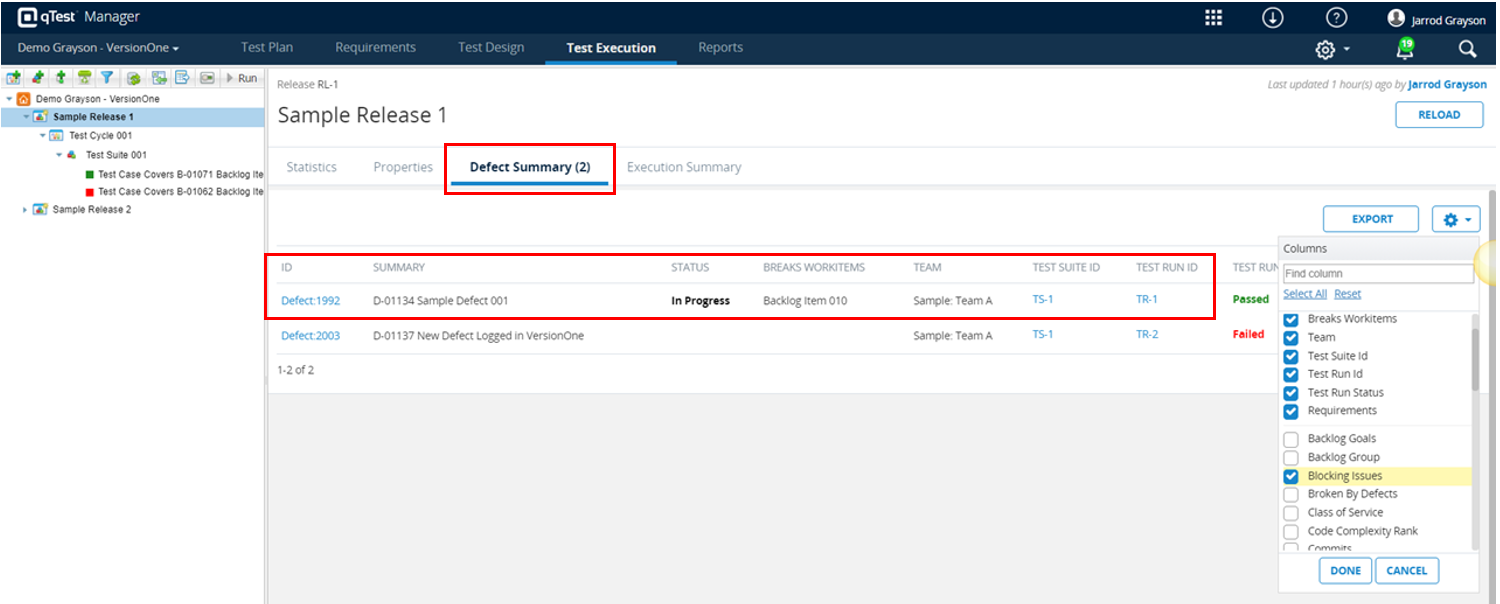
To view an aggregate list, select the Defect Summary tab for a roll-up of all VersionOne defects related to associated Test Runs. The Defect Summary tab can be customized so that you can display additional VersionOne Defect fields as columns.
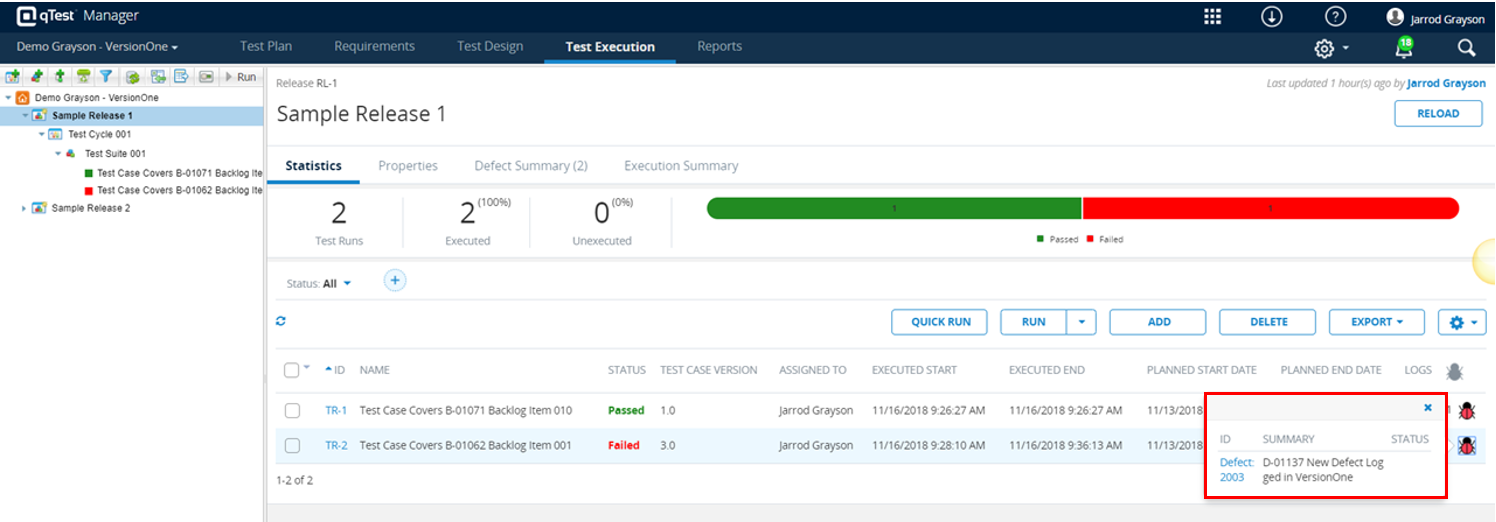
Review Defects in VersionOne
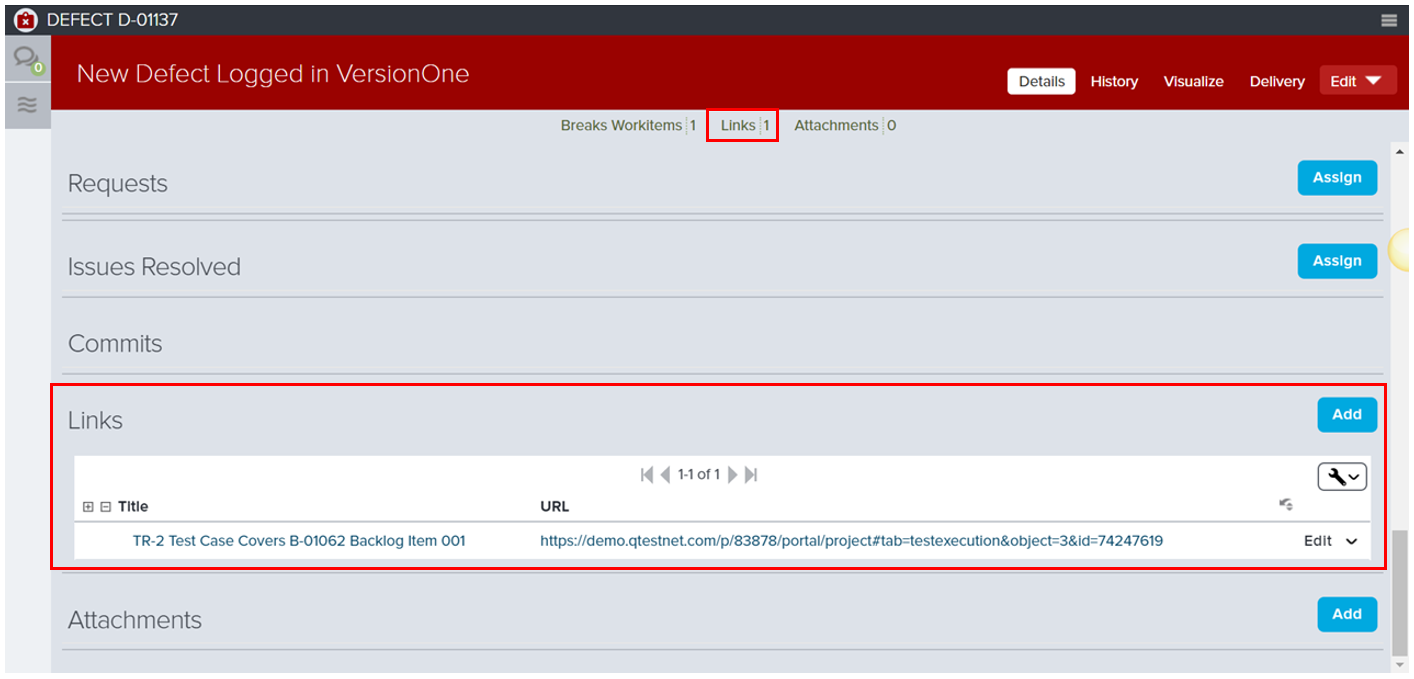
From VersionOne, you can see the link to the qTest Test Run in the Links section of the defect.