Access qTest Insights
Insights application permissions are handled via User Groups, and you should contact your Site Administrator in order to gain access.
-
To access Insights you need the Insights Viewer User Group permission.
-
To access and edit Insights you need the Insights Editor User Group permission.
Add a User to the Insights Editor and/or Viewer User Group(s)
If you are a Site Administrator and want to give a qTest user access to qTest Insights, follow these steps:
-
In qTest Manager, select Administration from your username drop-down menu.

-
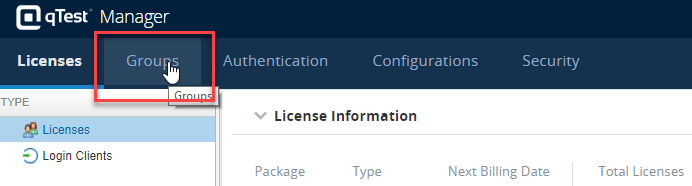
Select the Groups tab.
-
The User Groups page displays. Notice the System Generated Groups. Within this group are both the qTest Insights Viewers and qTest Insights Editors User Groups. The functionality for adding users to each group is the same, so we are going to only walk through adding a user to the Editors group.
-
Select the Action icon next to the Insights Editors User Group, and choose Assign Users.

-
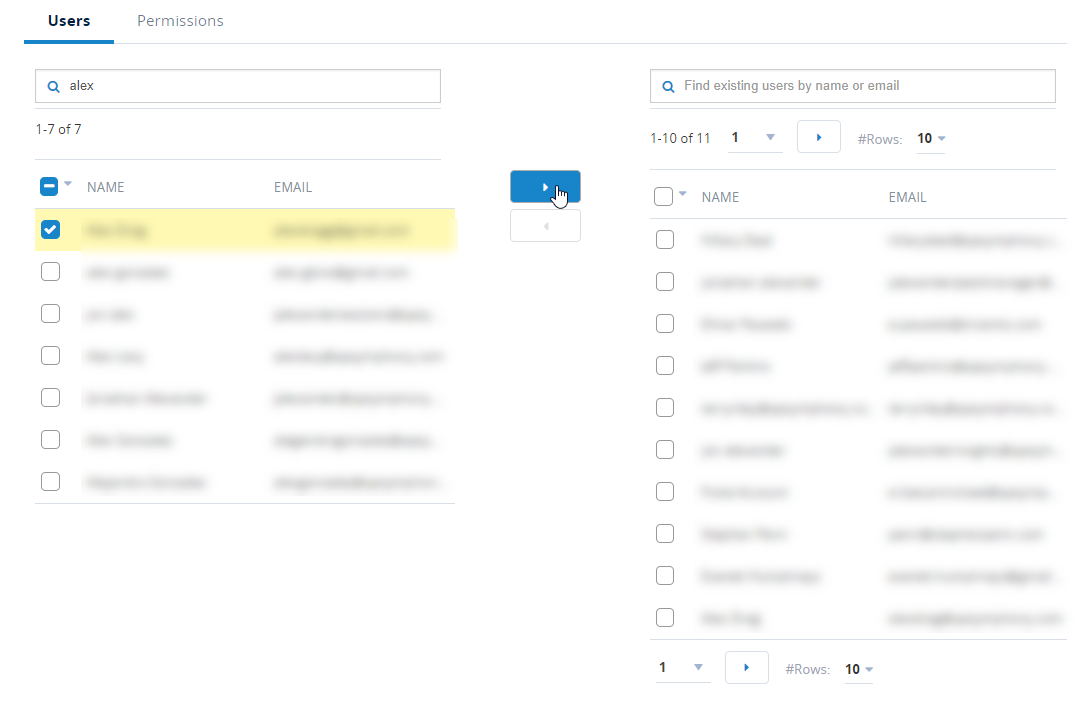
Search for your users that you would like to add. Select the check box next to their name, and then select the right arrow icon to add them to the list of existing users of that User Group.
-
Once you are done adding your users, select Save. The users now have access to qTest Insights.
Access qTest Insights
After you have been added to the right User Groups, you have system permission to access qTest Insights. Follow these steps:
Select the Product Navigator, and choose Insights.
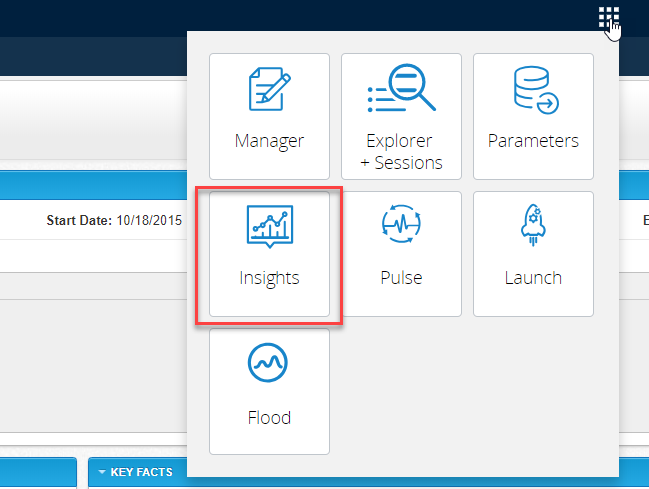
qTest Insights loads and you are automatically taken to the Quality Analysis page.