Augmented analysis
Augmented analysis uses machine learning to automatically segment a test result into time intervals based on response time, error, and throughput metrics combined with virtual user load. NeoLoad Web then explains the system behavior behind each interval with a description of what happened, such as increasing user load or error rates.
Here's how augmented analysis helps your work:
-
Compare test behavior across versions using the same intervals.
-
Spot patterns, anomalies, and bottlenecks automatically, instead of scanning every metric yourself.
-
Cut the effort of analyzing long test runs.
Check out Add intervals for the steps.
Interval charts
Intervals created with augmented analysis appear on the Errors and user load and Requests duration and volume in Metrics charts.
VU pattern analysis and сustom intervals appear on the first chart, and augmented analysis intervals appear on the second chart. Hover over an interval to see a tooltip with details about what's happening during that time period.
Interval colors
NeoLoad Web uses color-coding to help you quickly identify performance patterns generated by augmented analysis and VU pattern analysis:
-
Green: Healthy system behavior.
-
Red: Performance degradation.
-
Blue: Neutral or baseline behavior.
Interval details
The intervals table below the charts provides details about each interval, including:
-
Type: Shows whether the interval was generated by Augmented analysis, VU pattern analysis, or created as a Custom interval.
-
Color indicator: Displays the interval's color for quick visual reference.
-
Name: Describes system behavior, such as increasing user load, rising error rates, slower request durations, or reduced requests per second.
Use these insights to pinpoint performance regressions, validate improvements, or understand how your system behaves under different load conditions.
Find the moment a test stopped keeping up with its load.
A test ramps up to 2,000 virtual users (VUs), holds that load for the rest of the hour, and ends with a failed status. You want to know when performance started to degrade, and what changed.
Augmented analysis splits the run into intervals on the Requests duration and volume chart. It also names the behavior in each one and provides a description. Here's what it tells you:
-
The first three intervals are green, so the system stays healthy from the start of the ramp through nominal load at 2,000 VUs.
-
The fourth interval, Heavy perf. degradation 2000VU, turns red at 00:20:00. Its tooltip reports that user load is constant, while error rate and request duration increase and requests per second decrease.
-
The fifth interval, Possible crash 2000VU, uses a darker red to flag more severe degradation for the last 38 minutes of the run.
The load didn't change at 00:20:00, so the drop in throughput points to your system. Select View interval values in the tooltip to open the metrics for that interval and analyze it in more detail.
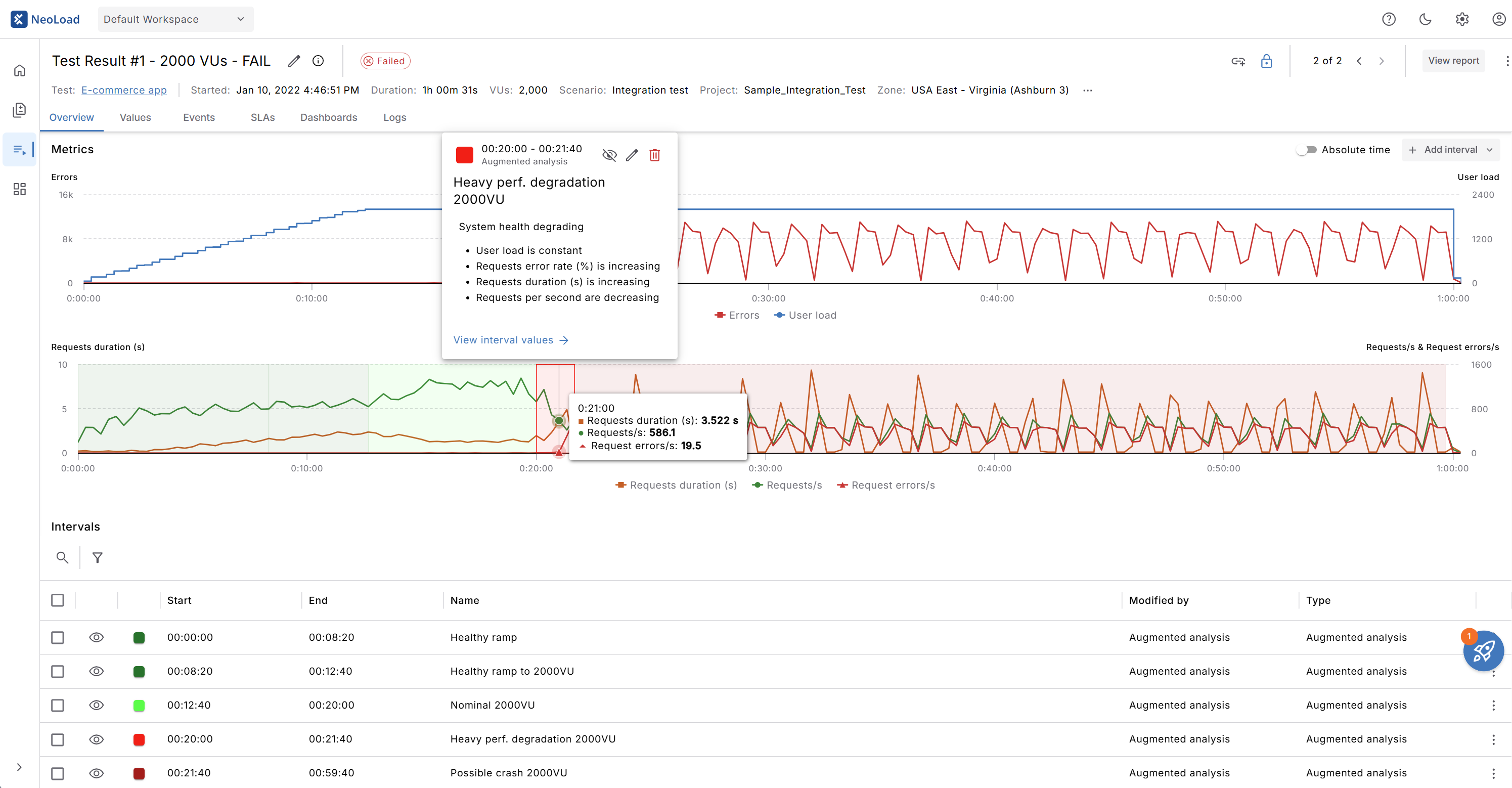
Click to enlarge: The red intervals show where the system stopped keeping up with a constant 2,000 VU load