Service Level Agreement profile manager
You may access the Service Level Agreement Profile Manager through the Edit > Service level agreement profiles menu item.
This manager allows to:
-
apply an SLA profile to a set of test results
-
add an SLA profile
-
delete an SLA profile
-
duplicate an SLA profile
-
edit an SLA profile
-
export an SLA profile
-
import an SLA profile
Most actions may be canceled by clicking the manager Cancel button, with the exception of:
-
exporting one or more SLA profiles
-
applying an SLA profile to one or more sets of test results
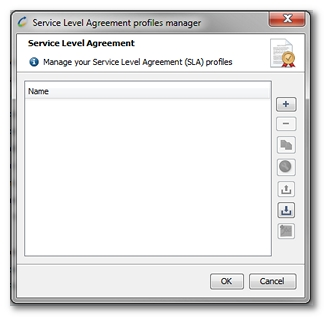
Add a Service Level Agreement profile
To add an SLA profile, follow these steps:
-
Click + (plus) to open the Service Level Agreement Profile Creation Wizard.
-
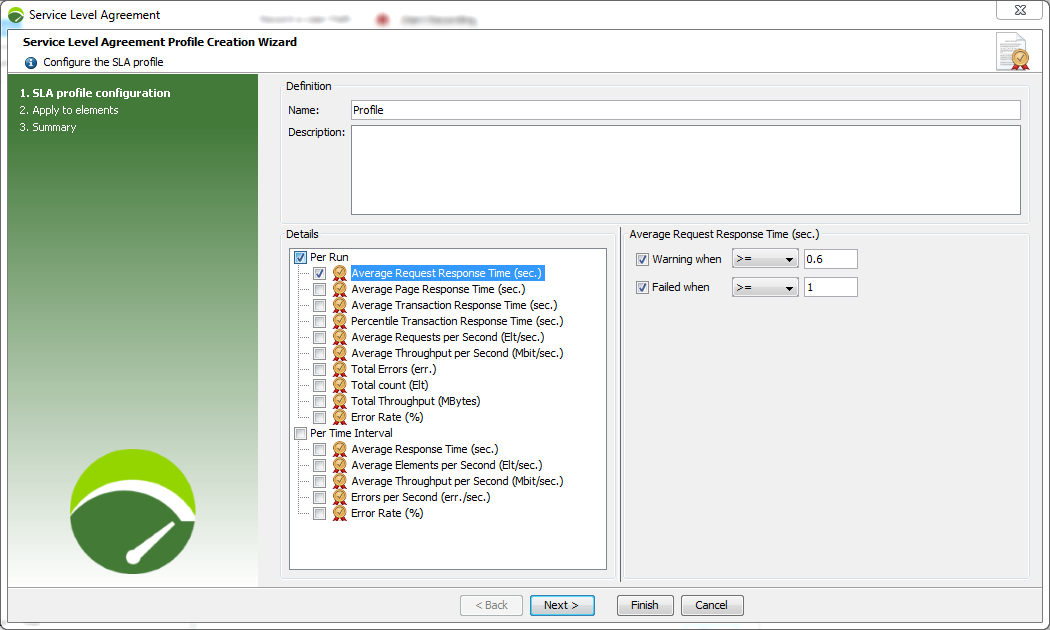
NL-AddingASLAProfile1-6.4
-
Enter a name and description for the profile. The name must be unique.
-
Select the SLAs by ticking the appropriate boxes.
-
Define the thresholds for each of the selected SLAs.
-
Click Next.
-
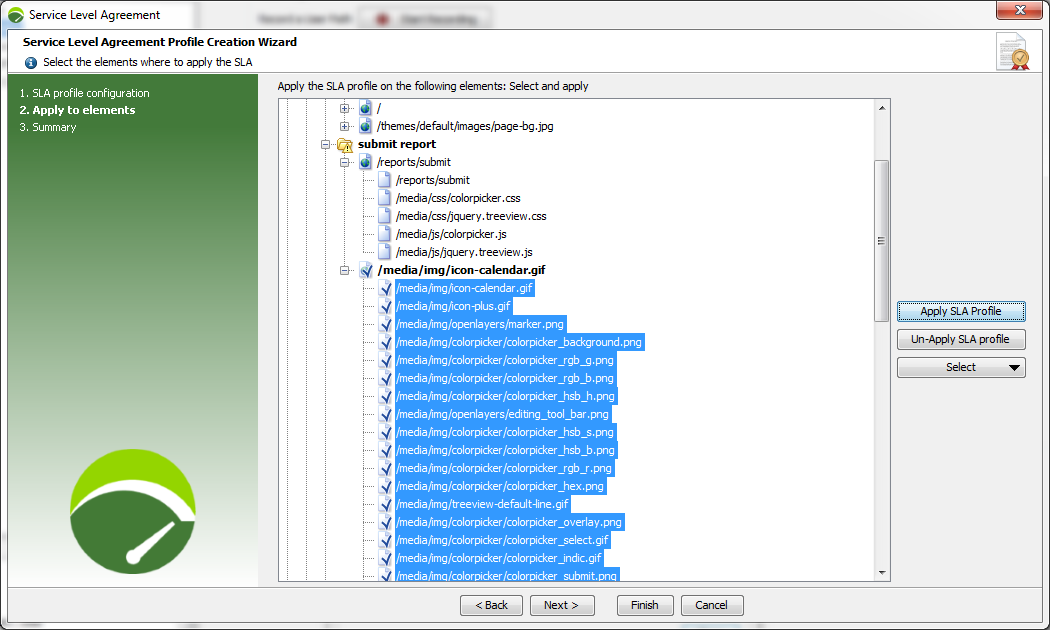
NL-AddingASLAProfile2-6.4
-
Apply the SLA profile to one or more elements by selecting them and clicking the Apply SLA profile button.
-
After selecting a parent element in the tree, you can select the element types with the Select list button, and apply the SLA profile to them with the Apply SLA Profile button.
-
Click Next.
-
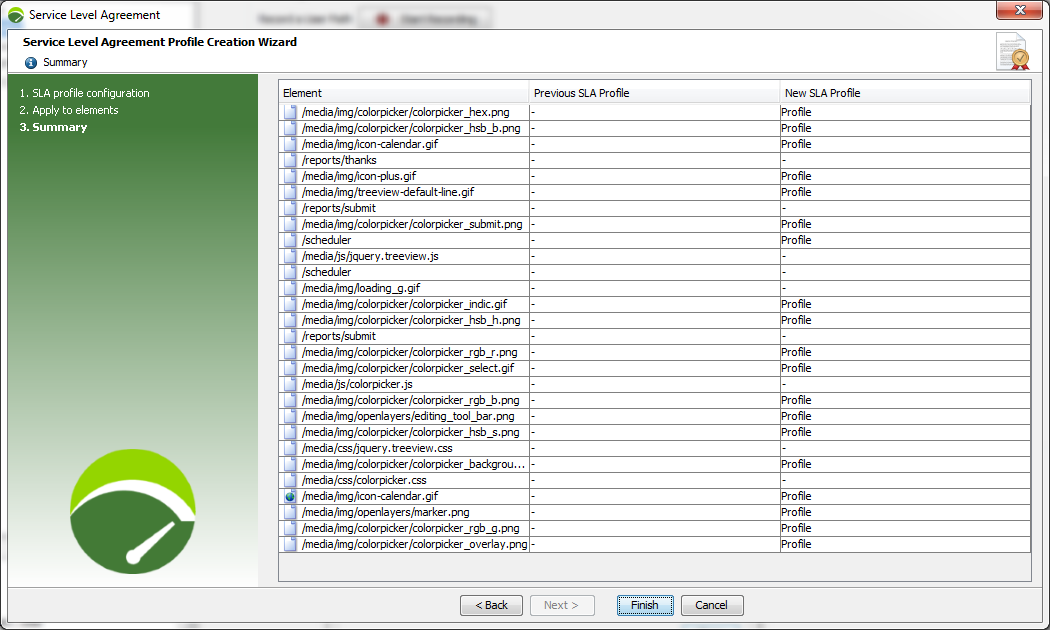
A summary of the links between configuration elements and SLA profiles is displayed.
-
Click Finish.
-
Click the Close button in the SLA Profile Manager to confirm the new profile.
Delete a Service Level Agreement profile
To delete an SLA profile, follow these steps:
-
Select the SLA profiles you wish to delete.
-
Click - (minus). A pop-up warning is displayed.
-
Click Yes to proceed with the deletion.
-
Click the OK button in the SLA Profile Manager to confirm the deletion.
Duplicate a Service Level Agreement profile
To duplicate an SLA profile, follow these steps:
-
Select the SLA profiles you wish to duplicate.
-
Click Copy. A new profile with a name derived from the original is displayed.
-
Click the OK button in the SLA Profile Manager to confirm the duplication.
Edit a Service Level Agreement profile
Editing an SLA profile follows the same process to add an SLA profile, except that the configured profile already exists. For more information, see Add a Service Level Agreement profile.
Export a Service Level Agreement profile
To export one or more SLA profiles, follow these steps:
-
Select the SLA profiles you wish to export.
-
Click Export. A window is displayed allowing you to select the destination folder.
-
Select the destination folder.
-
Click the Export button.
-
An information message is displayed. Click OK.
One file is written to the destination folder for each SLA profile. If the file(s) already exist(s) in the destination folder, the existing file(s) is/are overwritten. This action cannot be reversed later.
Import a Service Level Agreement profile
To import one or more SLA profiles, follow these steps:
-
Click Import.
-
Select the XML files for the SLA profiles you wish to import.
-
If one or more of the profiles being imported already exist, an import confirmation window is displayed. Click Yes to confirm the overwriting of the existing profiles.
-
Click the OK button in the SLA Profile Manager to confirm the import.
Apply a Service Level Agreement to test results
This action allows:
-
moving an SLA profile into several test results, and
-
re-computing the test result summary using the new configuration.
To apply SLA profiles to a set of test results, follow these steps:
-
Open the SLA Profile Manager.
-
Select an SLA profile.
-
Click Apply the SLA profile to test results.
-
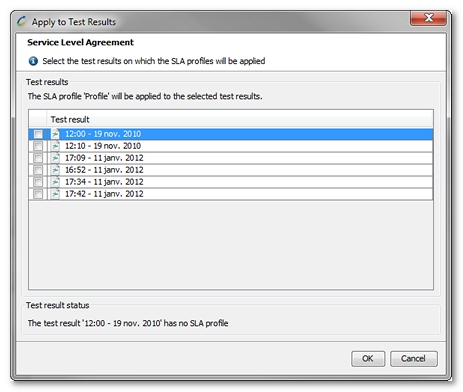
A wizard is displayed allowing you to select the test results to which the SLA profile is to be applied
-
Click OK. Depending on the test results selected, this operation may take some time.
A warning symbol on a test result means that the test already contains SLA profiles.
When an SLA profile is overwritten in a set of test results, the previous SLA profile is lost. This action cannot be reversed later.