Read NeoLoad Information in CA APM
When the Workstation headers are ready to send and the link display options are enabled, quick links to CA APM Workstation are displayed in the NeoLoad interface.
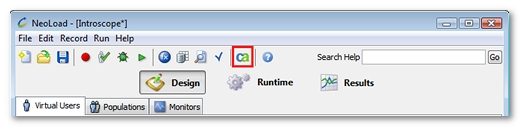
Clicking the CA button in the NeoLoad menu bar opens CA APM Workstation. The Investigator view displays the element that is selected in NeoLoad.
By default and when no relevant element is selected, the Investigator view positions itself on:
-
an application node if at least one monitored application is defined in the NeoLoad settings, or
-
the home page if no monitored application is defined.
When an element can be selected in CA APM Workstation, the CA button in the NeoLoad Controller bar has the same effect as the option that is displayed by right-clicking on the element.
Runtime information
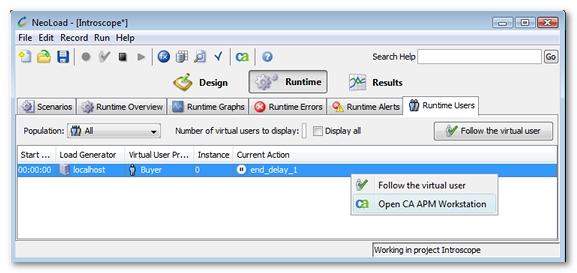
In the NeoLoad Controller, several tabs in the Runtime section display links to CA APM on a right click on the element to be analyzed:
-
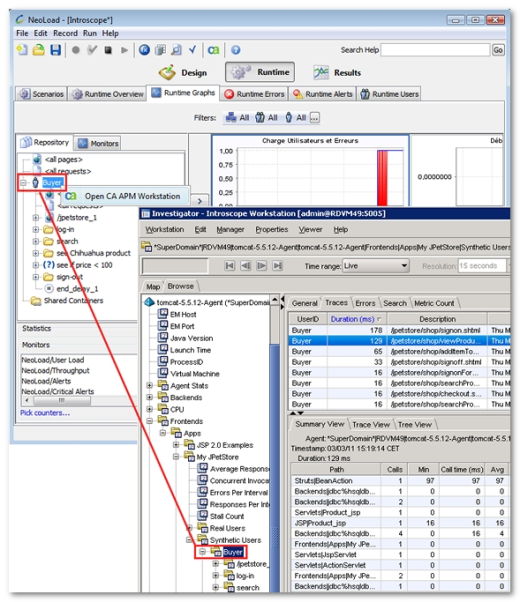
In the Repository area of the Runtime Graphs tab
-
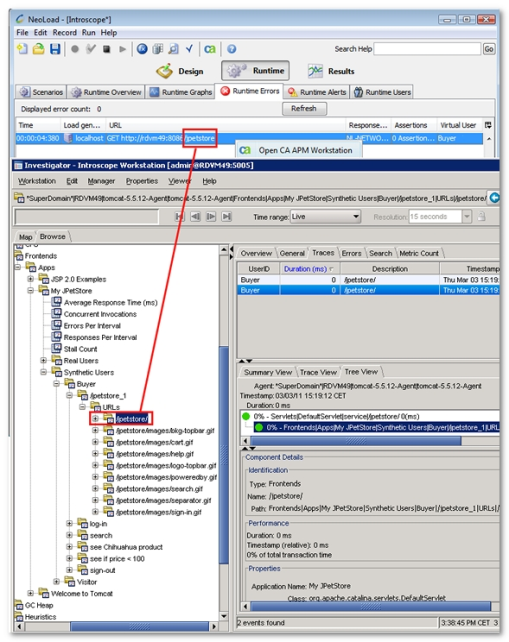
In the errors table of the Runtime Errors tab
-
In the Virtual Users table of the Runtime Users tab
Results information
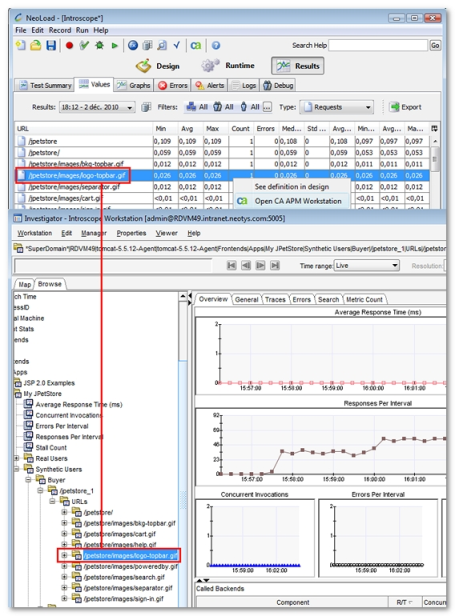
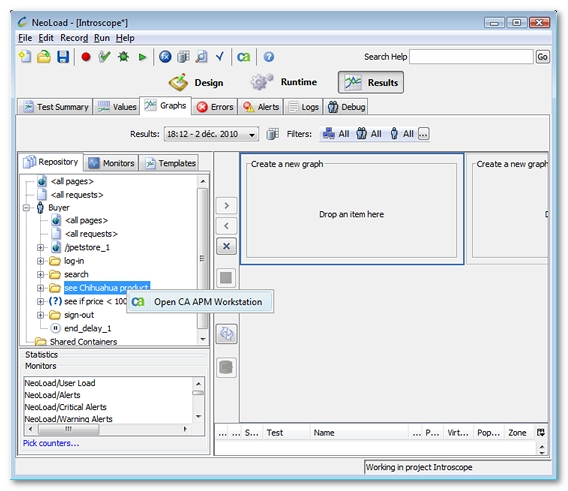
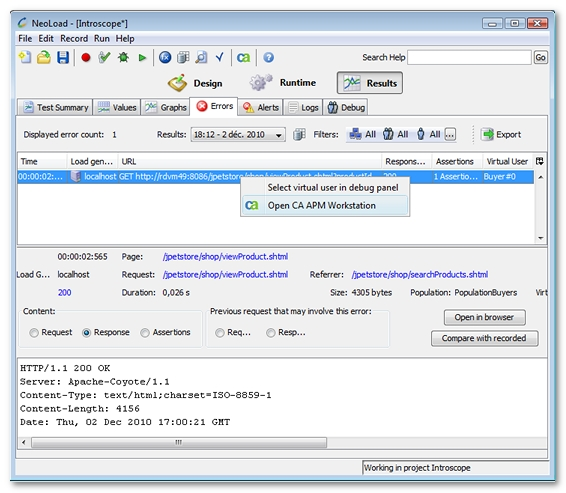
In the NeoLoad Controller, several tabs in the Results section display links to CA APM on a right click on the element to be analyzed:
-
In the values table of the Values tab
-
In the Repository area of the Graphs tab
-
In the errors table of the Errors tab
-
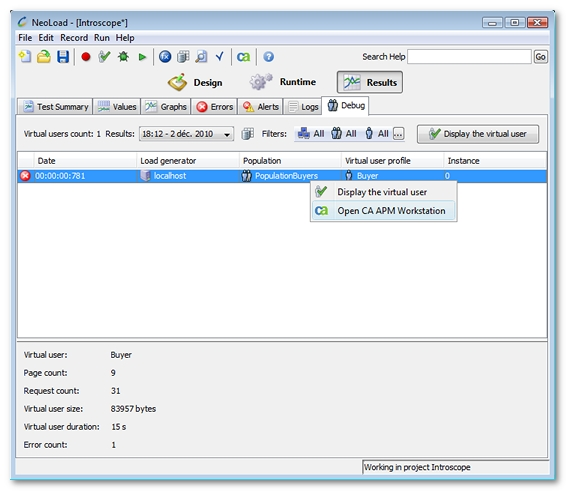
In the Virtual Users table of the Debug tab