Edit a SOAP request
Description of the SOAP request editing pane:
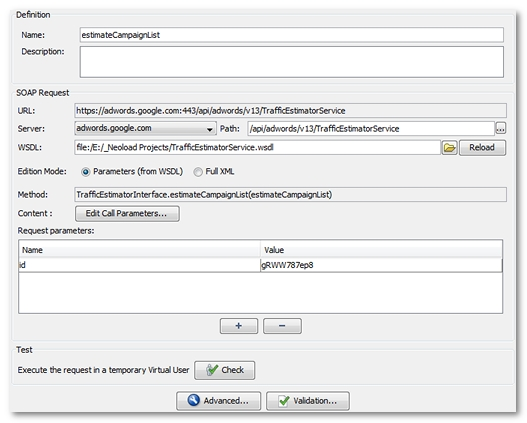
-
Name. Name of the request
-
Description. Optional comments or notes.
-
URL. Web service URL, cannot be edited.
-
Server. Web service server.
-
Path. Path to the web service, depending on the selected server.
-
WSDL. URL for the WSDL. For a file on the hard drive, the URL will take the form
file:/C:/...Use the file browse button to select the file. For an online file, use the standardhttp://myserver/myapp/myservice?WSDL.The Reload button allows the WSDL to be reloaded and to choose a method from the WSDL. It reconfigures the request parameters according to the new selected method. After confirmation, the request original parameters are deleted.
-
Editing mode.
-
Parameters (from WSDL) mode
This mode is available if a WSDL file has been defined. It allows the call parameters to be entered based on the WSDL definition. For more information, see Edit the parameters extracted from the WSDL.
-
XML mode
This mode allows the request to be edited directly in XML format. For more information, see Edit the XML content.
-
-
Method. SOAP Method to be called, cannot be edited directly. Another method can be selected when clicking on the Reload button, if a WSDL is provided.
-
Content. Edit the WSDL parameters or XML content, depending on the mode selected.
-
Parameters. URL parameters. For more information, see Request and POST parameters.
-
Test. Provides a quick way to test the request. Clicking on Check creates a temporary User Path containing the edited request, then launches a User Path check.
The Advanced and Check buttons provide the same features as for a standard HTTP request, allowing the editing of HTTP headers, the creation of variable extractors and the checking of contents.