Variables and Functions
Variables are used to add dynamic content to a scenario. They may be combined with other variables or with static content (e.g. ${product_${productID}}) and used in a number of places, such as in form parameter values.
Create a variable
The Variables dialog is accessible:
-
with the Edit > Variables command
-
with a click on the Variables toolbar button.
To create a variable, click the New Variable button.
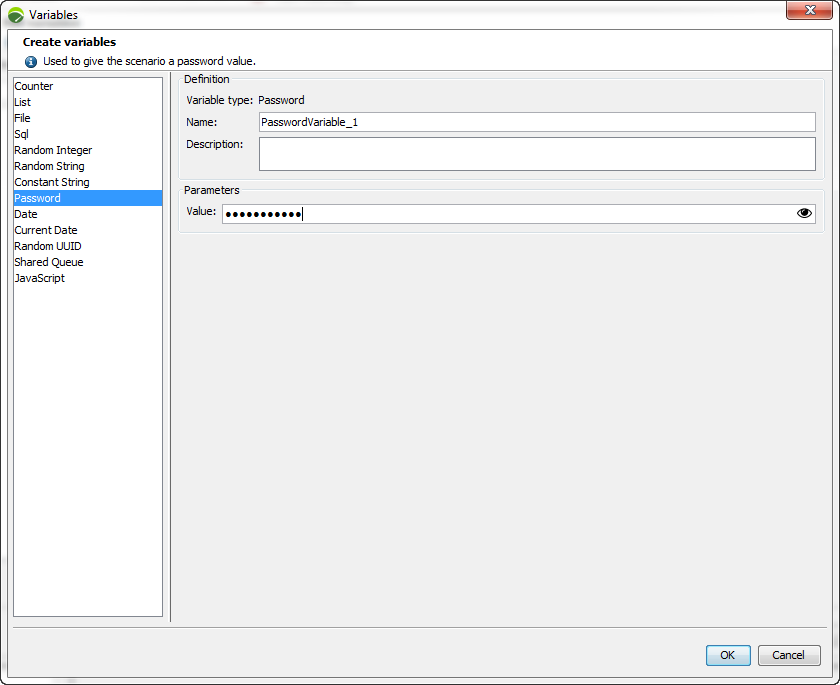
Then select the type of variable you want to create:
A numerical variable having an initial value, a maximum value and an incremental value.
A list or table of values. Use ${<variable Name>.<columnName>}. For example: ${ListVariable0.col0}.
A click on the column header makes it possible to rename the column. For example, ${accounts.login} can be used instead of the default name ${accounts.col_0}.
Data sets can be imported with a click on the Import data button. For more information, see Datasets.
A list or table of values loaded from a text file. Use ${<variable Name>.<columnName>}. For example: ${ListVariable0.col0}. The first line of the file can be used as columns headers name.
The file variable only works with CSV (Comma Separated Values) format files.
A click on the column header makes it possible to rename the column. For example, ${accounts.login} can be used instead of the default name ${accounts.col_0}.
Data sets can be imported with a click on the Import data button. For more information, see Datasets.
A list of values loaded from a database request. The SQL variable executes a request to the database and stores the values in a temporary CSV file. The temporary CSV file is placed in the project directory SqlTemp subdirectory. The content of the file is updated each time the scenario is launched.
Two configurations are possible depending on the database driver selected:
Guided mode:
-
The MySQL, Oracle, DB2, PostgreSQL or Microsoft SQL driver must be selected. In this mode, the following fields must be filled in: host, port, name, user name and password for the database. The MySQL, Oracle and PostgreSQL drivers are available by default. Please check the supported versions of each driver in the Database section of the Monitors documentation. Use manual mode for unavailable drivers.
-
Manual mode:
The Custom driver must be selected. In this instance, the JDBC driver (Java DataBase Connectivity) usually takes the form of a file bearing the
.jarextension. This file must be installed in the/lib/jdbcDriversunder the root NeoLoad installation directory.If you want to request a MySQL database with a version lower than 5.6, here is a example:
mysql-connector-java-5.0.4-bin.jarThe Driver name is unique to the driver used.
For example:
com.jdbc.mysql.Driver for mysql.The complete URL is used to specify the access path to the database. This URL must include at least the following information: host name, port, name, user name and password for the database.
For example:
jdbc:mysql://localhost:3306/test?user=neotys&password=secret
Only SELECT type requests are authorized within the SQL request. For example: SELECT * FROM users
The Test button allows checking the validity of the database connection information and SQL request.
The test window shows the following items:
-
Query contains the SQL request.
-
Results: Request results preview pane.
-
Error details: This field shows the errors returned by the database driver.
A random numerical value within a value range.
-
Predictable randomization: When this option is selected, randomly generated values will have comparable values for two identical tests.
A random alphanumerical string defined within a value range.
-
Predictable randomization: When this option is selected, randomly generated values have comparable values for two identical tests.
A string which value cannot be modified.
An alphanumerical string whose value is encrypted on the hard drive and hidden.
A date in the desired format. May be incremented.
The current date in the desired format.
Universal unique identifier in the XXXXXXXX-XXXX-XXXX-XXXX-XXXXXXXXXXXX format. Can be generated in lower case (default) or upper case.
-
Predictable randomization: When this option is selected, randomly generated values have comparable values for two identical tests.
A queue that allows sharing dynamic content between Virtual Users. For more information, see Shared queues.
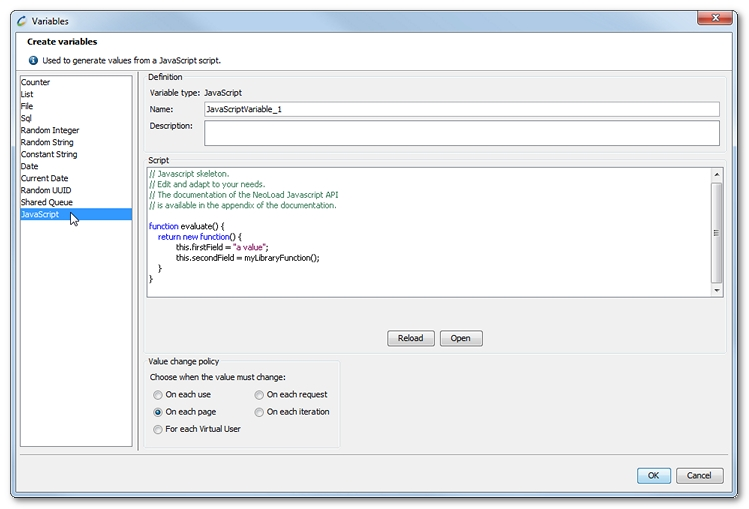
A variable computed by a Javascript. The script must contain a function named evaluate that returns the variable value.
For example:
function evaluate() {
return new function() {
this.firstField = "a value";
this.secondField = myLibraryFunction();
}
}
Variable field values can be accessed by using either the syntax ${<variable name>.col_<field number>} or ${<variable name>.<field name>}
For example: ${JSVariable0.col0} or ${JSVariable_0.firstField}
The NeoLoad API and the JavaScript library in the script definition of the variable can be used. For more information, see API overview, and JavaScript libraries.
This variable lets you use secrets from an external vault. The Controller retrieves the secrets at test start-up, so you don't need to store secret values in your project. If you change a secret after the test starts, the running test still uses the value present at start-up. To test with the value change, run the test again.
SecretVault variables require a NeoLoad Web connection. Before you create a variable, connect NeoLoad to NeoLoad Web, then add your vault provider in NeoLoad Web.
To create a SecretVault variable, follow these steps:
-
In the Variables dialog, select New Variable.
-
Select SecretVault.
-
Select a Provider from the list. NeoLoad populates this list with available provider connections from NeoLoad Web.
-
Paste the Secret path from your vault.
-
Select Refresh keys to load the keys from the vault.
-
Select OK to create a variable.
Use the following syntax to add SecretVault variables to a User Path:
-
Single-value secret: Use the syntax
${<variable name>}. -
Key/value secret: Select a key to build with the syntax
${<variable name>.<key>}. For example:${SecretVault_Variable.password}.
To learn more about using variables, check out Use variables.
Starting from line
You can choose at what line to start using your File and List-type variables.
Enter the line number in the Starting from line field.
When "Starting from line" is used with the option "Cycle values", values are starting from the line configured only in the first cycle.
Datasets
File and List-type variables may be populated using predefined datasets.
Datasets are organized by themes and countries: zip codes, family names, country names, street names, female first names, male first names, and street types.
Only one theme may be used for a given variable.
Value change policy
All variables (except CurrentDate) may define a value change policy. This is sometimes referred to as a variable lifetime.
-
Each use: The value is systematically changed upon each use.
-
Each request: The value is changed each time a new HTTP/HTTPS request is played, the variable retaining the same value in both the request and the response to the frame.
-
Each page: The value is changed each time a new page is played, the variable retaining the same value for all the requests defined in the page.
-
Each iteration: The value is changed when switching between Containers
Init - Actions- End and for each iteration of theActionsContainer, the variable keeping the same value for all the pages and requests within a same iteration. -
Each Virtual User instance: The variable retains the same value for all pages and requests of a given Virtual User instance.
Value distribution policy
A variable value distribution has three available settings:
-
Scope: The value scope can be:
-
Local: The values are specific to each Virtual User.
-
Global: The values are shared among Virtual Users.
-
Unique: Identical to Global, with the guarantee that a value is only used by a single Virtual User at a time.
-
-
Order: Values may be distributed in a set order:
-
Sequential: Values are taken in the order they are defined.
-
Random: Values are taken in random order.
-
Any: Best effort sequential order. This order is more efficient than sequential order.
-
-
When no values are left: Several policies can be applied:
-
Cycle: The values are used over again, starting from the top.
-
Stop test: The load test run is stopped when all the variable values have been used.
-
Return the value "<NO VALUE>": All subsequent requests for values return this value.
-
Duplicate a variable
In the Variables dialog, a variable can be duplicated to quickly and easily create another variable.
After selecting an existing variable, a click on the Duplicate variable button creates a new instance of the variable with the same configuration. To edit the variable duplicate, see Create a variable.
Remove a variable
In the Variables dialog, a variable can be removed. After selecting a variable, a click on the Remove variable button deletes the variable.
Removing a variable used in a request creates an inconsistency in the scenario.
Test a variable
The variable testing tool may be used to verify a variable syntax and value change policy:
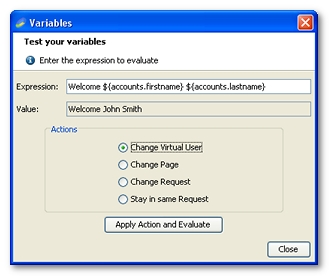
Click on the Apply Action and Evaluate button to simulate and validate the variable value change policy.