SAP Remote Function Call
Remote Function Call (RFC) is a protocol that SAP systems use to communicate with remote or external systems. It supports data exchange, system integrations, and distributed computing.
RFC includes the following types:
-
Synchronous RFC (sRFC)
-
Asynchronous RFC (aRFC)
-
Transactional RFC (tRFC)
-
Queued RFC (qRFC)
Tricentis NeoLoad includes advanced actions that let testers connect to an SAP server and run RFC calls. For the requirements, check out this table:
| Requirements | Description |
|---|---|
| Maturity | Stable |
| Author | Tricentis NeoLoad |
| License | BSD Simplified (opens in new tab) |
| Requirements | Tricentis NeoLoad Enterprise and Professional editions with Integration & Advanced Usage |
| Bundled with Tricentis NeoLoad | Yes |
Before you start
To use SAP RFC in Tricentis NeoLoad, follow these steps:
-
Download the SAP Java Connector .jar files and native libraries for your operating system from the SAP Connector Repository (opens in new tab).
-
Move sapjco3.jar to the lib/extlib folder in your Tricentis NeoLoad project.
-
Move the native library file—sapjco3.dll for Windows or libsapjco3.so for Linux and macOS—to the lib/extlib or custom-resources folder in your Tricentis NeoLoad project.
-
Restart Tricentis NeoLoad.
Advanced actions
Tricentis NeoLoad provides advanced actions to manage SAP RFC testing efficiently. The following sections describe each available action and its parameters.
Connect to an SAP server
Use this action to establish an RFC connection to an SAP server. For the available parameters, check out this table:
| Parameter | Description |
|---|---|
| destination | The name of the destination. A properties file with this name is created. |
| host | The SAP server's IP address or hostname. |
| sysnr | The SAP system number. |
| client | The SAP client code. |
| user | The SAP username. |
| password | The SAP password. |
| lang | The language code. The default is en. |
| jco.client.{propertyName} | An advanced property for destination properties. |
Scan an RFC function
Use this action to scan an RFC function and retrieve its signature. For the available parameters, check out this table:
| Parameter | Description |
|---|---|
| destination | The name of the destination. |
| remoteFunction | The RFC function name to scan. |
Run an RFC function
Use this action to run an RFC function. For the available parameters, check out this table:
| Parameter | Description |
|---|---|
| destination | The name of the destination. |
| remoteFunction | The RFC function name to run. |
| importParameters | A list of import parameter names and values, separated by commas. Format: name1:value1,name2:value2. |
| tableParameters | A JSON object that maps each table parameter to its rows. Each row lists the column names and their values. For an example, check out the following syntax. |
To pass values to a table parameter, use a JSON object. Each key is a table name, and its value is an array of rows. Each row is an object of column names and values.
For example, the table MATERIALLONGTEXT has two columns, APPLOBJECT and TEXT_NAME. To add two rows to this table, use the following value:
{"MATERIALLONGTEXT":[{"APPLOBJECT":"E","TEXT_NAME":"T"},{"APPLOBJECT":"F","TEXT_NAME":"V"}]}Begin a transaction
Use this action to make the RFC connection stateful. After you begin a transaction, Tricentis NeoLoad runs the subsequent RFC calls on the same connection. You can then group several calls and commit them together. For example, you can commit a group of transactions with a BAPI_TRANSACTION_COMMIT call. For the available parameters, check out this table:
| Parameter | Description |
|---|---|
| destination | The name of the destination. |
End a transaction
Use this action to revert the RFC connection to stateless after you commit a group of transactions. For the available parameters, check out this table:
| Parameter | Description |
|---|---|
| destination | The name of the destination. |
Transaction flow
For transactional scenarios, run the advanced actions in the following order:
-
Connect to an SAP server.
-
Begin a transaction.
-
Run an RFC function, one or more times.
-
End a transaction.
Use the same destination value for all four actions. If the destination is missing from the virtual user context, the begin and end actions return the status code NL-RFC_TRANSACTION-01.
The following User Path shows a transaction that begins after the connection, runs several RFC calls in a loop, commits them, and then ends the transaction:
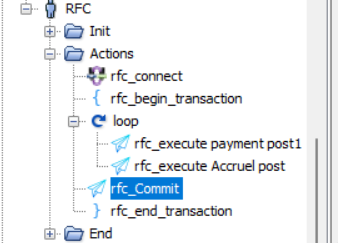
An RFC transaction in a Tricentis NeoLoad User Path
Status codes
Each advanced action returns a status code that helps diagnose errors during an execution. If an error occurs, check the following status codes to understand the issue:
| Status code | Description |
|---|---|
| NL-RFC_CONNECT-01 | A connection error occurred. |
| NL-RFC_SCAN-01 | A scanning error occurred. |
| NL-RFCClient_ERROR | An execution error occurred. |
| NL-RFC_TRANSACTION-01 | A transaction error occurred. |