Oracle Forms requests
The optional Oracle Forms module lets you load test Oracle Forms web applications. The module supports versions 9i to 12c of the OC4J (Oracle Container 4 Java) application server.
Recording
The following diagram shows how the Oracle Forms module works during recording:
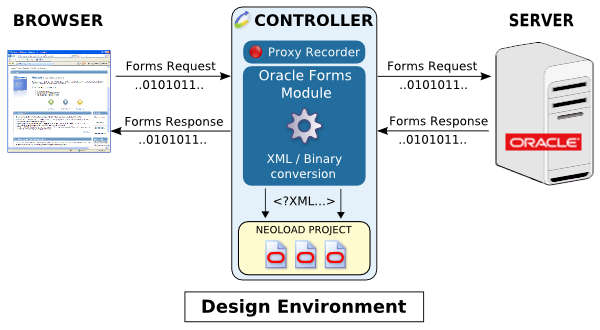
The binary data exchanged between the client and server passes through the Recording Proxy. The Oracle Forms module analyzes and decodes the requests during this transit. After translating the requests into XML, NeoLoad inserts them into the project.
Execution
The following diagram shows how the Oracle Forms module works during test execution:
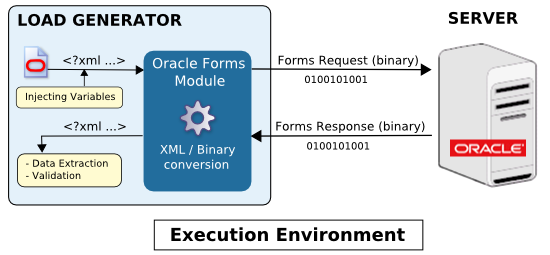
NeoLoad calculates the variables in the XML request, and the module engine translates the XML into binary data to send to the server. When the server responds, the module translates the binary response back into XML, then runs the validations and variable extractors defined in the request.
Configure NeoLoad
To record Oracle Forms requests, NeoLoad needs a JAR file from the Oracle 10g application server. If you start recording without this file, NeoLoad displays a warning.
To install the JAR file, follow these steps:
-
Stop NeoLoad if it's running.
-
Find the
frmall.jarfile on your Oracle server:-
Standard application server: Go to
<oracle_home>/forms/java, where<oracle_home>is the server installation directory. -
Oracle Applications Suite: Go to
<oracle_applications_home>/tech_st/<version>/forms/java. For example, for the VISION demo version of Oracle E-Business R12:c:\oracle\VIS\apps\tech_st\10.1.2\forms\java.
-
-
Copy
frmall.jarto<install-dir>/lib/plugins/ext. -
Restart NeoLoad.
Configure the Oracle Forms server
The Oracle Forms server must have component naming enabled so that NeoLoad can identify graphical components by name instead of by ID number. This setting must be active during both recording and test execution.
Choose one of the following methods based on your Oracle Forms setup. You only need to complete one.
Option A: Modify the applet baseHTML file
Use this method if your Oracle Forms server uses a standard OC4J application server with an applet-based deployment (versions 9i through 11g).
To enable component naming through the baseHTML file, follow these steps:
-
Open the applet baseHTML file (default:
<Oracle Home>/forms/server/basejini.htm). -
Find the line
<PARAM name="serverArgs" VALUE="............%otherParams%">. -
Add
record=namesat the end of theVALUEfield. The modified line should look like this:<PARAM name="serverArgs" VALUE="............%otherParams% record=names"> -
If there are multiple occurrences of the
serverArgsparameter, repeat the change for each one. -
Save the file and restart the Oracle Forms server.
Option B: Modify the Web CGI configuration file
Use this method if your Oracle Forms server uses a Web CGI configuration (common in Oracle Forms 10g and 11g deployments with Oracle HTTP Server).
To enable component naming through the CGI configuration, follow these steps:
-
Open the Web CGI configuration file (default:
<Oracle Home>/forms/server/formsweb.cfg). -
Search for the line
record=. -
If the line exists, replace it with
record=names, save the file, and restart the Oracle Forms server. -
If the line does not exist:
-
Add
xrecord=namesanywhere informsweb.cfg. -
Open the applet baseHTML file (default:
<Oracle Home>/forms/server/basejini.htm). -
Find the line
<PARAM name="serverArgs" VALUE="............%otherWorld%">. -
Add
record=%xrecord%at the end of theVALUEfield. The modified line should look like this:<PARAM name="serverArgs" VALUE="............%otherParams% record=%xrecord%"> -
If there are multiple occurrences of the
serverArgsparameter, repeat the change for each one. -
Save both files and restart the Oracle Forms server.
-
Option C: Modify the user profile (Oracle Applications Suite)
Use this method if you run Oracle Forms as part of the Oracle Applications Suite (Oracle E-Business Suite). This approach enables component naming for a specific user account.
To enable component naming through the user profile, follow these steps:
-
Log in as administrator to the Application Server Control Console through a web browser.
-
Select System Administrator.
-
Select Profile System Values.
-
In the Find System Profile Values window, configure the fields:
-
Select the Site check box.
-
Select the User check box and enter the name of the required user.
-
Clear the Profiles with No Values check box.
-
In the Profile field, enter
%ICX%Launch%.
-
-
Select Find.
-
Find the line for the
ICX: Forms Launcherprofile and set the user value to?play=&record=names. -
Save the changes and close the application.
-
Connect to the Oracle Forms application using the configured user account.
Record Oracle Forms requests
Before you start recording, confirm the following prerequisites:
-
The
frmall.jarfile is installed in NeoLoad (see Configure NeoLoad). -
Component naming is enabled on the Oracle Forms server (see Configure the Oracle Forms server).
-
All browser instances connected to an Oracle Forms application are closed.
Record SSL-secure Oracle Forms requests
To record SSL-secure Oracle Forms requests, import the NeoLoad SSL certificate into the web browser. For more information, see Record an HTTPS application.
To declare the NeoLoad SSL certificate, follow these steps:
-
Close all open browser instances.
-
Open the
DO_NOT_TRUST_NeoLoadRoot.cerfile in a text editor. The file is in the configuration directory of the user profile directory:-
Windows:
C:\Users\<username>\AppData\Roaming\Neotys\NeoLoad\<version>\conf\ -
Linux:
<HOME>/.neotys/NeoLoad/<version>/conf/
-
-
Copy the entire content of the file.
-
Open the
certdb.txtfile and paste the copied content at the end. Do not delete any existing content in this file. -
Save the file. You don't need to restart NeoLoad for the changes to take effect.
What's next
After you configure the server and install the JAR file, start recording your Oracle Forms user path. To check that requests and responses work correctly, see Check a user path.