Design a RealBrowser user path
Recording a RealBrowser user path is a great way to start creating a new business case scenario. However, if you want to add flow control, variables, or more complex browser interactions, you need to manually add them into the user path. This takes place in a phase called Designing.
RealBrowser designing leverages most of the existing NeoLoad design capabilities, and adds the following actions to help you handle most use cases when using the browser.
RealBrowser actions
Actions are the building blocks of your user path. Each action simulates something a real user would do: click a button, type text, or go to a page.
Frame parameters
To interact with content inside an iframe, use frame parameters. Use one of the following options per action:
-
frameIndex: The zero-based index of the iframe (0 for the first iframe, 1 for the second, and so on).
-
frameName: The name attribute of the iframe element.
-
frameSelector: A CSS or XPath selector to identify the iframe.
Navigation parameters
To wait for a page to load before continuing, use navigation parameters:
-
waitForNavigation.url: Confirms that navigation leads to a specified URL in regular expression format.
-
waitForNavigation.timeout: Maximum wait time for navigation in milliseconds.
-
waitForNavigation.until: Defines when the system considers navigation complete. Options: LOAD, DOMCONTENTLOADED, NETWORKIDLE, COMMIT.
Download parameters
To test a download feature, use download parameters to wait for and capture files:
-
waitForDownload: Waits for a file download to complete.
-
waitForDownload.path: File path where the downloaded file is stored.
CaptureRequests
Configures the capture of HTTP request metrics for analysis. Use this action to monitor request and response times between the browser and server.
This action uses the following parameters:
-
includeCache (optional): Includes requests loaded from browser cache. Default is false (network requests only). Set to true to include cached requests.
-
regexp (optional): Groups requests using a regular expression. The system matches against the full URL including scheme, hostname, port, path, and parameters. If not specified, all requests are aggregated into a single group.
-
resourceType (optional): Groups requests by resource type. Supported types: document, stylesheet, image, media, font, script, texttrack, xhr, fetch, eventsource, websocket, manifest, ping.
-
url (optional): Groups requests by exact URL match, excluding query parameters.
Click
Clicks an element on the page.
This action uses the following common parameters:
-
selector (required): Identifies the element to click. Supports text, CSS, and XPath selectors.
-
doubleClick (optional): Performs a double-click. Default is false.
-
mouseButton (optional): Mouse button to use. Options: LEFT (default), MIDDLE, RIGHT, BACK, FORWARD.
-
modifiers (optional): Keyboard modifiers to hold during click. Separate multiple modifiers with +. Example: Control+Shift.
You can also configure these advanced parameters:
-
force (optional): Forces the click even if other elements obscure the target. Use with caution. Default is false.
-
coordinates (optional): Click coordinates relative to the element. Format: x;y. If not specified, clicks the center of the element.
-
timeout (optional): Action timeout in milliseconds.
-
ignoreErrors (optional): Ignores errors if the action fails. Useful for conditional actions. Default is false.
The Click action also supports frame, navigation, and download parameters.
CloseBrowser
Closes the browser and ends the browser session.
This action uses the following parameters:
-
ignoreErrors (optional): Ignores errors if the action fails. Default is false.
-
shouldStopProcesses (optional): Applies only when the action is in the Actions container. When set to true, closes and recreates all external processes for each iteration. This increases response time and CPU usage for both CloseBrowser and subsequent OpenBrowser actions. Default is false.
CloseTab
Closes a browser tab at the specified index.
This action uses the following parameters:
-
index (required): Zero-based index of the tab to close. For example: 0 closes the first tab, 1 closes the second tab.
-
ignoreErrors (optional): Ignores errors if the action fails. Default is false.
Download
Waits for and handles a file download.
This action uses the following parameters:
-
waitForDownload.path (required): File path where the downloaded file is stored.
-
ignoreErrors (optional): Ignores errors if the download fails. Default is false.
EvaluateJavaScript
Executes JavaScript code in the current page context. Use this action to interact with page elements, extract data, or manipulate the Document Object Model (DOM).
This action uses the following parameters:
-
script (required): JavaScript function or expression to execute.
-
variableName (optional): Variable name to store the JavaScript execution result.
-
ignoreErrors (optional): Ignores errors if the script fails. Default is false.
This action also supports frame, navigation, and download parameters.
HandleBrowserDialog
Configures how the browser handles JavaScript dialogs.
This action uses the following parameters:
-
behavior (required): Action to take when a dialog appears. Options: DISMISS (default), ACCEPT.
-
promptText (optional): Text to enter in prompt dialogs.
-
times (optional): Number of times to repeat this behavior throughout the user path. Default is 1.
MouseOver
Positions the mouse over an element or specific coordinates. The system automatically scrolls if the position is outside the viewport.
This action uses the following parameters:
-
selector (required): Identifies the element. Supports text, CSS, and XPath selectors.
-
coordinates (optional): Mouse coordinates relative to the element (or absolute if no selector). Format: x;y. If not specified, positions mouse at element center.
-
timeout (optional): Action timeout in milliseconds.
-
ignoreErrors (optional): Ignores errors if the action fails. Default is false.
The MouseOver action also supports frame and navigation parameters.
Navigate
Goes to a specified URL in the browser.
This action uses the following parameters:
-
url (required): URL to visit. Must include the scheme (http:// or https://).
-
ignoreErrors (optional): Ignores errors if navigation fails. Default is false.
This action also supports navigation parameters.
OpenBrowser
Opens a new browser instance to start a browser session.
This action uses the following basic parameters:
-
browser (required): Browser type. Options: chromium (default), firefox, or webkit.
-
channel (optional): Browser distribution channel. Options: chrome, chrome-beta, chrome-dev, chrome-canary, msedge, msedge-beta, msedge-dev, msedge-canary, or chromium.
-
executablePath (optional): Path to a custom browser executable. Use with caution as compatibility is not guaranteed.
-
headless (optional): Runs browser in headless mode (no visible window). Set to true for headless.
You can configure display settings with these parameters:
-
resolution (optional): Browser window resolution. Format: widthxheight. Example: 1920x1080.
-
locale (optional): Browser locale. Example: en-GB, fr-FR.
-
timezone (optional): Browser timezone. Example: Europe/Paris.
-
userAgent (optional): Custom user agent string.
You can configure authentication with these parameters:
-
httpCredentials.login (optional): Login for HTTP authentication (Basic, NTLM, or Kerberos).
-
httpCredentials.password (optional): Password for HTTP authentication.
-
httpCredentials.origin (optional): Origin that receives the credentials. Example: https://example.com.
You can configure network settings with these parameters:
-
header (optional): Adds custom headers to browser requests. Format: (host) name=value or name=value. Add multiple header parameters as needed.
-
blockRoute (optional): Blocks all resources matching the specified route pattern.
-
ignoreSSLCertificateErrors (optional): Ignores SSL certificate errors. Not recommended for production testing. Default is false.
You can configure timeout settings with these parameters:
-
defaultTimeout (optional): Default timeout for all actions in milliseconds.
-
defaultNavigationTimeout (optional): Default timeout for all navigations in milliseconds. Default is 20000.
You can configure permissions and security with these parameters:
-
permissions (optional): Grants browser permissions based on a comma-separated list. For example: geolocation, notifications, camera, microphone.
-
geolocation (optional): Overrides browser geolocation. Format: latitude,longitude,accuracy in decimal format.
-
bypassCsp (optional): Bypasses Content Security Policy. Use with caution. Default is false.
You can configure testing behavior with these parameters:
-
ignoreScreenshots (optional): Disables screenshots during Check VU or Debug.
-
ignoreErrors (optional): Ignores errors if browser fails to open. Default is false.
OpenTab
Opens a new browser tab at the rightmost position.
This action uses the following parameters:
-
ignoreErrors (optional): Ignores errors if the action fails. Default is false.
Press
Presses a keyboard key on an element.
This action uses the following parameters:
-
selector (required): Identifies the element. Supports text, CSS, and XPath selectors.
-
key (required): Key to press. Examples: Enter, Escape, Tab, ArrowDown.
-
delay (optional): Delay in milliseconds between keydown and keyup events.
-
timeout (optional): Action timeout in milliseconds.
-
ignoreErrors (optional): Ignores errors if the action fails. Default is false.
The Press action also supports frame, navigation, and download parameters.
Read
Reads text content or attribute values from an element.
This action uses the following parameters:
-
selector (required): Identifies the element. Supports text, CSS, and XPath selectors.
-
variableName (optional): Variable name to store the extracted text or attribute value.
-
attribute (optional): Attribute name to read. If not specified, reads the element's text content.
-
timeout (optional): Action timeout in milliseconds.
-
ignoreErrors (optional): Ignores errors if the element is not found. Default is true.
The Read action also supports frame parameters.
Scroll
Scrolls the window by a specified number of pixels. Use for infinite scrolling or revealing content.
This action uses the following parameters:
-
X (optional): Pixels to scroll horizontally. Positive values scroll right, negative values scroll left. Default is 0.
-
Y (optional): Pixels to scroll vertically. Positive values scroll down, negative values scroll up. Default is 0.
-
ignoreErrors (optional): Ignores errors if the action fails. Default is false.
The Scroll action also supports navigation and download parameters.
SelectOption
Selects one or more options from an HTML select element.
This action uses the following parameters:
-
selector (required): Identifies the select element. Supports text, CSS, and XPath selectors.
-
options[0].text (optional): Selects option by visible text.
-
options[0].value (optional): Selects option by value attribute.
-
options[0].index (optional): Selects option by zero-based index.
-
timeout (optional): Action timeout in milliseconds.
-
ignoreErrors (optional): Ignores errors if the action fails. Default is false.
For multiple selections, add more option parameters with different indexes: options[1].text, options[2].value, and so on.
This action also supports frame and navigation parameters.
SwitchTab
Switches focus to a different browser tab.
This action uses the following parameters:
-
index (required): Zero-based index of the tab. Example: 0 switches to the first tab, 1 switches to the second tab.
-
ignoreErrors (optional): Ignores errors if the tab doesn't exist. Default is false.
Type
Types text into an input element.
This action uses the following parameters:
-
selector (required): Identifies the input element. Supports text, CSS, and XPath selectors.
-
text (optional): Text to type.
-
encryptedText (optional): Encrypted text for password inputs.
-
mode (optional): Typing mode. Options: FILL (default, instant), TYPE (realistic, types character by character).
-
delay (optional): Delay in milliseconds between keystrokes when using TYPE mode. Default is 100.
-
timeout (optional): Action timeout in milliseconds.
-
ignoreErrors (optional): Ignores errors if the action fails. Default is false.
The Type action also supports frame, navigation, and download parameters.
UploadFile
Uploads one or more files to a file input element.
This action uses the following parameters:
-
selector (required): Identifies the file input element. Supports text, CSS, and XPath selectors.
-
filePaths (required): Semicolon-separated list of file paths to upload. Use ${NL-CustomResources} to access files in the project's custom-resources folder on the Load Generator.
-
timeout (optional): Action timeout in milliseconds.
-
ignoreErrors (optional): Ignores errors if the action fails. Default is false.
This action also supports frame and navigation parameters.
WaitSelector
Waits for an element to reach a specific state before continuing.
This action uses the following parameters:
-
selector (required): Identifies the element to wait for. Supports text, CSS, and XPath selectors.
-
state (optional): Element state to wait for. Options: visible (default), attached, detached, or hidden.
-
timeout (optional): Maximum wait time in milliseconds.
-
selectorLogicalOperator (optional): Logical operator for multiple selectors. Options: AND (default), OR.
-
ignoreErrors (optional): Ignores errors if the element doesn't reach the expected state. Default is false.
The WaitSelector action also supports frame parameters.
Use variables
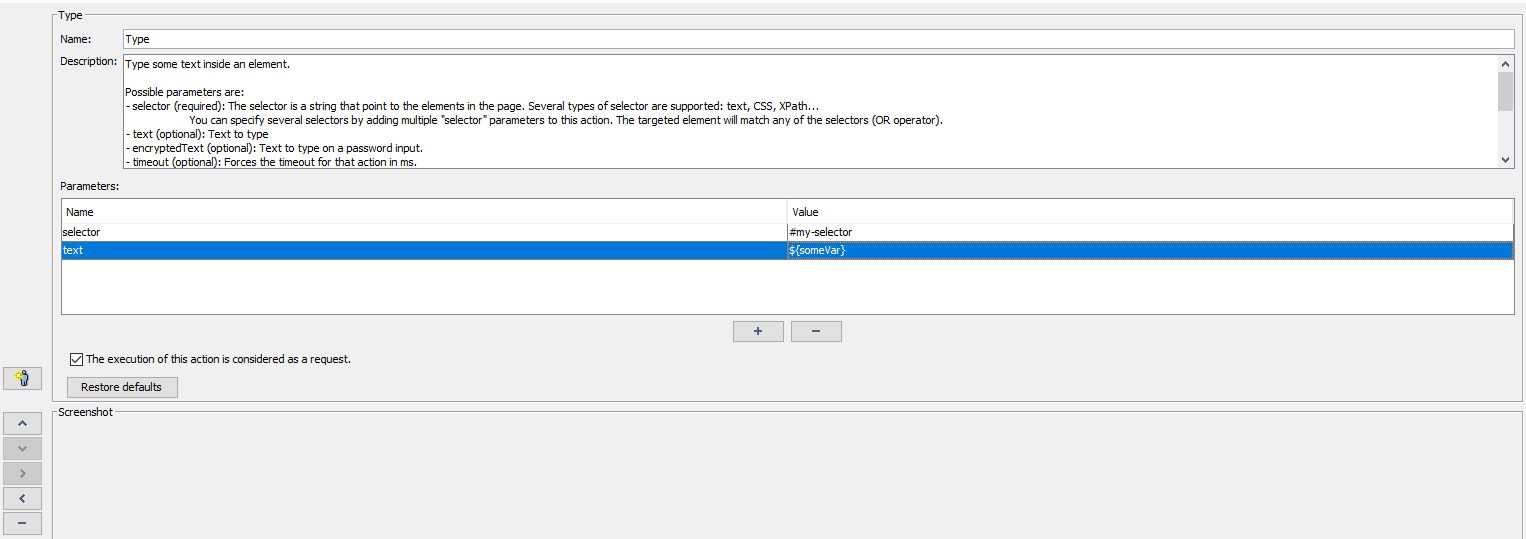
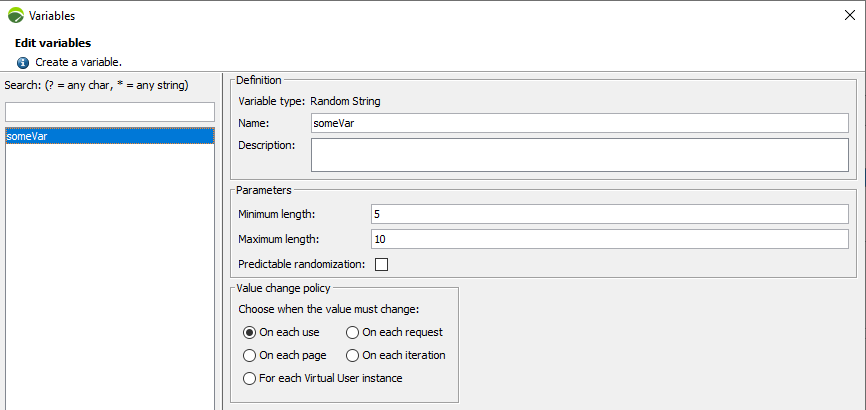
All browser actions support variables from the Variable Manager in their parameters.
For example, set a BrowserType action text parameter to a variable from the Variable Manager. On each iteration, NeoLoad inserts a different text value into the target element.
To reference a variable, use the dollar sign followed by the variable name in braces: ${myVariable}.
Handle iframes
iframes are web pages embedded in the main page. When you use actions that target an element, the selector parameter targets the main frame by default. To target an element inside an iframe, add a frameName or frameIndex parameter.
-
frameName is more stable, but the iframe must have a name attribute.
-
frameIndex is the fallback option. It identifies the iframe by its position in the DOM.
Handle browser tabs
You can open tabs at any time during a user path. When you have multiple tabs open, explicitly set which tab receives the following actions.
Use these three actions to manage tabs:
-
OpenTab: Opens a new tab to the right.
-
SwitchTab: Switches to the specified tab index. The index parameter is zero-based: 0 for the first tab, 1 for the second, and so on.
-
CloseTab: Closes the current tab.
Synchronize the user path
RealBrowser actions use a retry-until-timeout mechanism. Each action retries automatically until it succeeds or a timeout occurs. For example, if you click a button, NeoLoad retries the click until the button becomes available or the timeout expires.
You can also insert waits and pauses between actions to control the flow.
Add think times and delays
Real users take time to respond when they see a new page, screen, or component. NeoLoad think times and delays add pauses to the flow of actions to emulate this behavior.
Think times are essential to run scenarios at scale. Without them, the load generator can send orders to multiple browsers at the same time, which increases CPU consumption. Add pacing to increase the number of parallel virtual users when you reach infrastructure capacity limits.
Add WaitForSelector actions
Use this action to confirm the presence, absence, or visibility of an element before you interact with another.
For example, if a button is enabled and ready to click, but you want to wait for specific text to appear first, add a WaitForSelector action before the click.
Use waitForNavigation parameters
Use waitForNavigation parameters to confirm that a navigation occurred after the action runs.
Each action with at least one waitForNavigation parameter creates a page result. NeoLoad collects and aggregates the page load time.
The following parameters are available:
-
waitForNavigation.url: Confirms that the navigation leads to the specified URL (in regular expression format).
-
waitForNavigation.timeout: Sets the maximum time for navigation to complete (default 10s).
-
waitForNavigation.until: Defines the event that marks the end of navigation. Options:
-
LOAD: Navigation finishes when the page emits an onload event (default).
-
DOMCONTENTLOADED: Navigation finishes when the page emits a domcontentloaded event.
-
NETWORKIDLE: Navigation finishes when the page has made no new network calls for 500ms.
-
COMMIT: Navigation finishes as soon as the request has been sent.
-
Not all pages emit LOAD or DOMCONTENTLOADED events. If an action with a waitForNavigation parameter fails or times out, switch to NETWORKIDLE or COMMIT mode.
Design limitations
RealBrowser doesn't support the following features:
-
Drag and drop.
-
Alert management (disabled by default).
-
Cookie and LocalStorage management. Use the EvaluateJavaScript action instead.
-
SVG interactions.
-
Downloaded file assertions.
-
Fork (flow control) actions.
Some browser actions support multiple selector parameters to increase resilience to application changes. You can mix multiple CSS selectors or multiple XPath selectors, but you can't mix "Text=" selectors with other selector types.
Run a RealBrowser user path
A RealBrowser user path requires a license with the RealBrowser feature enabled. Confirm that you have enough VUs available on your license or current lease before you run the test.
When you run a RealBrowser scenario, the Load Generator creates a browser instance for each virtual user. This results in a higher CPU and memory footprint than a classic protocol scenario. Tune the Load Generator's JVM to about 15% of available host memory to leave enough memory for the browser instances.
Check logs
In addition to the standard NeoLoad log files, the browsers.log file contains trace and debug messages from the browser at runtime.
To open the logs folder from the GUI, go to Help > Open log folder.
Use an application proxy
RealBrowser testing inherits from the NeoLoad Application Proxy settings to reach apps behind a proxy.
In Edit > Preferences > Proxy, select Add to create a new proxy, then select it in the Application Proxy dropdown.
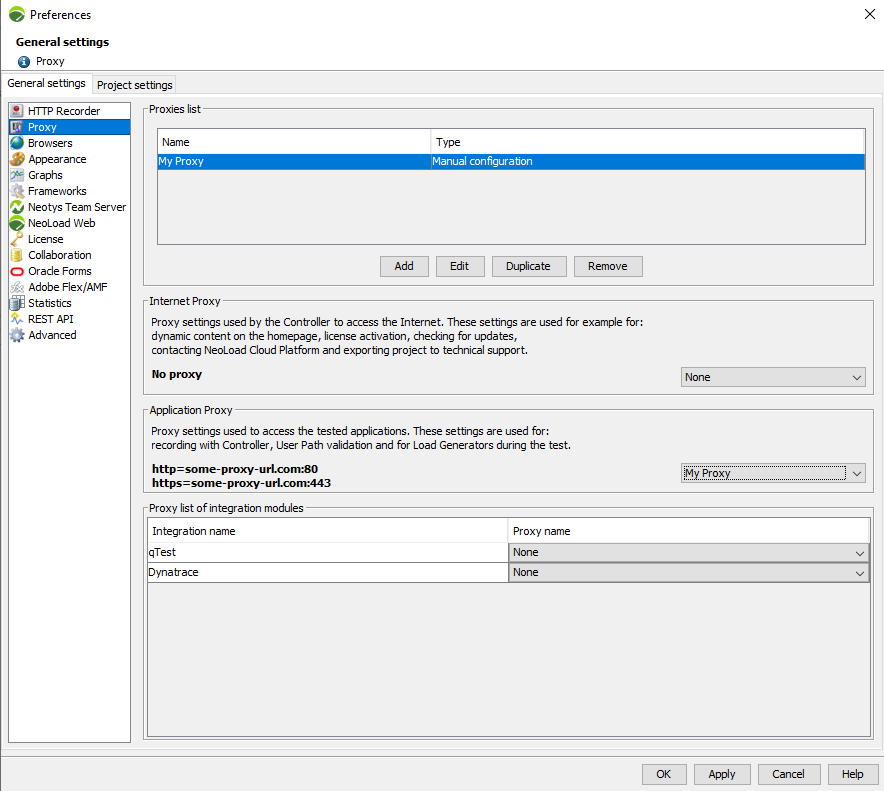
The selected Application Proxy must use manual settings. Otherwise, a warning appears in the logs.
Automatically detected settings or configuration script (PAC) are not supported in RealBrowser.
The proxy URL matches the protocol of your application, based on the first Navigate action in the RealBrowser user path.
In the example screenshot below, if you go to https://my-app.com, the proxy URL is https://some-proxy-url.com:443.
To bypass the proxy for specific domains, use the Do not use proxy for these addresses field.
The following domain syntax is supported:
-
Domain: my-app.com
-
Subdomain: sub.my-app.com
-
Any subdomain: .my-app.com
If your proxy requires authentication, enable Authenticate to proxy and enter your login and password.
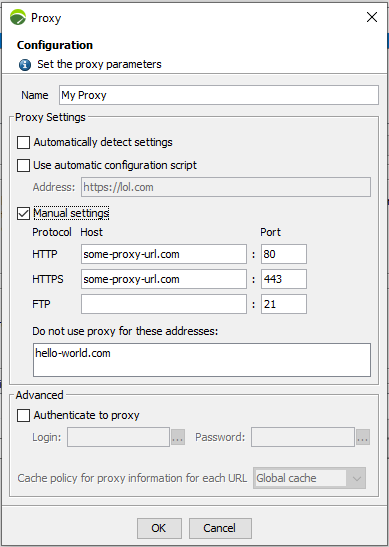
Once enabled, all browser requests pass through the Application Proxy, except those you explicitly excluded. If no application proxy is defined, the browser uses its default policy. For example, Chromium uses the system proxy.
Monitor the infrastructure
RealBrowser tests consume more resources than protocol tests because of the browser footprint. Monitor your infrastructure to determine how many virtual users a Load Generator can handle. Browser memory is separate from Load Generator memory, so you don't need to increase the Load Generator Xmx.
Monitor these metrics on the Load Generator:
-
CPU Load: CPU is often the most restrictive resource. Keep it below 80%.
-
OS Memory Used: Total memory of the Load Generator, including browser instances.
-
JVM Memory Used: Doesn't include browser memory. Keep it below 80%.
Analyze a browser-based user path
Data model
The following table describes the data objects available for analysis during and after a test run.
| Data type | Description | Metrics |
|---|---|---|
| Transactions |
Transactions are a collection of actions that represent a business case. The transaction duration is the sum of all child action durations. |
Duration (Min, Max, Avg), Count, Errors, Error rate, Elements/Second, Std Dev, Avg-90%, Percentiles (50, 95, 99) |
| Actions | The action duration is the time it takes to complete. Completion depends on the action type. For details, see Action timings. | Duration (Min, Max, Avg), Count, Errors, Error rate, Elements/Second |
| Pages |
NeoLoad generates page metrics only from RealBrowser actions that have waitForNavigation parameters. |
Duration (Min, Max, Avg), Count, Errors, Error rate, Elements/Second, Time to First Byte (Min, Max, Avg) |
| Requests | Request metrics cover each HTTP request the browser makes. | Duration (Min, Max, Avg), Count, Errors, Error rate, Elements/Second, Time to First Byte (Min, Max, Avg), Throughput |
Action timings
Each RealBrowser action returns a timing after it runs. The timing depends on the action type:
-
Browser actions (OpenBrowser, CloseBrowser, OpenTab, CloseTab, SwitchTab): Return the time the operation took to complete. OpenBrowser can take a few seconds to launch. Other browser actions typically complete in 0.1-0.2s.
-
Navigation actions (Navigate): Return the page load time. The waitForNavigation.until parameter determines when the page counts as loaded.
-
Page actions (Click, Type, Press, SelectOption, EvaluateJavascript, UploadFile): Return the time the operation took to complete, which depends on the DOM state. For example, if you click a button that is enabled and visible, the action completes in about 0.1-0.2s. If the button is disabled because JavaScript hasn't finished processing, the wait time is included in the total action timing.
Add the waitForNavigation.url parameter to declare that an action leads to a navigation. In this case, the target page load timing is included in the action timing. Actions with waitForNavigation parameters also generate statistics in the Page section of NeoLoad Analysis.
Headless mode
Headless mode runs the browser without a visible user interface.
If you don't specify headless mode in the OpenBrowser parameters, NeoLoad defaults to true at runtime and false at Check VU.
Chromium offers two headless modes:
-
Legacy Headless mode: Consumes less CPU, better for scaling.
-
New Headless mode: Consumes a bit more CPU, behavior is closer to headed Chromium.
-
browser: chromium
-
headless: true
-
browser: chromium
-
channel: chromium
-
headless: true