Test Azure Service Bus
NeoLoad lets you test systems that communicate via Azure Service Bus.
When you integrate NeoLoad with Azure Service Bus, you can simulate the send, peek and consume actions on queues or topics. This ensures that the message throughput between services is stable and helps you to avoid performance bottlenecks.
Load test Azure Service Bus messaging
NeoLoad lets you test five basic actions of Azure Service Bus: connect, send, peek, consume, and disconnect.
Add the connect action as the first step in your user path. It creates and stores a sender and receiver client that NeoLoad will use for the send, consume, and peek actions in your test.
To stop the connection, add the disconnect action as the last step in the user path.
Connect to Azure Service Bus
This action establishes a connection with the queue or topic where you want to send messages.
Before you start
NeoLoad does not support authentication with Microsoft Entra ID credentials (for example, DefaultAzureCredential, ClientSecretCredential, Managed Identity). To perform a connect action, use the following:
-
The host name of your Azure Service Bus namespace.
-
Your Shared Access Signature (SAS) policy name.
-
Your SAS key.
Note that the library that NeoLoad uses to work with SAS in the AMQP actions supports protocol versions 0-9-1, 0-9, and 0-8.
Perform the connect action
To connect, go to Messaging → AMPQ → Azure Service Bus and open ASB – Connection configuration. Then, enter the following parameters into the Parameters field:
| Parameter | Value |
|---|---|
| serviceBusHost (required) | Specifies the qualified host name of your Azure Service Bus namespace. |
| sharedAccessPolicy (required) | Defines your SAS policy name. |
| sharedAccessKey (required) | Defines your key connected with the SAS policy. |
| entityName (required) | Specifies the queue or topic that the connection will access. |
| tryTimeout (optional) | Sets the maximum time in milliseconds to wait for an operation before it times out. The default value is 30000. |
| entityType (optional) | Determines whether the connection targets a queue or a topic. The allowed values are queue or topic. The default value is queue. |
| subscriptionName (optional) | Specifies the subscription name for receiving messages from a topic. This parameter is mandatory if entityType is topic. |
| transportType (optional) | Defines the protocol for communication. The allowed values are amqp or amqpWebSockets. The default value is amqp. |
Connect to Azure Service Bus.
In this example, you want to connect to a queue called neoloadtestqueue. This connection should use the default protocol and never time out. To do this, you use the following parameters:
serviceBusHost specifies the Azure Service Bus namespace your queue is in: testneoload.servicebus.windows.net.
sharedAccessPolicy defines your SAS policy name: RootManageSharedAccessKey.
sharedAccessKey defines your key connected with the SAS policy. This key is encrypted.
entityName specifies the queue that you want to connect to: neoloadtestqueue.
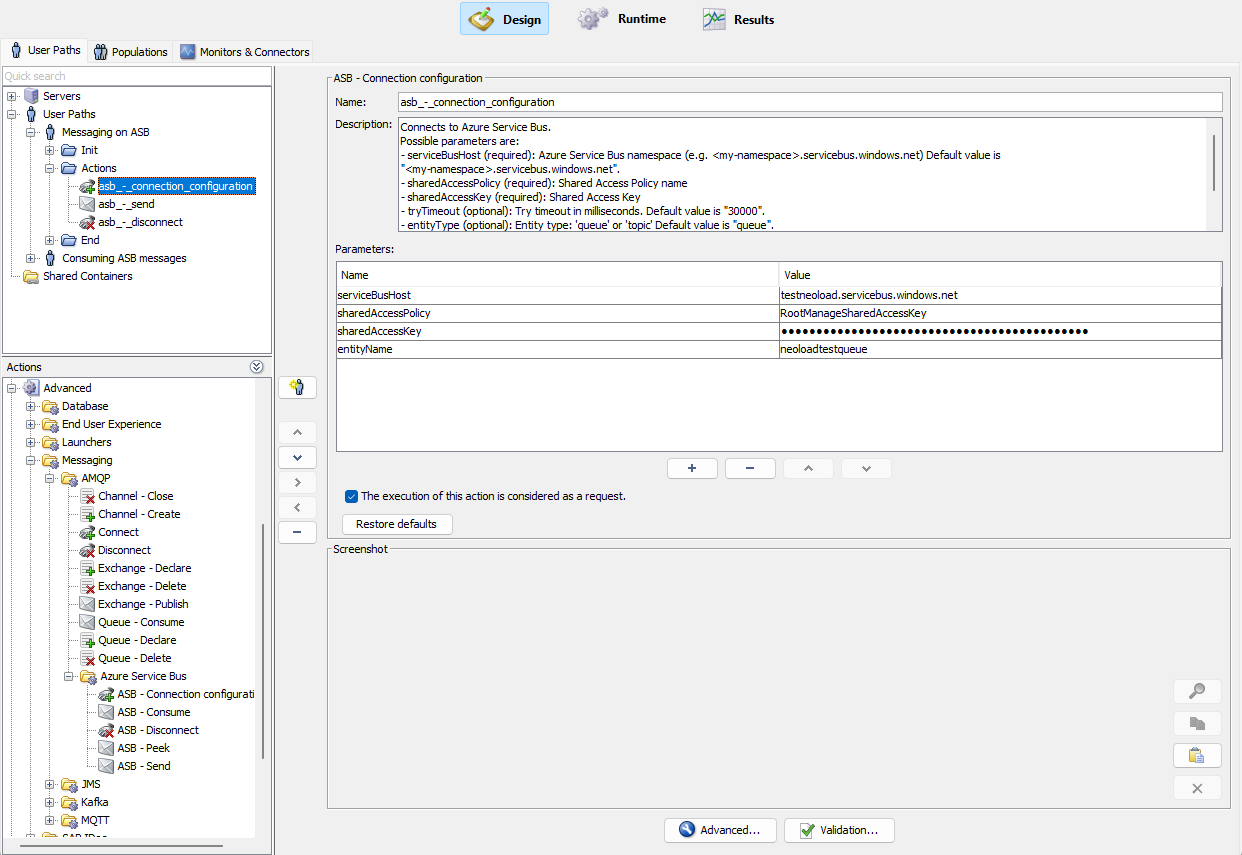
Connect to Azure Service Bus in NeoLoad
Send a message
This action sends a message to Azure Service Bus using the client and entity name defined in the connect step. To test sending messages to Azure Service Bus, go to Messaging → AMPQ → Azure Service Bus and open ASB - Send. Then, enter the following parameters into the Parameters field:
| Parameter | Value |
|---|---|
| body (required) | Defines the message payload. NeoLoad interprets the payload based on messageType. |
| messageType (optional) | Defines how NeoLoad interprets body. Allowed values are string, base64, or file. String sends the body parameter as text. Base64 decodes body from Base64 and sends the message in bytes. File reads and sends the bytes from the file path specified in body. The default value is string. |
| messageId (optional) | Sets a unique identifier for the message. |
| sessionId (optional) | Assigns the message to a session for ordered processing. |
| partitionKey (optional) | Specifies the partition key for message routing. |
| contentType (optional) | Sets the MIME type of the message. |
| label (optional) | Sets the message label and maps it to the message subject. |
| headers (optional) | Sets the application properties as key-value pairs. For example, key=value;key2=value2. |
| customProperties (optional) | Sets additional application properties as key-value pairs. This parameter is merged with headers parameter. |
Consume a message
To test consuming one message with Azure Service Bus and remove it from the queue or subscription, enter the following parameter into the Parameters field:
maxWaitMs (optional): Sets the maximum time in milliseconds to wait for a message. The default value is 5000.
Peek at a message
The peek action lets you peek the metadata and body of a message but keep the message in the queue. This action is immediate and non-blocking. It uses the connection that you establish in the connect step.
Disconnect from Azure Service Bus
This action removes the ServiceBusSenderClient parameter you defined in the ASB – Connection configuration step and closes the connection.