Manage licenses offline
Use offline mode to lease and release license capacity when NeoLoad can't connect to NeoLoad Web. You exchange request and response files between the two systems instead of using a live connection.
You can't combine offline license management with auto-lease.
Once you generate a lease request file (.lse), you have 20 minutes to import the lease response file (.rsp) back into NeoLoad.
You access offline mode from Help > License Management > License, by selecting Manage licenses offline.
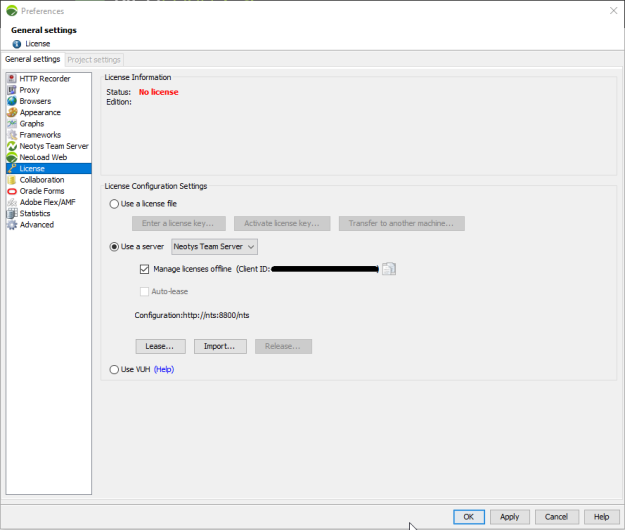
Offline license workflow
To manage a license offline, work through these tasks in order:
-
Request a lease in NeoLoad and process it in NeoLoad Web.
-
Import the lease response file back into NeoLoad.
-
When you're done, request a release in NeoLoad and process it in NeoLoad Web.
Request a lease offline
Request a lease offline when NeoLoad can't reach any NeoLoad Web instance. To request a lease, follow these steps:
-
In NeoLoad, select Help > License management.
-
Select Use a server, then select NeoLoad Web from the list.
-
Select the Manage licenses offline checkbox.
-
Select the copy icon next to the client ID.
-
In NeoLoad Web, select Settings, choose a workspace, then select the Subscriptions tab.
-
In the Leases section, select Offline Lease.
-
In the License Lease dialog, fill in the fields:
-
Paste the client ID into Client ID.
-
Add a description in Description.
-
Set the lease duration in Duration.
-
Enter the number of Web, SAP, and Citrix VUs in License VUs.
-
-
Select Lease. The
.rspfile downloads. Note where it lands on your machine.
For more information, see Manage offline leases in NeoLoad Web (opens in new tab).
Request a release offline
Release a license offline when NeoLoad can't connect to NeoLoad Web. To release a license, follow these steps:
-
In NeoLoad, select Help > License Management.
-
In License Configuration Settings, select Release.
-
Save the
.rlsfile. Note where it lands on your machine. -
In NeoLoad Web, select Resources, then select the Subscriptions tab.
-
In the Leases section, select Offline Release.
-
Select the
.rlsfile you saved, then select Open.
For more information, see Release a license offline in NeoLoad Web documentation.