Record an HTTP application in proxy mode
NeoLoad allows recording a scenario using just a desktop browser. The NeoLoad recorder, seen as a proxy by the browser, records each HTTP request and response to and from the server.
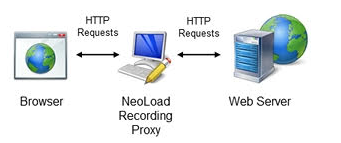
Where the browser accesses the server through a proxy, the recording proxy uses this same user's proxy to access the server
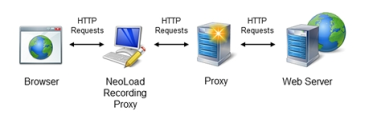
To configure the user's proxy settings, see Preferences
Before recording the scenario, it is recommended to close all HTTP client applications (other Web sessions, Twitter client, and so on). NeoLoad records all the HTTP flows going through the machine. It is necessary to close HTTP clients or define exclusion rules in NeoLoad to avoid unwanted requests in the recording.
Manually configure the recording proxy settings
For HTTP and HTTPS protocols, use localhost or 127.0.0.1 as the proxy host. The default port for the recorder is 8090 (HTTP and HTTPS), but it may be changed in Preferences.
To change the proxy settings in Internet Explorer, click Tools > Internet options, and choose the Connections tab.
-
If you connect to the server through a local network, go to the Local Area Network (LAN) settings section and click the LAN settings button.
-
If you connect through a modem, go to the Dial-up and Virtual Private Network Settings section and click the Settings button.
-
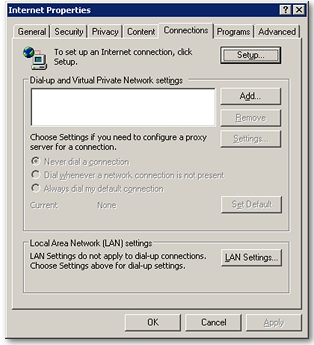
For other browsers, the proxy settings are accessible through the browser preferences.
Test the set-up by entering the URL http://www.neotys.com/recorder.html?lang=en&port=8090. If the page displays correctly, the settings are correct (this URL is not recorded).
In the test URL, lang and port values are dynamic and depend on the settings configured, for the language in Edit > Preferences > General settings > Appearance and for the port in Edit > Preferences > General settings > HTTP Recorder.
Filter out unwanted requests
When using Internet Explorer, unwanted requests may be recorded. Indeed, the Internet Explorer proxy settings are shared by numerous other programs that connect to the Internet using the HTTP protocol. Thus, the recorded test scenario may contain requests emanating from Windows Update, MSN Messenger login, spyware, and so on.
The recorder exclusion filter already blocks a certain number of access requests by default. If other unwanted requests remain, these must be either deleted after recording or added to the filter. For more information, see HTTP recorder.
Start recording in proxy mode
You can start recording an application with:
-
the Start Recording toolbar button
-
the Record > Start Recording command
-
the Start Recording button in the User Path panel
-
the Record Here option with a right-click on a page, Transaction or logical action
-
the Recording API
Starting a new recording creates a new User Path and places all the web pages visited during the recording into that User Path. At the beginning of the recording, the cookies may be deleted and the browser cache may be cleared.
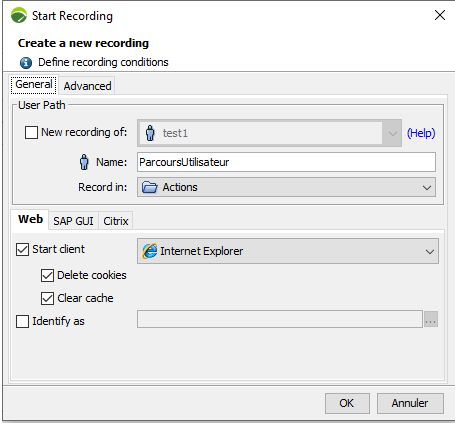
The User Path group box defines the new User Path:
-
New recording of: Check this option to select the User Path you want to update. For more information, see Update a User Path
-
Name: Enter a name to identify the User Path. When the recording ends, all the recorded pages and requests are contained in this User Path.
-
Record in: Select the Container into which the pages visited are to be recorded. For more information about how Containers work, see Structure of a User Path.
Init, Actions and End Containers follow a set order of play: 1. Init Container. 2. Actions Container. 3. End Container.
The Client settings group box makes it possible to automatically launch the selected browser and open the test URL http://www.neotys.com/recorder.html?lang=en&port=8090 using the automatically-configured proxy settings. If this page displays correctly, the recording proxy has been properly set up. Closing the browser stops the recording. The Client settings group box also enables you to delete cookies and clear the browser cache before the recording.
Start client: This option must be cleared to manually configure the recording proxy settings (see Manually configure the recording proxy settings), manually launch the browser and record the scenario.
-
Delete cookies: This option permanently deletes cookies from the NeoLoad machine prior to recording in order to simulate a user's first visit to the application.
-
Clear cache: This option permanently clears the browser cache in order to simulate a user's first visit to the application.
Identify as: This option allows the browser used while recording to simulate another browser. The option is particularly useful when a browser is unavailable on the machine (mobile browser for instance). When the browser used is identified as an iPhone device, the server returns the mobile version of the application.
In the test URL, lang and port values are dynamic and depend on the settings configured, for the language in Edit > Preferences > General settings > Appearance and for the port in Edit > Preferences > General settings > HTTP Recorder.
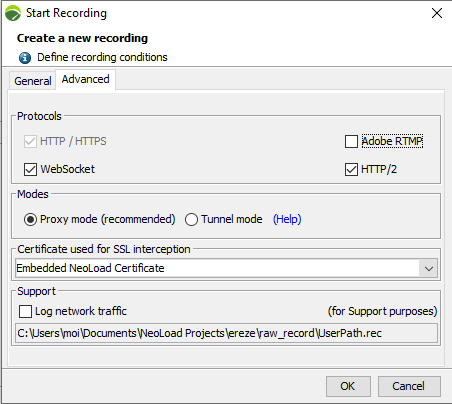
The Protocols group box helps select the protocols which NeoLoad can record. NeoLoad records the HTTP protocol by default:
-
HTTP/HTTPS: This selected option is dimmed to indicate that NeoLoad records the application in HTTP/HTTPS in all conditions.
-
WebSocket: This option makes it possible to record a WebSocket application. For more information, see WebSocket requests.
Recording an RTMP application in NeoLoad is subject to certain limitations.
The Modes group box makes it possible to choose a recording mode:
-
Proxy mode: Selecting this option makes it possible to launch the recording in proxy mode.
-
Tunnel mode: Selecting this option makes it possible to launch the recording in tunnel mode.
In the Certificate used for SSL interception group box, the combo list displays the root certificate used by default to sign the SSL connections.
For more information, refer to the Certificates
The Support group box enables you to save the raw data from your recording for Support purposes.
When asked by NeoLoad Support, check the Log network traffic option before your recording to make sure raw data recorded is included in the project being exported to Support.
For more information, see Export a project.
The Recording bar enables you to modify the User Path during the recording.

As soon as the Recording bar is displayed, the recording starts. The bar includes the following functions:
-
Clicking the Stop button stops the recording and opens the Post-Recording wizard. For more information, seePost-recording wizard.
-
Clicking the Pause button puts recording on hold. Clicking the Record button again resumes the recording.
-
In the Record in drop-down menu, you can select a Transaction type into which the subsequent pages visited are to be recorded.
-
Transaction is an editable dropdown list. It is automatically populated with Transactions of the User Path you want to update. You can also enter a Transaction name for the subsequent web pages to be recorded within that Transaction.
A Transaction is used to identify and collect a group of web pages. Delete the Transaction name to end the collection of new pages within the Transaction and to allow the creation of a new Transaction.
-
Click the Next Transaction button to place the recorded web pages in the next Transaction of your predefined Transaction list.
-
Click the Prefill button to define the Transaction names to use. NeoLoad can use the Transaction names coming from an existing User Path or from a .CSV or .TXT file (Separate each Transaction by a line break).
-
Clicking the Insert a rendezvous point icon makes it possible to insert a rendezvous point. For more information, see Rendezvous.
Using the Pause button temporarily stops the recording and allows searching on the Internet or other actions in the browser without recording.
Init, Actions and End Container types follow a set order of play: 1. Init Container. 2. Actions Container. 3. End Container.
When the recording is finished, the Post-Recording wizard is displayed, as described in Post-recording wizard.