System requirements
NeoLoad is written in Java and runs on any platform that supports Java 21.
Supported operating systems
| Operating System | Supported Versions |
|---|---|
| Windows | Windows 10 thru Server 2025 |
| Linux | Up to Linux Kernel 6.18 |
| macOS | MacOS 10.4 thru 15.7 |
Hardware requirements by component
Hardware requirements vary depending on the NeoLoad component and its intended use. Below are recommendations for each component.
Test development (Designer workstation)
For test design, recording, and script development on a typical laptop or workstation:
| Component | Minimum | Recommended |
|---|---|---|
| CPU | 2 cores | 4 cores |
| RAM | 8 GB | 16 GB |
| Hard disk space | 100 GB | 200 GB SSD |
NeoLoad Controller
The Controller orchestrates the test, collects results from Load Generators, and manages the overall test execution:
| Component | Minimum | Recommended |
|---|---|---|
| CPU | 4 cores | 8 cores |
| RAM | 16 GB | 32 GB |
| Hard disk space | 200 GB | 250 GB SSD |
Load Generators
Load Generator hardware requirements depend heavily on the test size, protocol complexity, and number of Virtual Users. The following table provides baseline recommendations:
| Component | Minimum | Recommended |
|---|---|---|
| CPU | 4 cores | 8+ cores |
| RAM | 16 GB | 32 GB |
| Hard disk space | 100 GB | 200 GB SSD |
Load Generator sizing examples
The actual capacity of a Load Generator varies based on protocol type, script complexity, think times, and response sizes. Below are typical examples to help with capacity planning:
| Protocol Type | Virtual Users per LG (4 cores, 32GB) | Virtual Users per LG (8 cores, 64GB) | Notes |
|---|---|---|---|
| HTTP/HTTPS (simple) | 500 - 1,000 | 1,000 - 2,000 | Basic web requests with minimal processing |
| HTTP/HTTPS (complex) | 200 - 500 | 500 - 1,000 | Scripts with correlations, validations, and large responses |
| SAP GUI | 10 - 30 | 30 - 50 | GUI-based protocol, graphically intensive |
| Citrix | 5 - 15 | 15 - 30 | Client/UI-driven, requires unique usernames per VU |
| RealBrowser | 5 - 10 | 10 - 20 | Browser-based, CPU-intensive |
These are approximate values for planning purposes. Always perform a sizing test with your actual scripts to determine optimal capacity. During the test, the Load Generator CPU and memory usage is monitored in the Runtime screen. If the CPU or memory usage level regularly exceeds 90%, either reduce the number of Virtual Users, increase think times, or add additional Load Generators.
Protocol-specific requirements
Certain protocols have additional software and hardware requirements beyond the standard NeoLoad installation:
-
Citrix: Windows only. Requires Citrix Workspace client. See Citrix actions for supported OS versions and Citrix client compatibility.
-
SAP GUI: Windows only. Requires SAP GUI client (7.4 - 8.0). Load Generators must run in process mode. See SAP GUI testing for prerequisites.
-
RealBrowser: CPU-intensive protocol. Ensure Load Generator host is free from other processes. See RealBrowser system requirements for supported browsers and operating systems.
Linux distribution support
The compatibility is largely determined by the Java Runtime Environment (JRE) that we embed within our application. NeoLoad use the Liberica JDK 11 from BellSoft to have broad support and stability across various environments.
We officially support the following x86 64-bit Linux distributions:
Ubuntu: Versions 22.04 and 24.04
CentOS: Versions 9.x and 10.x
Red Hat Enterprise Linux (RHEL): Versions 8 and 9
Fedora: Version 43
Rocky Linux: Versions 8, 9 and 10
For detailed information on the supported configurations, please refer to the Supported Configurations page on BellSoft's website.
Screen resolution
A minimum of 1024x768 pixel is required for screen resolution.
You can change the DPI settings in Windows for yourself and the current program, or, if you're an Administrator, you can change the system settings for all users.
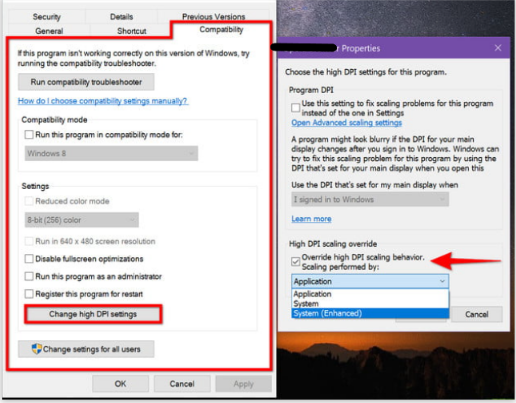
To adjust high-DPI scaling in Windows 10 (4K UHD screens) for your machine and NeoLoad only, follow these steps:
-
Go to the <install-dir>, the installation directory of NeoLoad, and open
NeoLoadGUI.exe:<install-dir>/bin/NeoLoadGUI.exe -
Select the Compatibility tab.
-
Under Settings, click the Change High DPI Settings button.
-
A second pop-up window appears on the screen. Check the box next to Override high DPI scaling behavior.
-
Select System (Enhanced) on the drop-down menu and then click OK.
To adjust high-DPI scaling in Windows 10 (4K UHD screens) for all machines of your network, follow these steps:
-
Go to the <install-dir>, the installation directory of NeoLoad, and open
NeoLoadGUI.exe: <install-dir>/bin/NeoLoadGUI.exe -
Select the Compatibility tab.
-
Under Settings, click the Change settings for all users button.
-
A second pop-up window appears on the screen. Check the box next to Override high DPI scaling behavior.
-
Select System (Enhanced) on the drop-down menu and then click OK.