Use AI assistants with LiveCompare
LiveCompare’s Model Context Protocol (MCP) server lets AI assistants use the Model Context Protocol to interact with LiveCompare. The LiveCompare MCP server lets you ask the following:
-
Questions about impact analysis runs, such as: Which impact analysis runs have test gaps?
-
Questions about impact analysis review decisions, such as: Which test runs are set as out of scope?
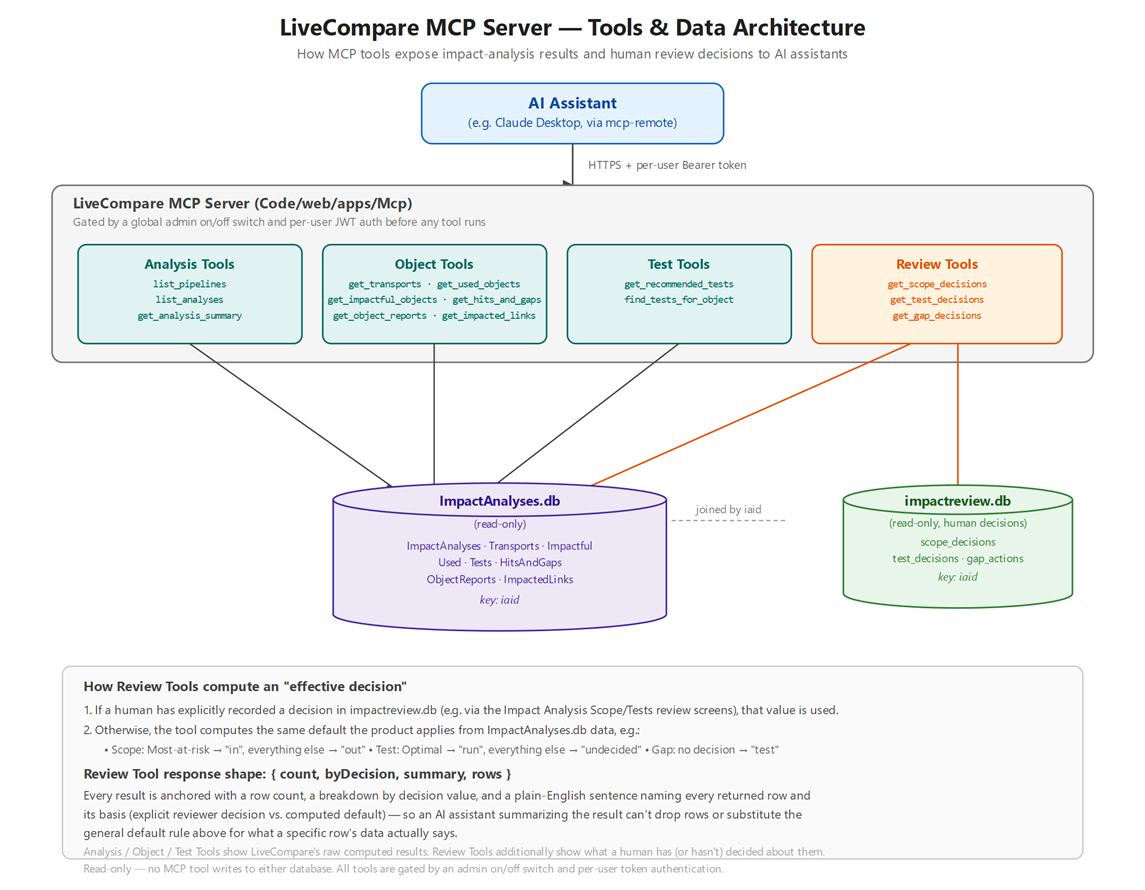
MCP server architecture
LiveCompare’s MCP server has the following architecture:
Install the LiveCompare MCP server
To install the LiveCompare MCP server on your LiveCompare client machine, check the Prerequisites section below, and then follow the installation instructions.
Prerequisites
The LiveCompare MCP server requires node.js. You can download it from here (opens in a new tab).
C:\Program Files directory.Installation
To install the LiveCompare MPC server for the Claude Desktop app, follow these steps.
-
Start the Claude Desktop app on your LiveCompare client machine.
-
Open the Settings page for your user.
-
Select Developer, and then select Edit Config.
-
Edit the
claude_desktop_config.jsonfile. -
Paste the following at the beginning of the file:
"mcpServers": { "livecompare": {"command": "npx",
"args": [
"mcp-remote",
"<scheme>://<server>[:port]/livecompare/apps/mcp",
"--header",
"Authorization: Bearer ${LIVECOMPARE_TOKEN}"],
"env": {"LIVECOMPARE_TOKEN": "<token>"
}
}
},
-
Sign in to LiveCompare as a user with Editor or Consumer permissions.
-
Select
 to display the My Profile screen.
 -
Select MCP Access Token to display the MCP Access Token screen.
-
Select Generate Token, and then select Copy.
-
In the
claude_desktop_config.jsonfile, do the following:-
In the
argssection, replace<scheme>with your URL scheme, and<server>[:port]with the name of your LiveCompare server and optional port number. -
In the
envsection, replace<token>with your MCP access token.
-
-
Save the
claude_desktop_config.jsonfile. -
Select
 > File > Exit to close the Claude Desktop app.
 -
Restart the Claude Desktop app.
Sample questions
You can now use the Claude Desktop app to ask questions like the following:
Configuration
-
Could you list the LiveCompare tools?
Discovery and summaries
How many transports, impacted objects, and recommended tests were in the latest analysis for Smart Impact Pipeline?
Have there been any new analyses run this week?
Transports and objects
-
What transports were included in analysis ID 45 — who authored them and when?
-
Which object types are most represented in the impacted objects for analysis ID 45?
-
Show me the dependency chain for impacted objects in analysis ID 45 — what does the ripple effect look like?
Coverage landscape
-
Which objects in the coverage landscape have a high risk rating but no tests covering them?
-
Show me the top 10 most-impacted objects in analysis <impact analysis ID> ordered by number of impactful changes.
Test recommendations
-
What are the highest-confidence tests recommended for analysis ID 45?
-
Are there any recommended tests for VA01 with a confidence score above 80?
-
Which tests cover the function module BAPI_USER_GETLIST?
Scope and decisions
-
Which executables were explicitly scoped in or out by a reviewer, rather than by computed default?
-
Show me the recommended tests for analysis <impact analysis ID> that have been decided as 'run' — are there any with a workstate of COMPLETED?
Switch off the LiveCompare MCP server
LiveCompare enables the MCP server by default. To switch off the LiveCompare MCP server, follow these steps:
-
Sign in as a user with Administrator permissions.
-
Select
 to go to the LiveCompare studio.
 -
Select Configurations > General in the LiveCompare hierarchy.
-
Set the McpDisabled field to X.
-
Save your changes.