Integrate LiveCompare and ChaRM
Introduction
LiveCompare may be integrated with ChaRM so that an impact analysis for the transports in the change request may be run in response to a change request moving to a particular state, for example, ‘Implemented’. The integration works as follows:
-
A ChaRM change request is moved into the ‘Implemented’ state.
-
The move to ‘Implemented’ triggers a LiveCompare ChaRM action in SAP.
-
The ChaRM action invokes an impact analysis workflow in LiveCompare via a REST API.
-
The workflow is run asynchronously, so it does not affect the performance of ChaRM.
-
When the workflow completes, an impact analysis report will be available in LiveCompare.
Additionally, an Impact Analysis may be invoked manually from a change screen’s Actions menu.
SAP components
The LiveCompare installation includes the following SAP components to support integration with ChaRM.
| Component | Name |
|---|---|
| BADI Implementation | /ICORP/ZLC_CHARM |
| Package | /ICORP/ZLC_CHARM |
| Class | /ICORP/CL_IM_ZLC_CHARM |
| Function Group | /ICORP/ZLC_CHARM |
| Function | /ICORP/ZLC_CALL_REST_API |
| Data Element | /ICORP/ZLC_CHARM_COUNT |
| Structure | /ICORP/ZLC_CHARM_RESULTS |
Configuration
To configure ChaRM to support integration with LiveCompare, carry out the following steps.
Create an HTTP connection to LiveCompare
Create an HTTP connection that will run the impact analysis workflow using a REST API.
-
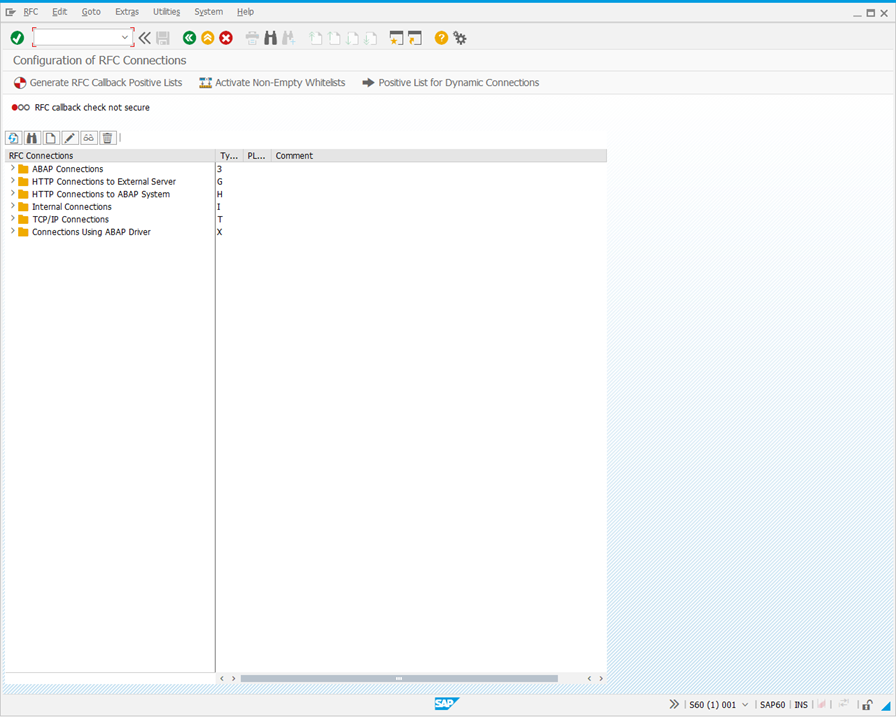
Run transaction
SM59to display the Configuration of RFC Destinations screen.
-
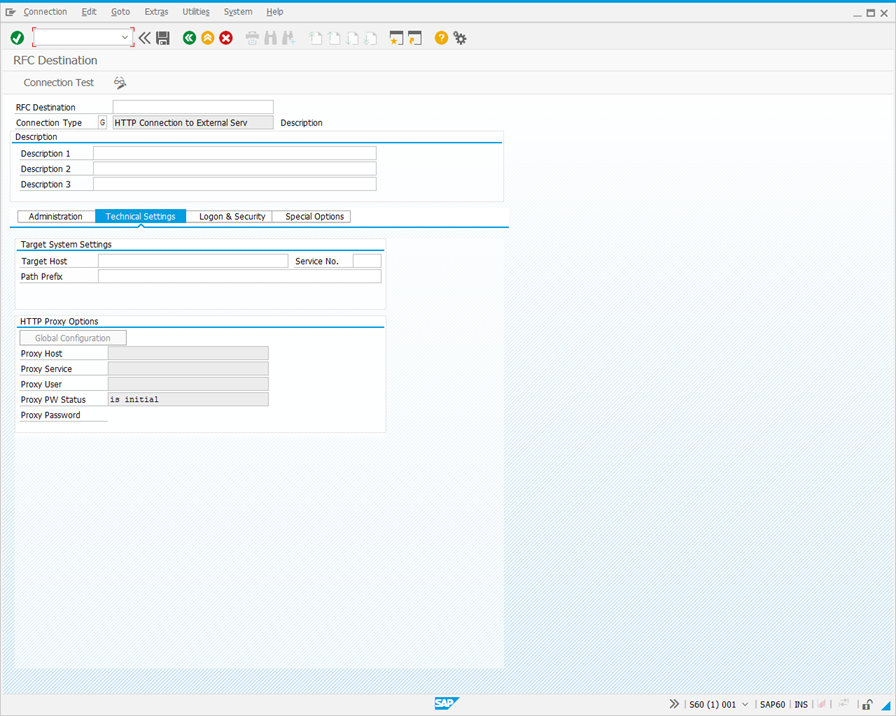
In the RFC Connections hierarchy, select HTTP Connections to External Server, and click
 . The following screen is displayed.
-
Complete the fields in the Technical Settings tab as follows:
| Field | Description |
|---|---|
| RFC Destination |
Enter a name for the RFC Destination in the form LC_RUN_REST_API_<Sys ID>_<Client No>
Example: LC_RUN_REST_API_S60_001 |
| Description 1 |
Enter the LiveCompare workflow that will be called by the REST API in the form <Workspace Name>/<Workflow Name>. The workspace name and workflow name should not include any spaces. Example: MyWorkspace/SmartImpact_ChaRM |
| Description 2 | Paste in the REST API token obtained here. |
| Target Host |
Enter the hostname of your LiveCompare server. The SAP system running ChaRM should have network access to the LiveCompare server. Example: myserver.mydomain.com |
| Path Prefix | Enter /livecompare/studio/api/version.lcrs |
-
Click
 to save the connection.
 -
Click
 and verify that the connection test is successful. The Connection Test HTTP Destination screen is displayed.
-
In the Test Result tab, the Status Text field should be set to OK.
-
The Response Text tab should include a version string, for example
{"version":"5.3.9.24562"}.
-
Change the Path Prefix field to /livecompare/studio/api/run.lcrs
-
Click
to save the connection.
LiveCompare ChaRM integration
The integration with LiveCompare uses two ChaRM action definitions:
-
ZLC_REST_MANUAL - Calls the REST API manually.
-
ZLC_REST_AUTO - Calls REST API if the status of a change request changes.
The integration involves the following steps:
-
Identify the action profiles that will trigger impact analysis.
-
Create these action definitions in a ChaRM action profile. There is one action profile for each ChaRM document type.
Identify the action profiles that will trigger impact analysis
To identify the action profiles to that will be modified to trigger impact analysis, carry out the following steps:
-
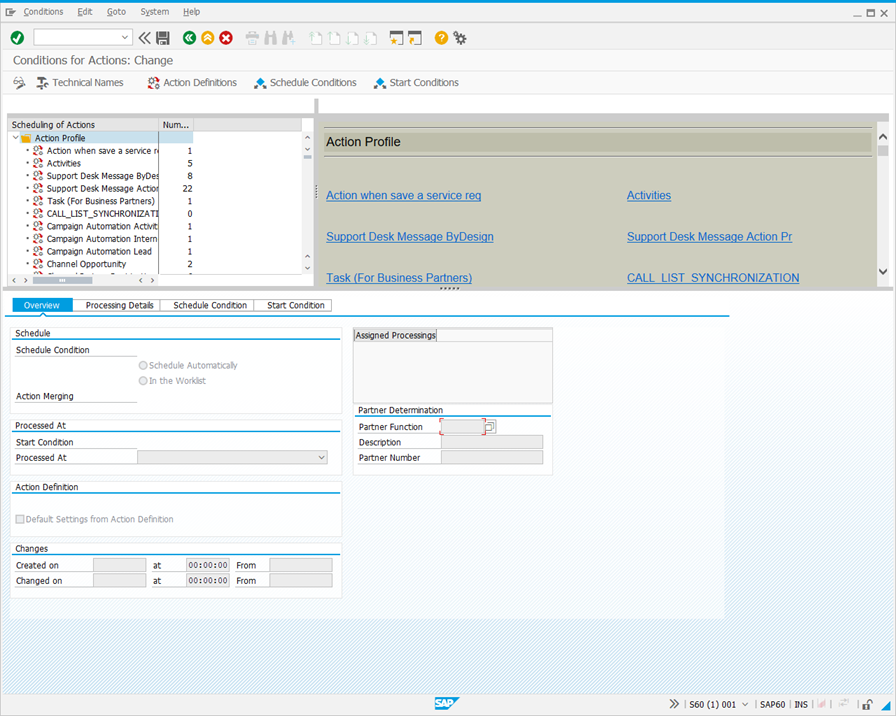
Run transaction
CRMC_ACTION_CONF. The Conditions for Actions: Change screen is displayed.
-
The top left-hand pane list each of the available action profiles, and the number of actions each profile contains. Click Technical Names to display each action’s technical name rather than its description.
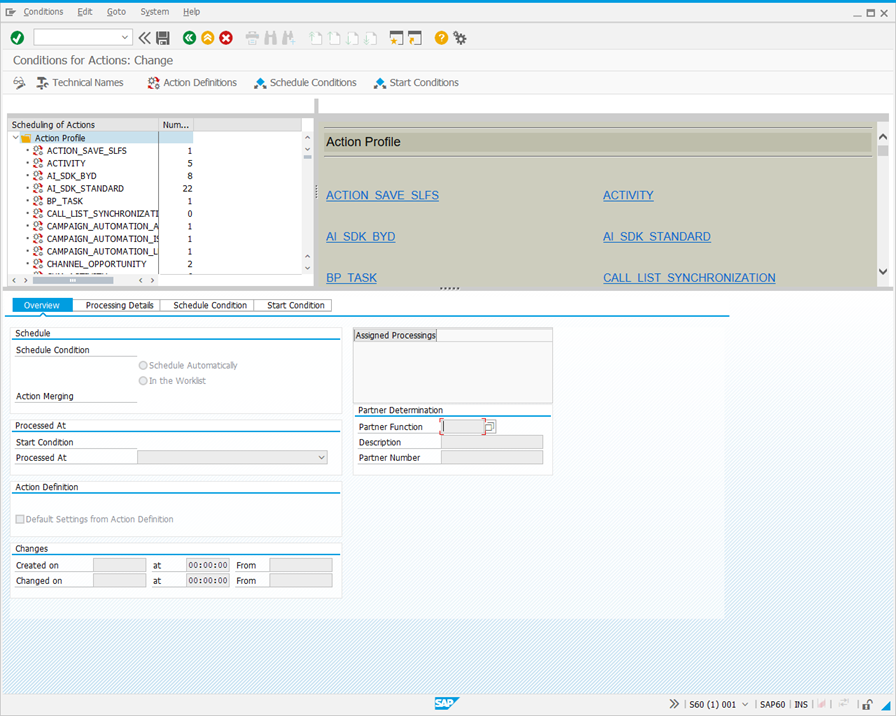
The action profiles to configure depend on the ChaRM activities you wish to track. Here are some examples.
| Technical Name | Description | Notes |
|---|---|---|
| SMMJ_ACTIONS | Action Profile: Validated Correction / Development | Shown as a Normal Change Request in ChaRM. |
| SMCR_ACTIONS | Action Profile: Request for Change (CRM Web UI) | Shown as a Request for Change in ChaRM. |
-
Take a note of the Technical Name of each action profile you wish to modify.
Create the ZLC_REST_AUTO action definition in an action profile
The ZLC_REST_AUTO action definition allows an impact analysis to be invoked for the transports in a change request when the change request enters a particular state, for example ‘Implemented’. To create the ZLC_REST_AUTO action definition in an action profile, carry out the following steps:
-
In the Conditions for Actions: Change screen, click
 to enter display mode.
 -
In the Conditions for Actions: Change screen’s top left-hand pane, double-click the Technical Name of the action profile you wish to modify.
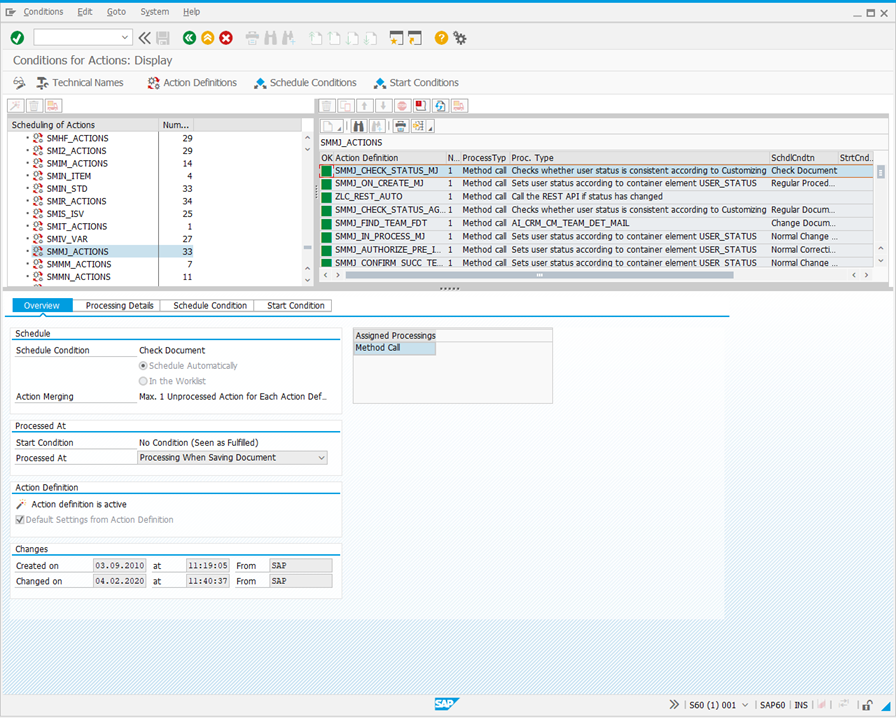
-
Click Action Definitions in the header. The following screen is displayed.
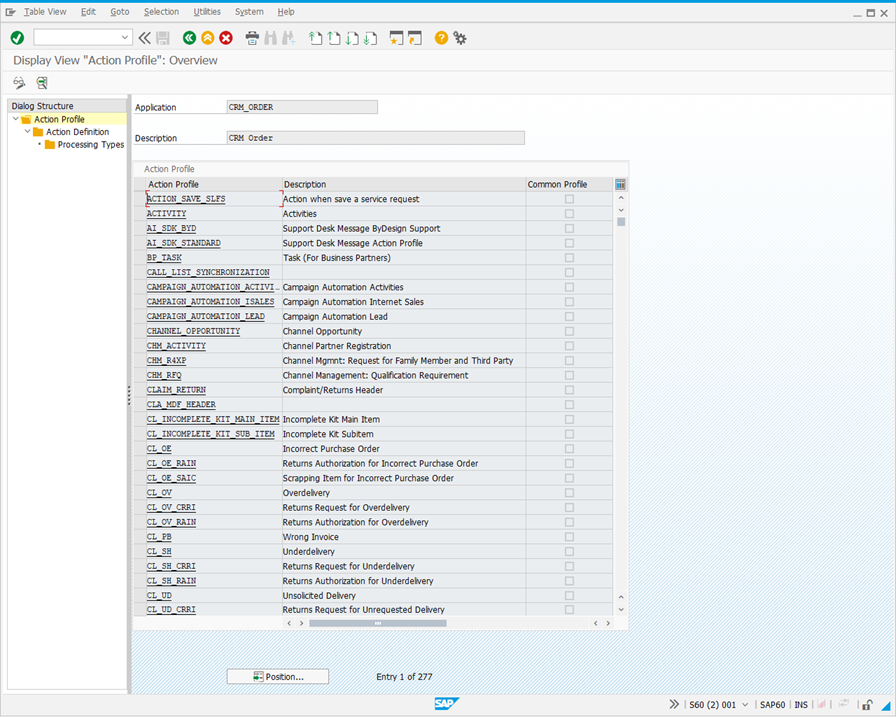
-
In the Action Profile list, double click the Action Profile chosen in Step 2. The following screen is displayed.
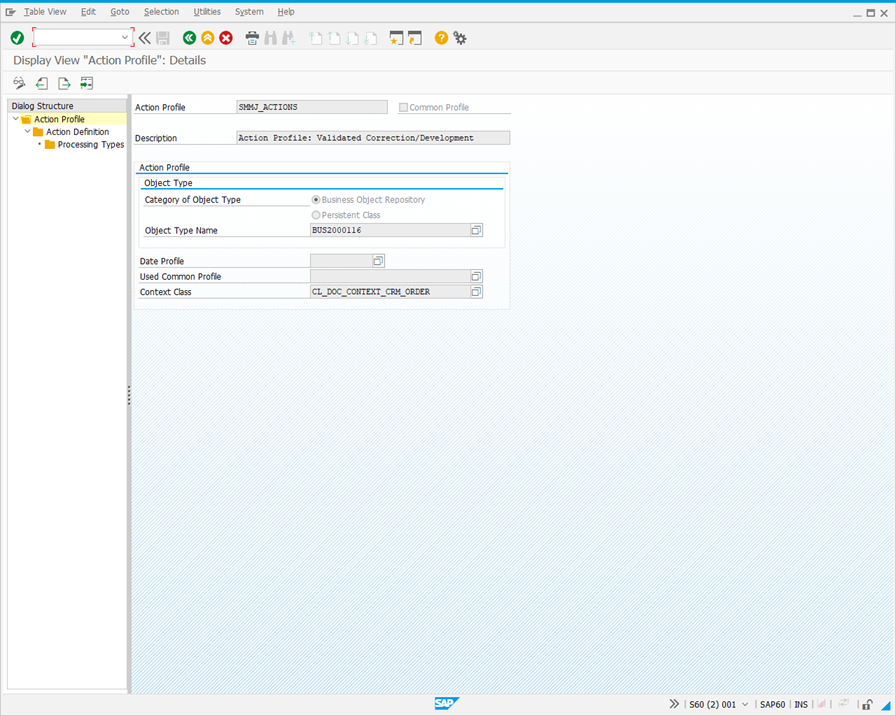
-
Double click Action Definition in the Dialog Structure hierarchy. The following screen is displayed.
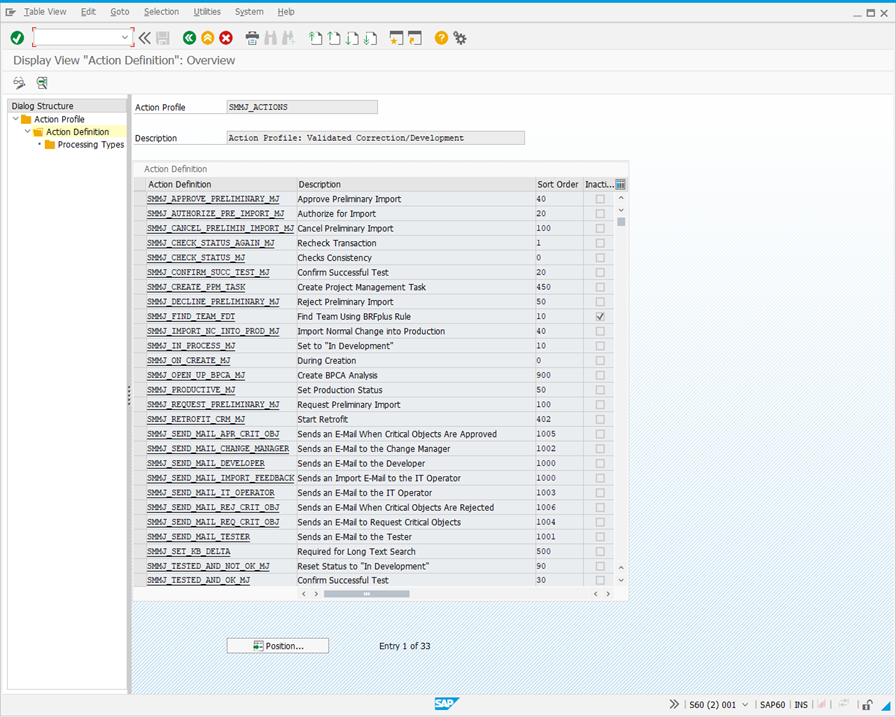
-
Click
to enter Change Mode, and then click New Entries. The following screen is displayed.
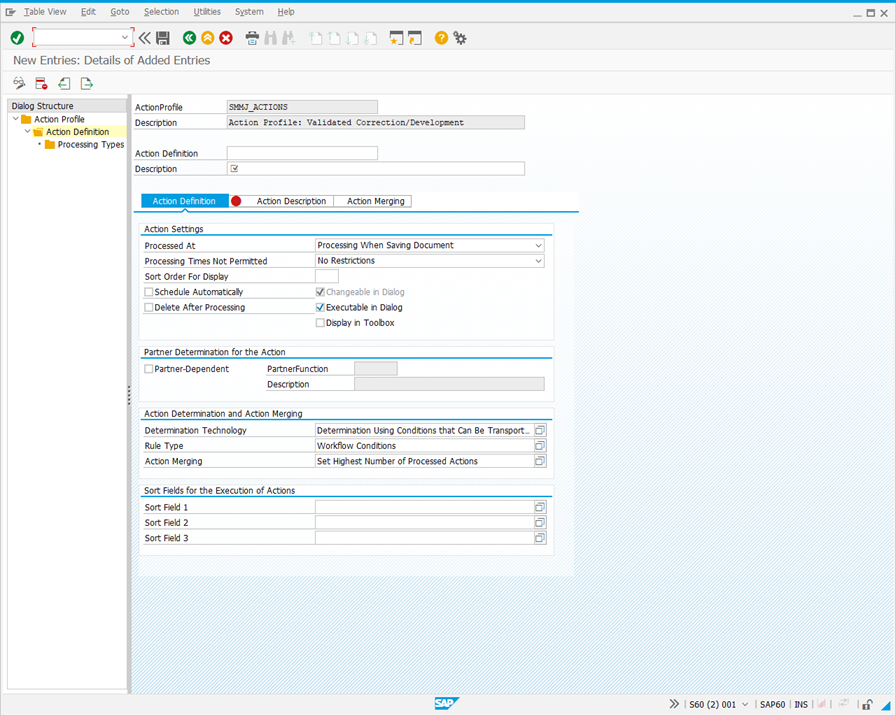
-
Complete the screen fields as follows to create the ZLC_REST_AUTO action definition.
| Field | Value |
|---|---|
| Action Definition | ZLC_REST_AUTO_<Action Profile Technical Name> |
| Description | LiveCompare ChaRM Impact Analysis (Auto) |
| Processed At | Processing When Saving Document |
| Schedule Automatically | Checked |
| Delete After Processing | Checked |
| Changeable in Dialog | Checked |
| Executable in Dialog | Checked |
-
Double click Processing Types in the Dialog Structure hierarchy. The following screen is displayed.
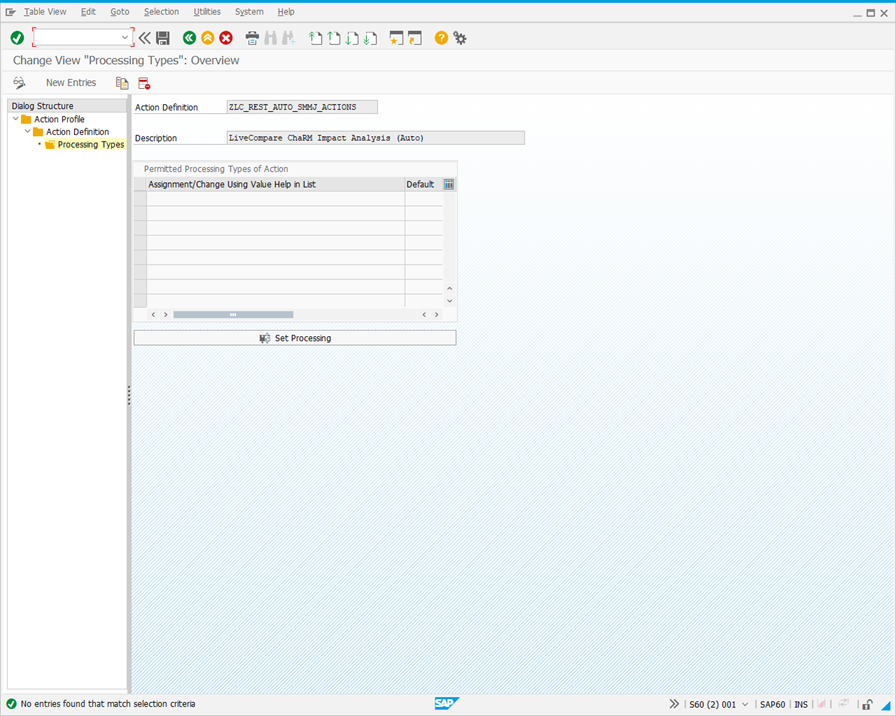
-
Click New Entries. The screen changes to the following.
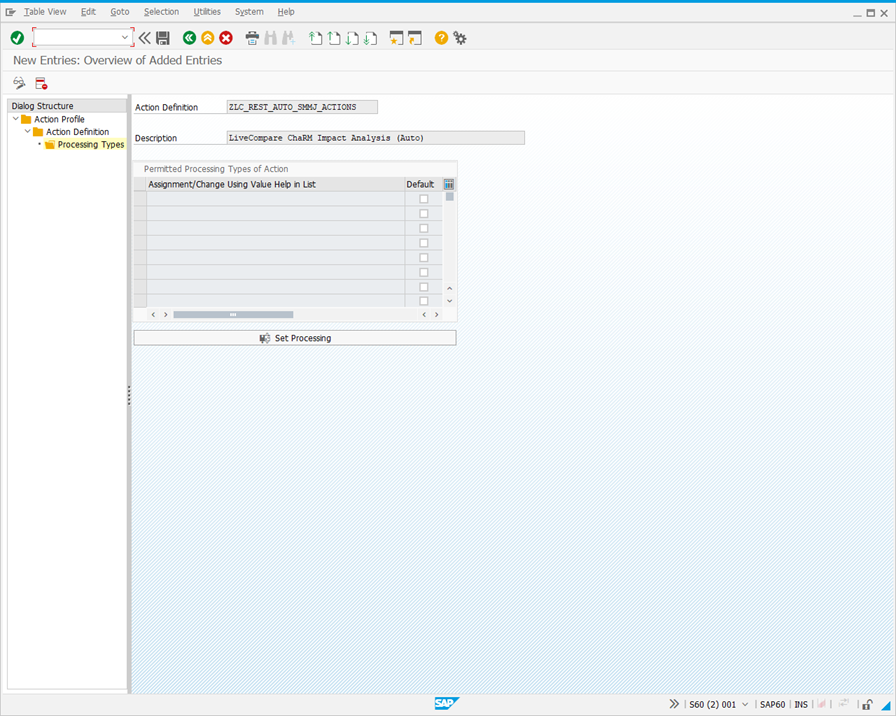
-
Select the first cell in the Permitted Processing Types of Action table, and press F4.
-
Double click Method Call in the Restrict Value Range (1) dialog. The New Entries: Overview of Added Entries screen looks like this.
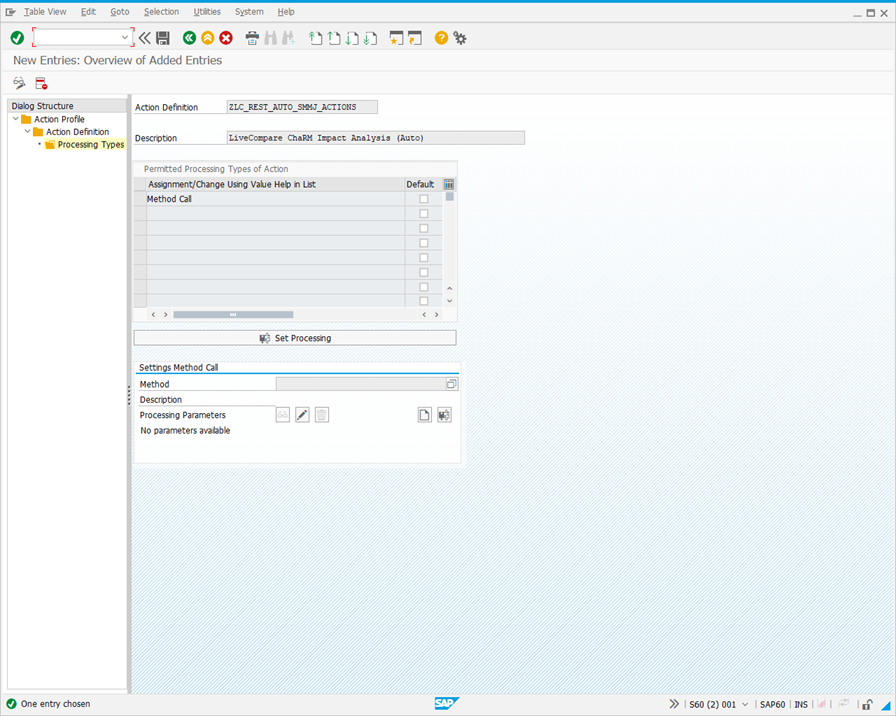
-
Select the Method field and press F4.
-
Double click ZLC_CALL_AUTO in the Type of filter in BADI implementation (1) dialog. The New Entries: Overview of Added Entries screen looks like this.
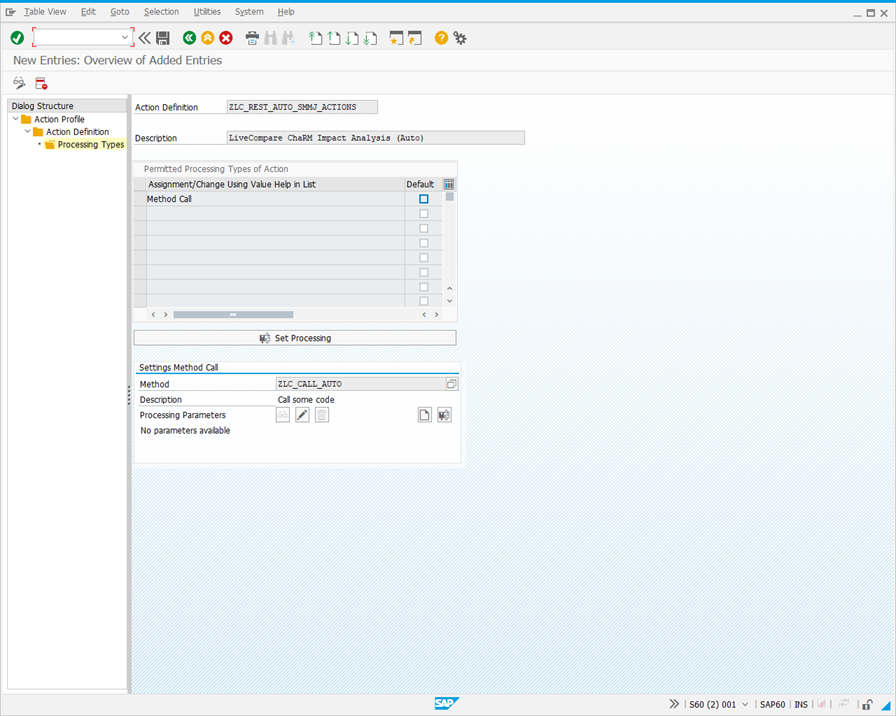
-
Click
. The following dialog is displayed.
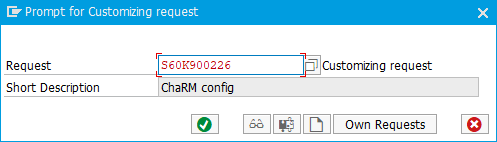
-
Click
 twice to add the request to a transport.
 -
Click
 to close the window.
Create the Z_REST_MANUAL action definition in an action profile
The ZLC_REST_MANUAL action definition allows an impact analysis to be invoked manually from the ChaRM screen’s action menu. To create the ZLC_MANUAL action definition in an action profile, carry out the following steps:
-
In the Conditions for Actions: Display screen’s top left-hand pane, double-click the Technical name of the action profile to modify. Normally this will be the action profile that was modified in the previous step. The following screen is displayed.
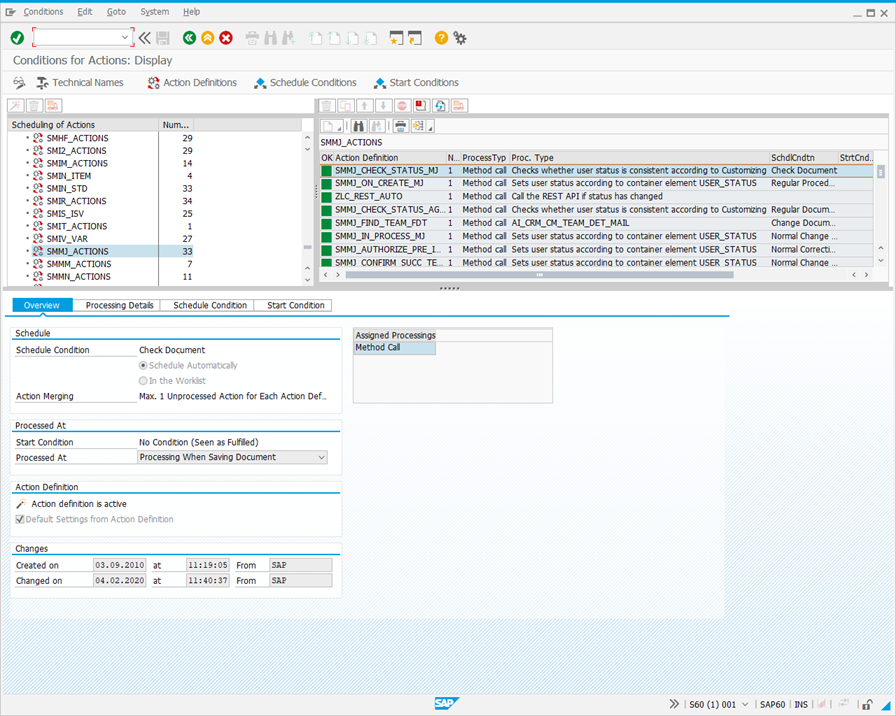
-
Click Action Definitions in the header. The following screen is displayed.
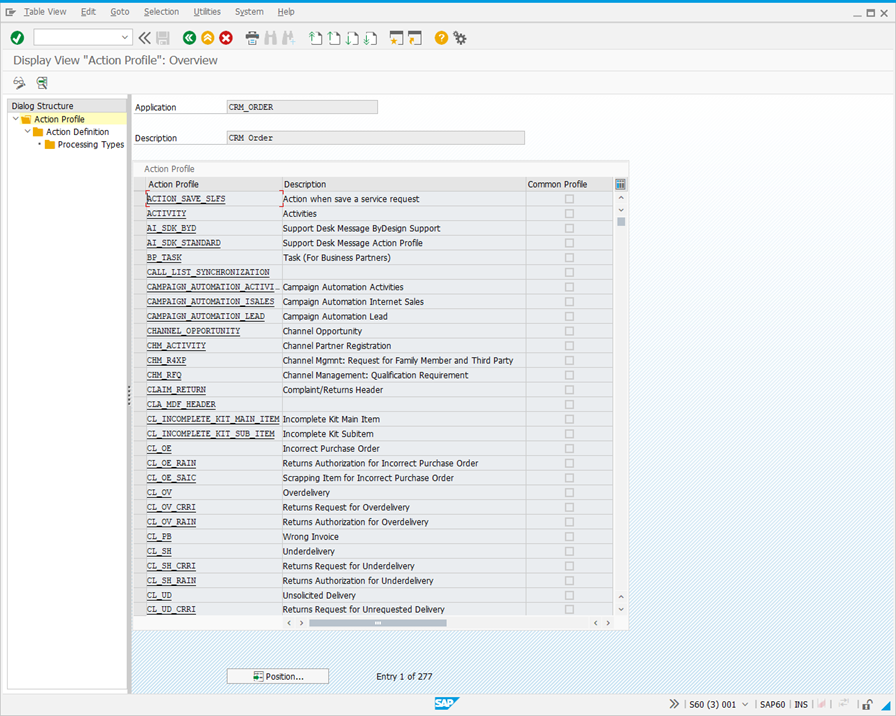
-
In the Action Profile list, double click the Action Profile chosen in Step 1. The following screen is displayed.
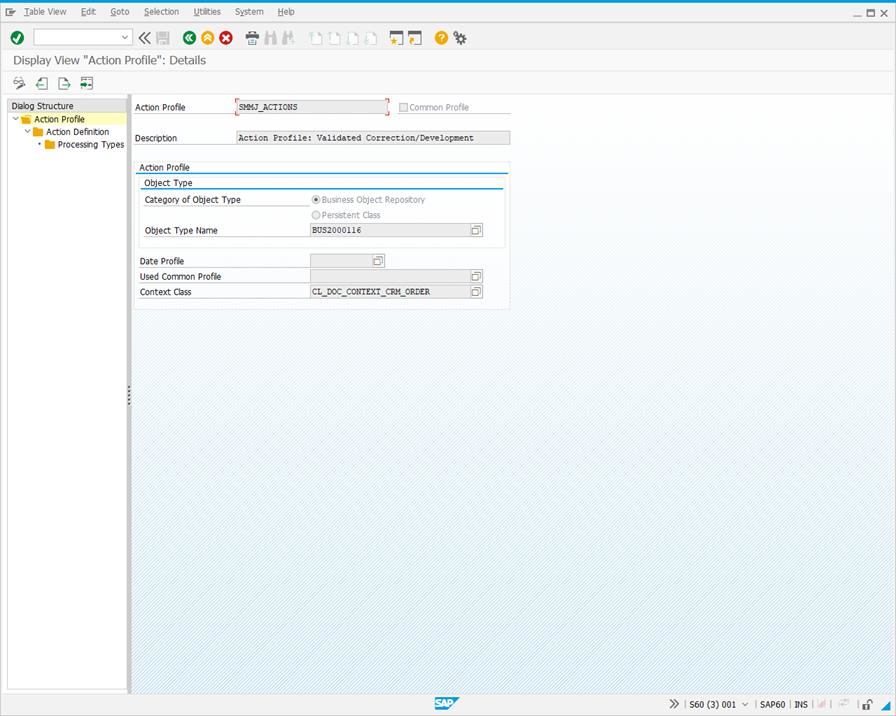
-
Double click Action Definition in the Dialog Structure hierarchy. The following screen is displayed.
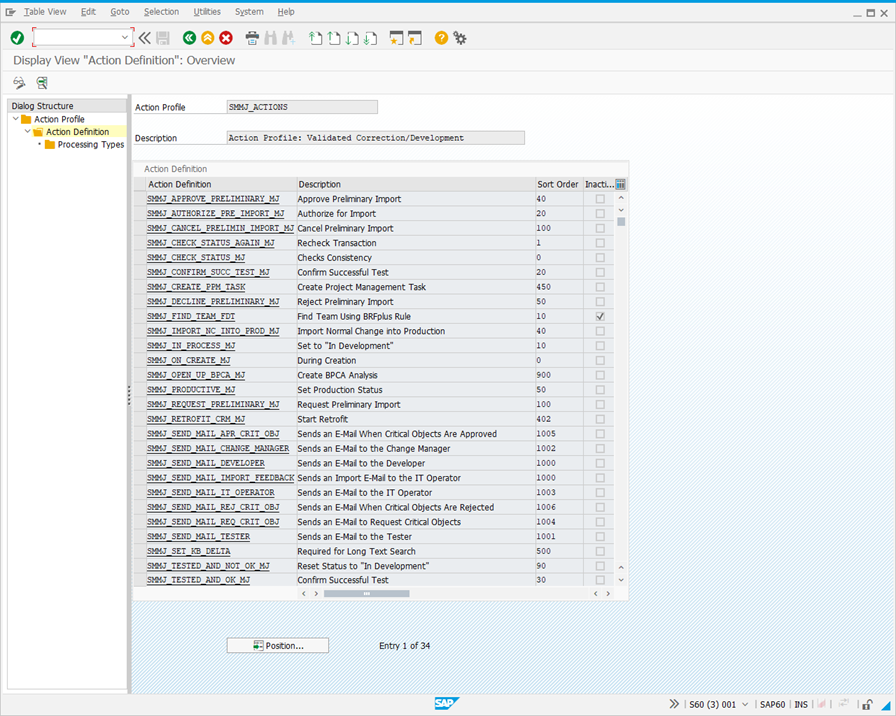
-
Click
to enter Change Mode, and then click New Entries. The following screen is displayed.
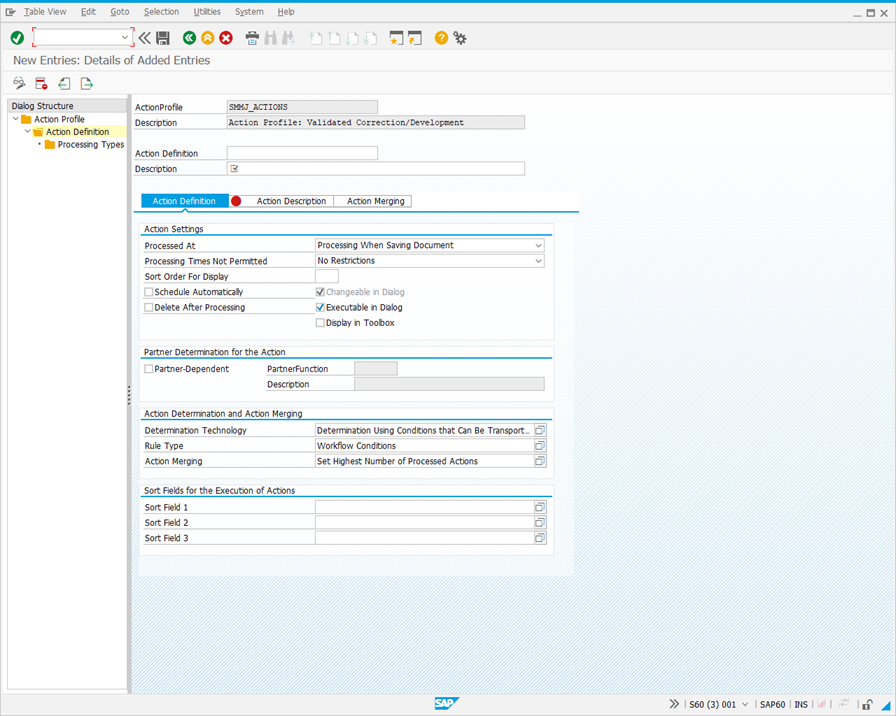
-
Complete the screen fields as follows to create the ZLC_REST_MANUAL action definition.
| Field | Value |
|---|---|
| Action Definition | ZLC_REST_MANUAL_<Action Profile Technical Name> |
| Description | LiveCompare ChaRM Impact Analysis (Manual) |
| Processed At | Immediate Processing |
| Delete After Processing | Checked |
| Changeable in Dialog | Checked |
| Executable in Dialog | Checked |
| Display in Toolbox | Checked |
-
Double click Processing Types in the Dialog Structure hierarchy. The following screen is displayed.
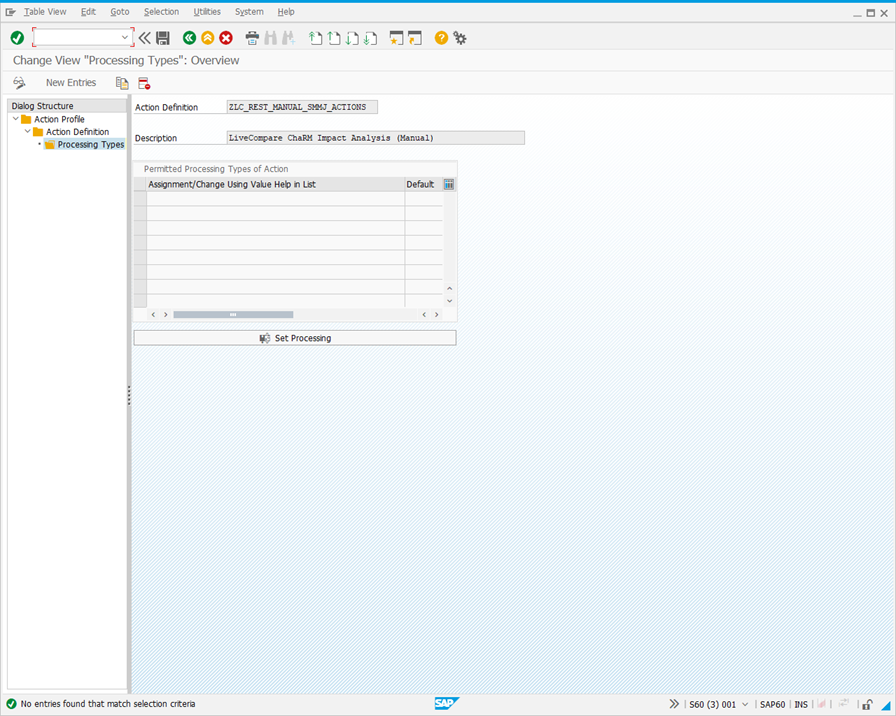
-
Click New Entries. The screen changes to the following:
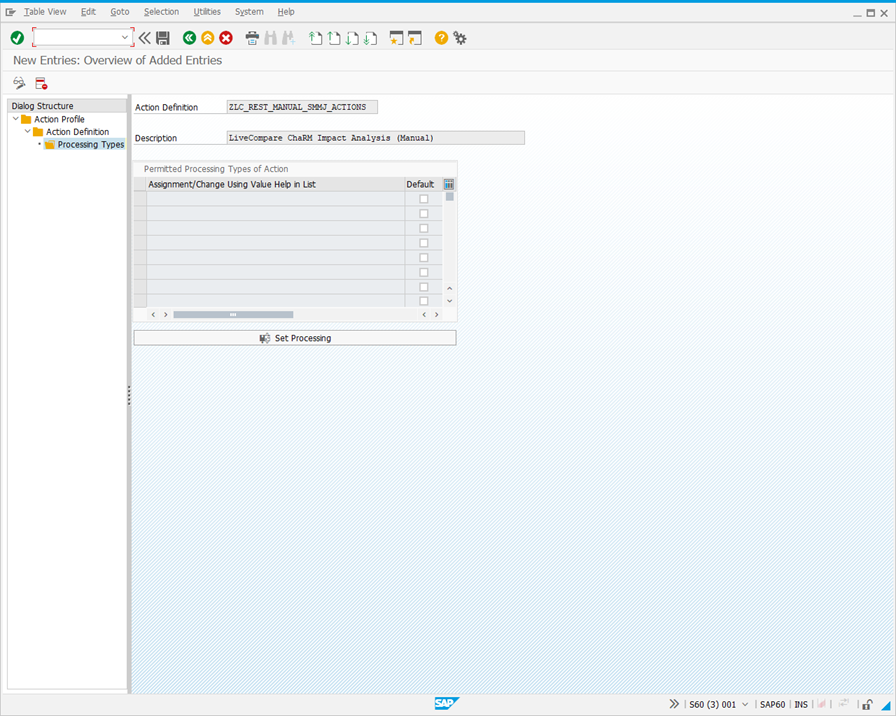
-
Select the first cell in the Permitted Processing Types of Action table, and press F4.
-
Double click Method Call in the Restrict Value Range (1). The New Entries: Overview of Added Entries screen looks like this.
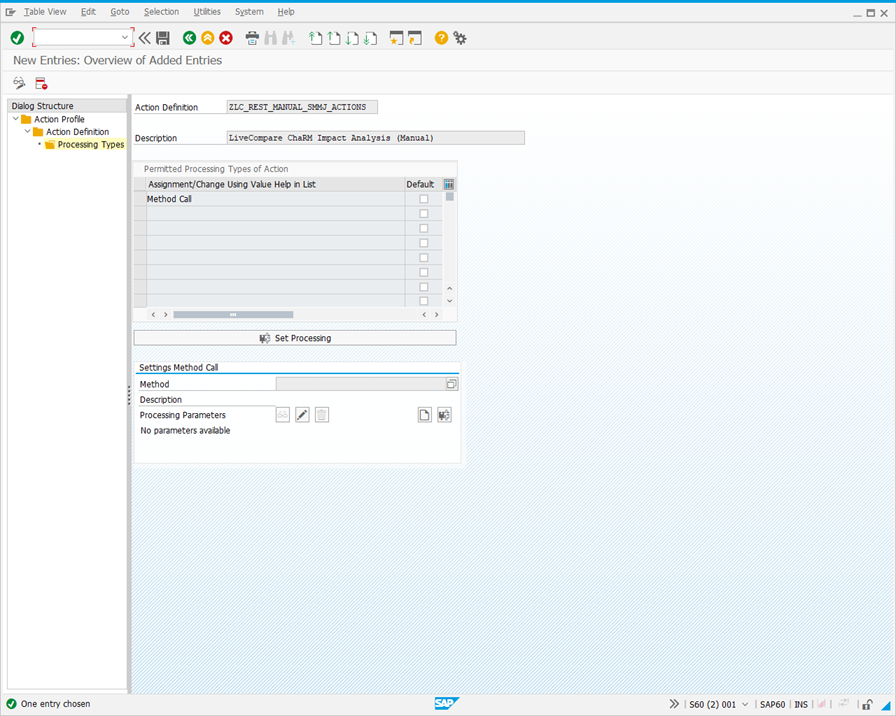
-
Select the Method field and press F4.
-
Double click ZLC_CALL_MANUAL in the Type of filter in BADI implementation (1) dialog. The New Entries: Overview of Added Entries screen looks like this.
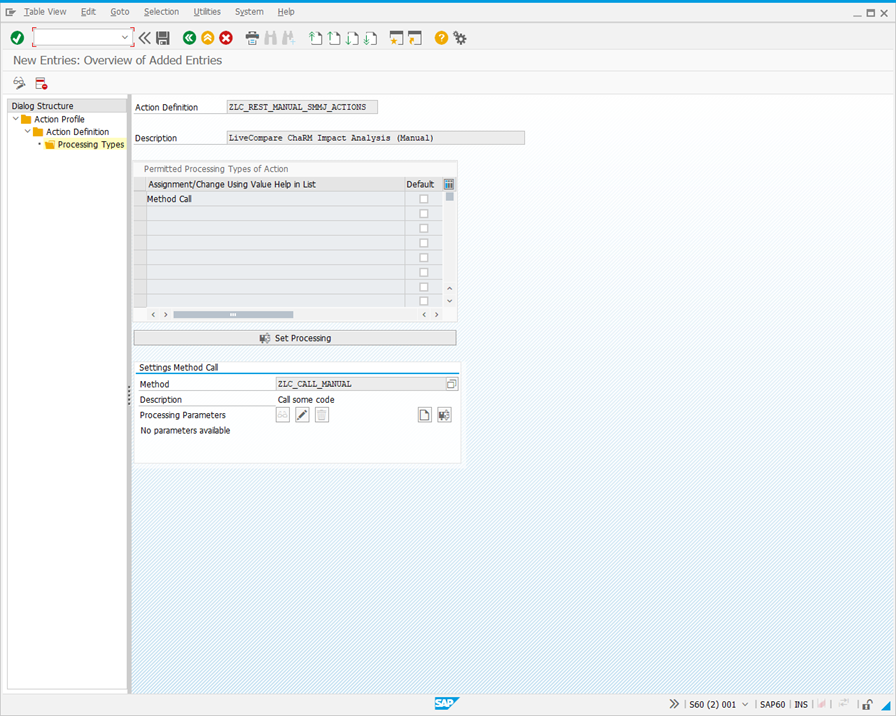
-
Click
. The following dialog is displayed.
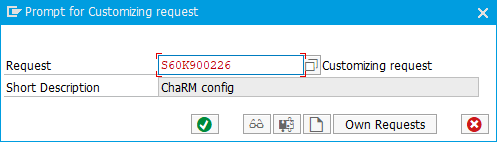
-
Click
twice to add the request to a transport. -
Click
to close the window.
Update the action profile
The next step is to update the action profile to include the ZLC_REST_AUTO and ZLC_REST_MANUAL actions.
-
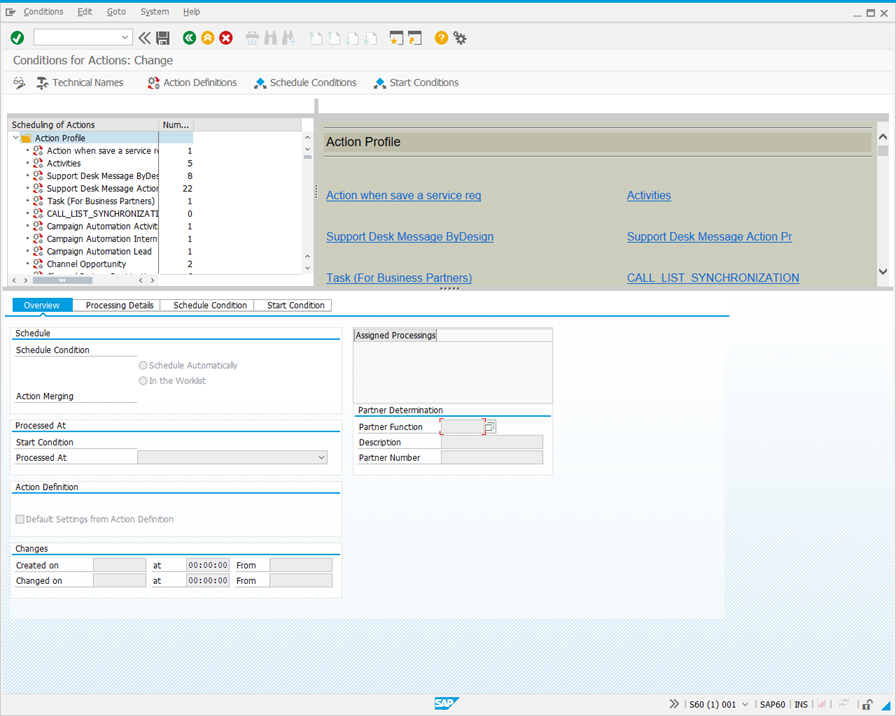
Run transaction
CRMC_ACTION_CONF. The Conditions for Actions: Change screen is displayed.
-
Click Technical Names and double click the action profile to modify.
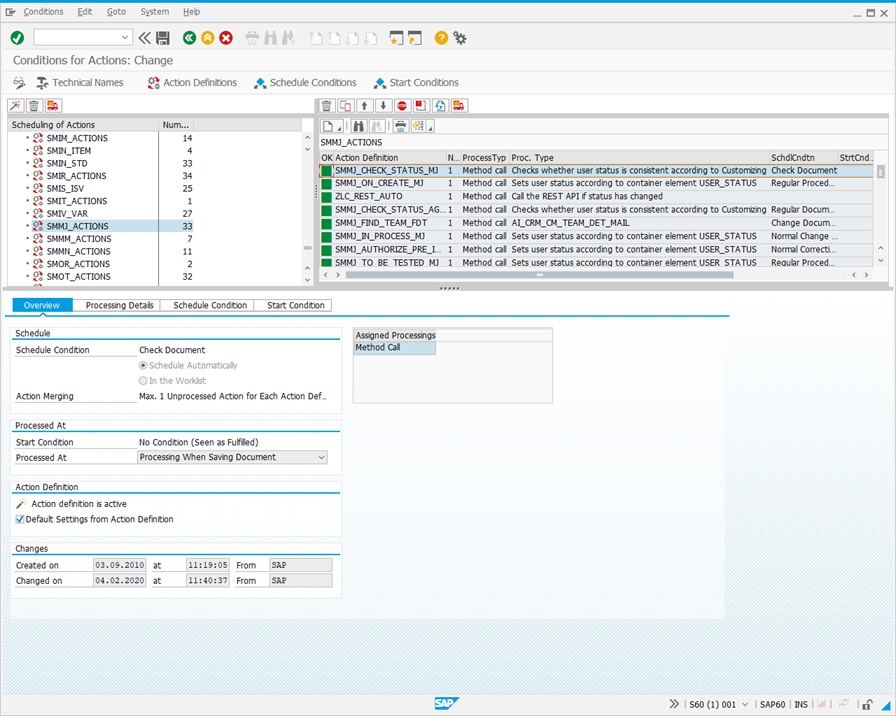
-
Click to
enter Change Mode. -
Click in
 the right-hand pane and select the description for the ZLC_REST_AUTO_<Action Profile Technical Name> action.
Example: LiveCompare ChaRM Impact Analysis (Auto)
-
Click
in the right-hand pane and select the description for the ZLC_REST_MANUAL_<Action Profile Technical Name> action.
Example: LiveCompare ChaRM Impact Analysis (Manual)
-
Click
. The following dialog is displayed.
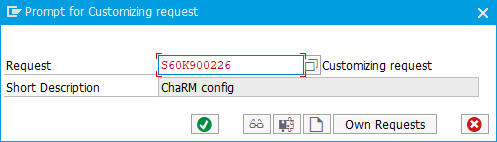
-
Click
to add the request to a transport.
Set Conditions for the ZLC_REST_AUTO Action
The ZLC_REST_AUTO action is invoked when a change request transitions between states. To configure the action to run when a change request moves from any Not Validated state to Validated, carry out the following steps:
-
Click
 or use /o to open a new SAPGUI window.
 -
In the new window, run transaction
SE16, and display table TJ30. The following screen is displayed.
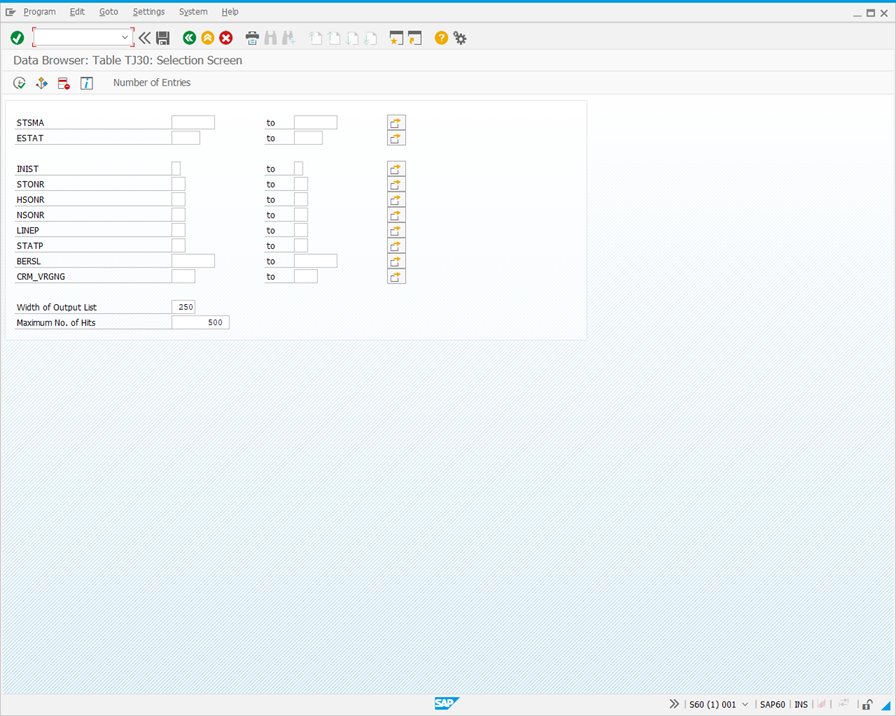
-
In the Data Browser: Table TJ30 selection screen, enter <Action Profile Technical Name>HEAD in the STSMA field.
Example: SMMJHEAD
-
Click
 to display a table similar to the following.
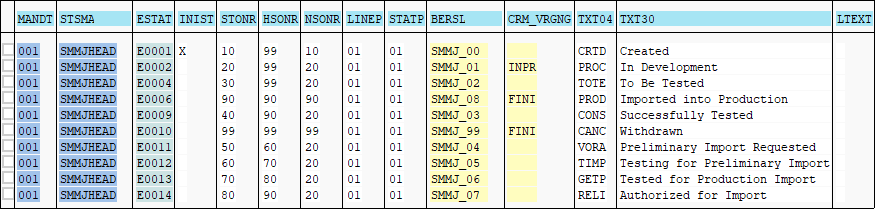
In the STMA, ESTAT and TEXT30 fields, identify the target change request status that will trigger an impact analysis.
Example:
| STMA | ESTAT | TEXT30 |
|---|---|---|
| SMMJHEAD | E004 | To Be Tested |
-
Return to the Condition for Actions: Change screen. In the right-hand pane, select LiveCompare ChaRM Impact Analysis (Auto) in the Action Definition column.
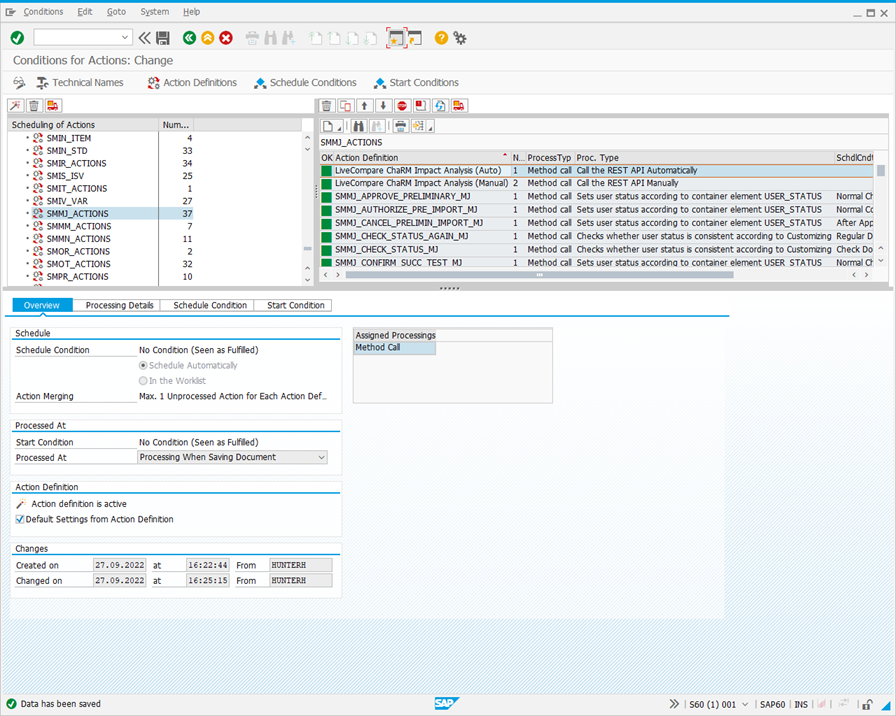
Add a schedule condition
Schedule conditions determine whether an action should be scheduled for processing. An action is only generated if the schedule conditions are satisfied.
-
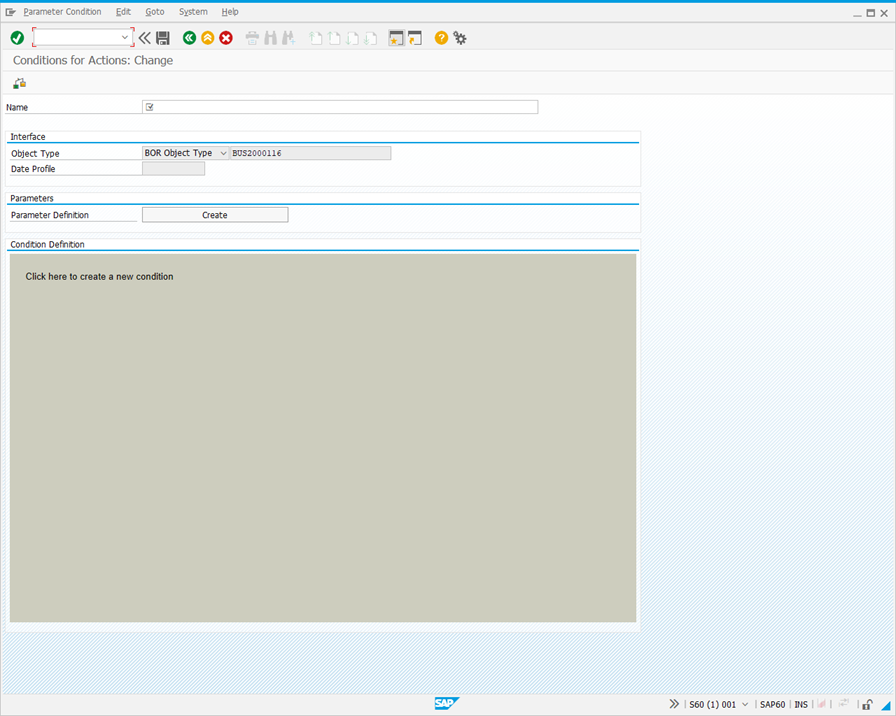
Select the Schedule Condition tab, and click Edit Condition. The following screen is displayed.
-
In the Name field, enter a name for the condition.
Example: LiveCompare: Precondition - Status <> To Be Tested
-
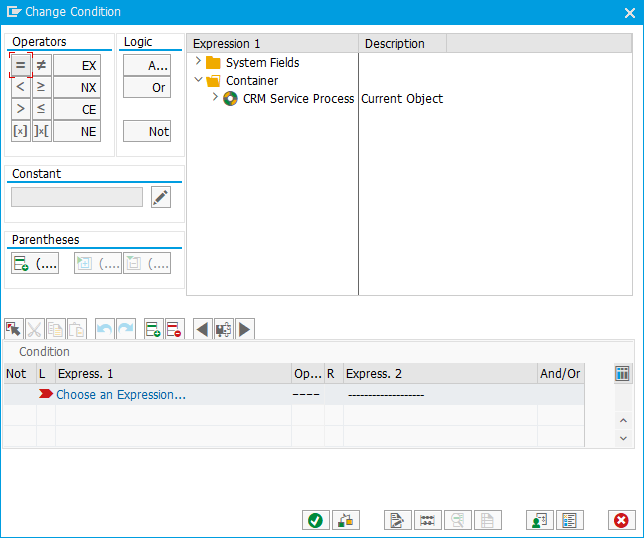
Click the Condition Definition field to edit it. The following dialog is displayed.
-
In the Expression 1 field, select CRM Service Process > Functional Methods > User Status.
-
In the Operators field, select
 .
. -
Enter <ESTAT value><STMA value>HEAD in the Constant field.
Example: E004SMMJHEAD
-
Press <Return> and click
 . The Conditions for Actions: Change screen looks like this.
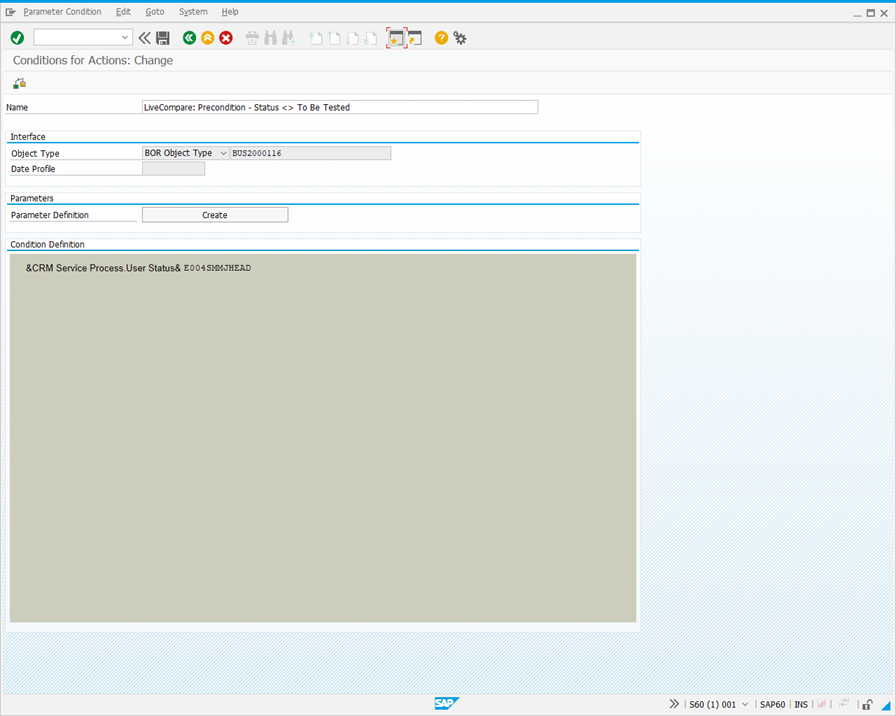
-
Click
. The following dialog is displayed.
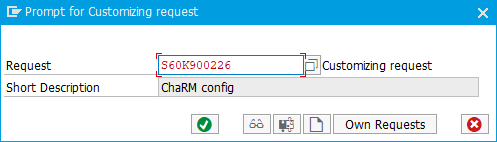
-
Click
to add the request to a transport.
Add a start condition
Start conditions are checked before an action is executed. The action is only executed if the start conditions are satisfied.
-
Select the Start Condition tab and click Edit Condition. The following screen is displayed.
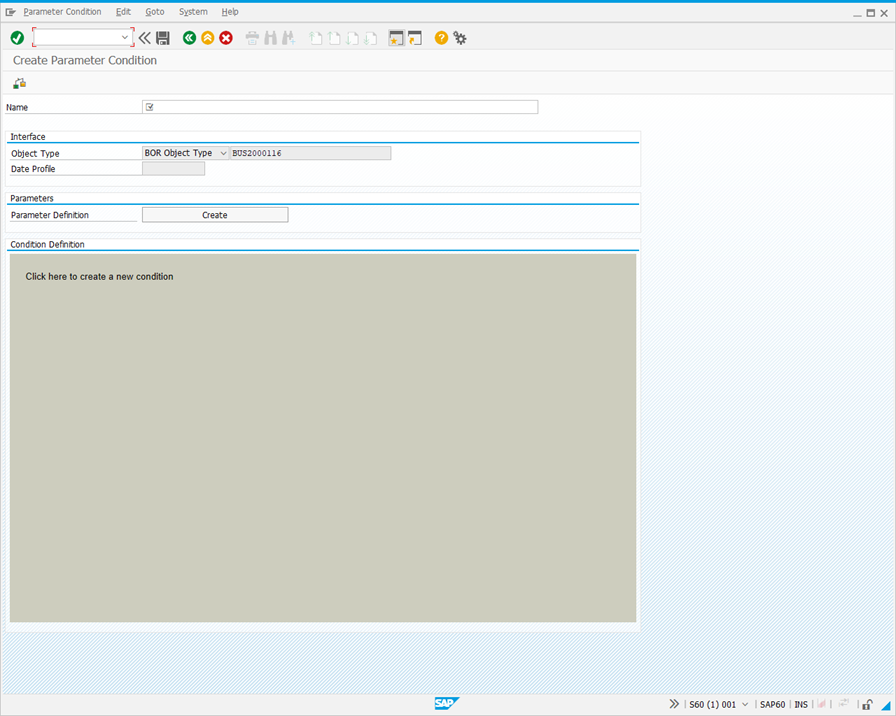
-
In the Name field, enter a name for the condition.
Example: LiveCompare - Change Request Status moved to To Be Tested
-
Click the Condition Definition field to edit it. The following dialog is displayed.
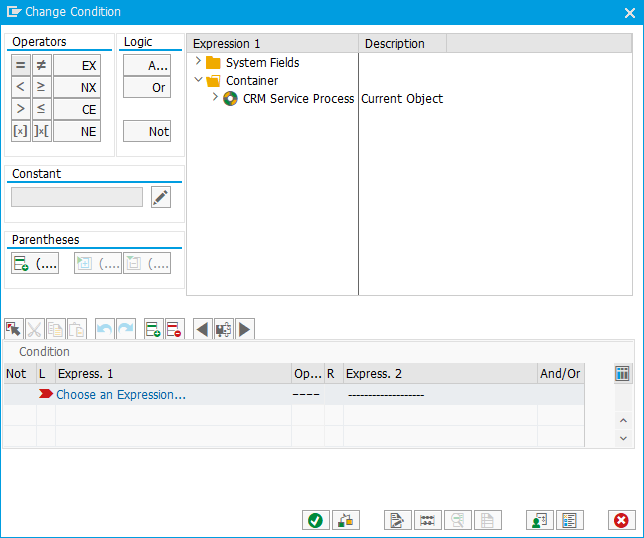
-
In the Expression 1 field, select CRM Service Process > Functional Methods > User Status.
-
In the Operators field, select
. -
Enter <ESTAT value><STMA value>HEAD in the Constant field.
Example: E004SMMJHEAD
-
Press <Return> and click
. The Create Parameter Condition screen looks like this.
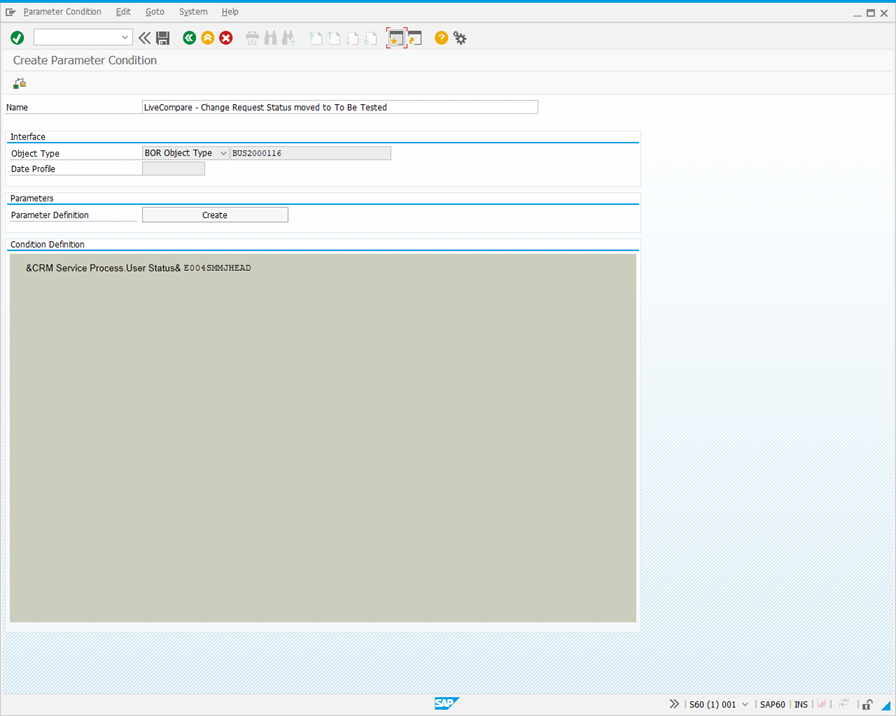
-
Click
. If prompted, add the request to a transport. -
Click
in the Conditions for Actions: Change screen to save your changes.
Set conditions for the ZLC_REST_MANUAL action
The ZLC_REST_MANUAL action may be run by selecting its description from a change request document’s Actions menu. The action will be available in document types that have been configured to use it, for example the Normal Change document type, represented by the SMMJ_ACTIONS.
By default, the menu item will be available for all document statuses. However, you can make the menu item available for only a particular status by carrying out the following steps.
-
Use transaction
CRMC_ACTION_CONFto access an action profile that has been configured to use the ZLC_REST_MANUAL action. -
Select the ZLC_REST_MANUAL action, and click the Start Condition tab. The following screen is displayed.
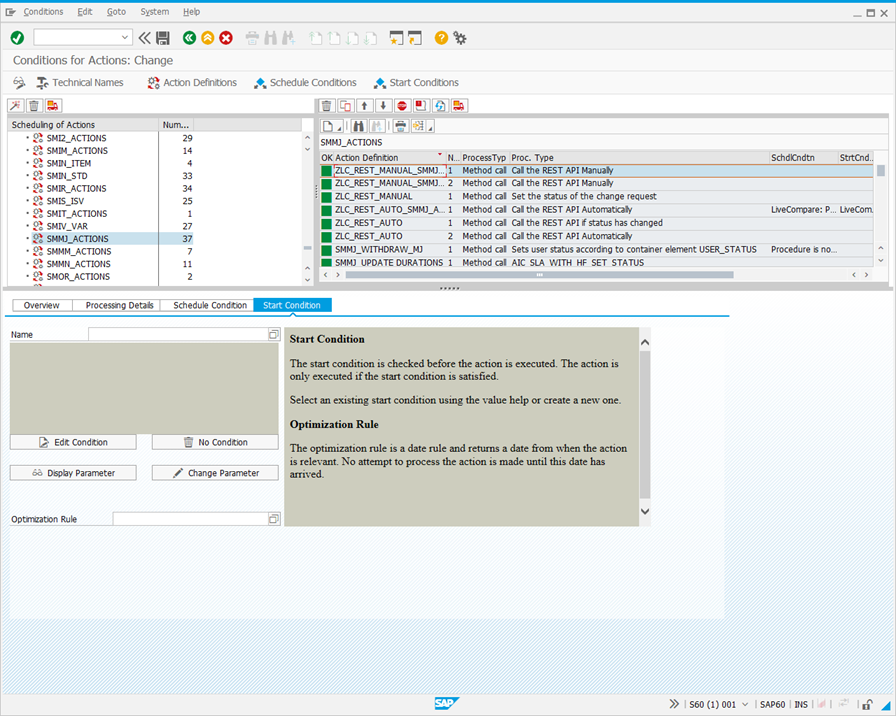
-
Click
or use /o to open a new SAPGUI window. -
In the new window, run transaction SE16, and display table TJ30. The following screen is displayed.
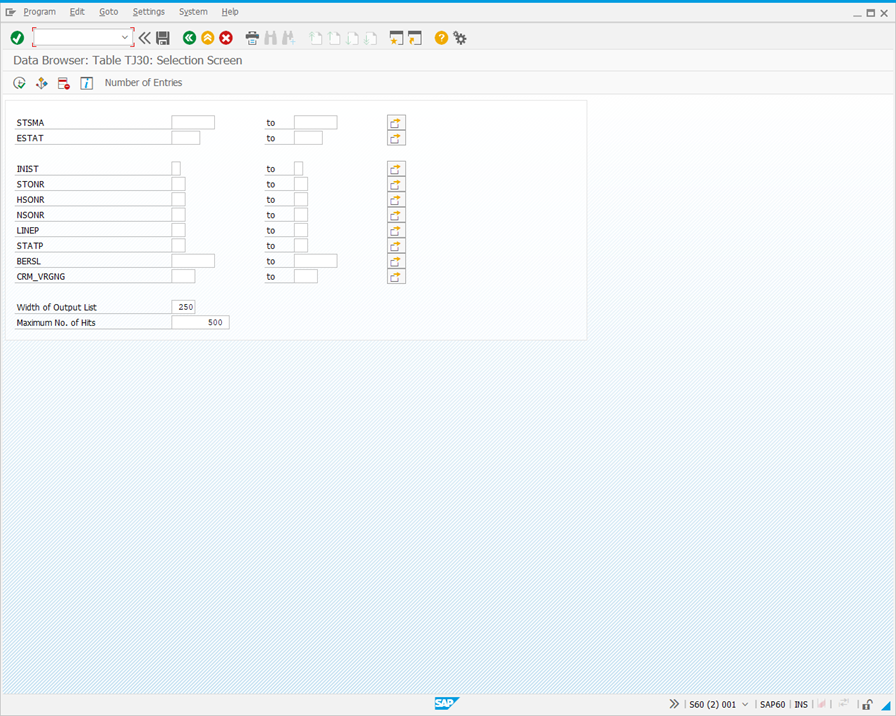
-
In the Data Browser: Table TJ30 selection screen, enter <Action Profile Technical Name>HEAD in the STSMA field.
Example: SMMJHEAD
-
Click
to display a table similar to the following.
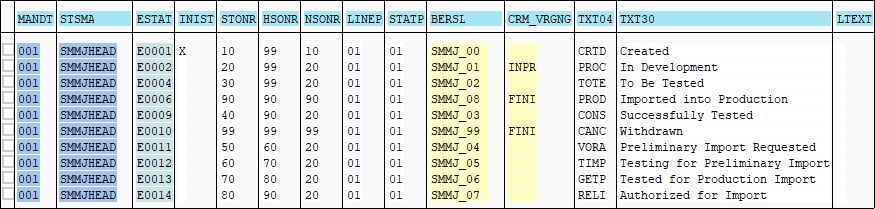
In the STMA, ESTAT and TEXT30 fields, identify the change request status for which the Actions menu item should be shown.
Example:
| STMA | ESTAT | TEXT30 |
|---|---|---|
| SMMJHEAD | E009 | Successfully Tested |
-
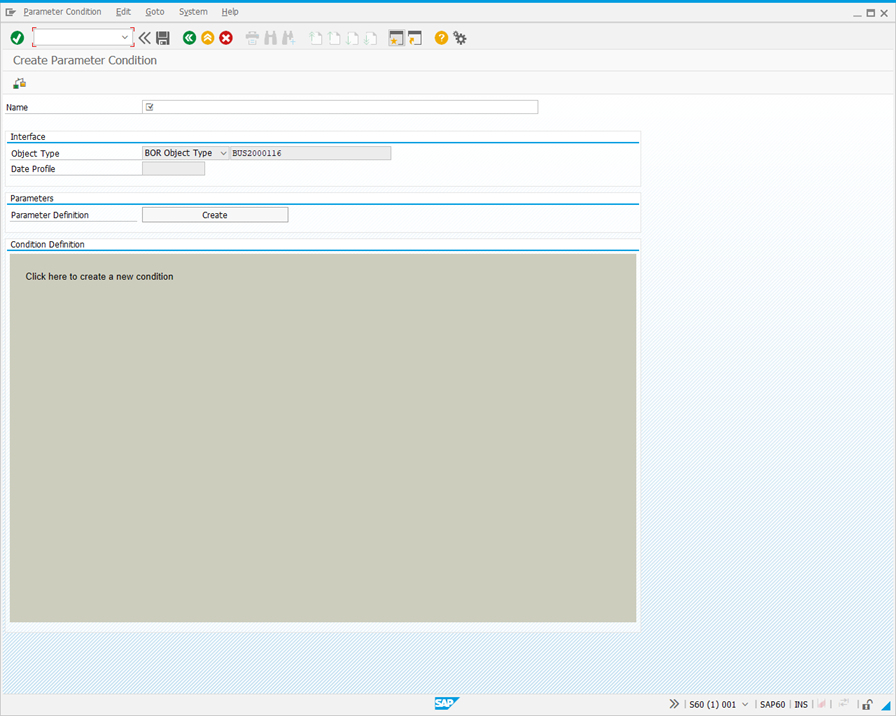
Return to the Condition for Actions: Change screen. Click Edit Condition in the Start Condition tab. The following screen is displayed.
-
In the Name field, enter a name for the condition.
Example: LiveCompare - Allow manual IA for the Successfully Tested status only.
-
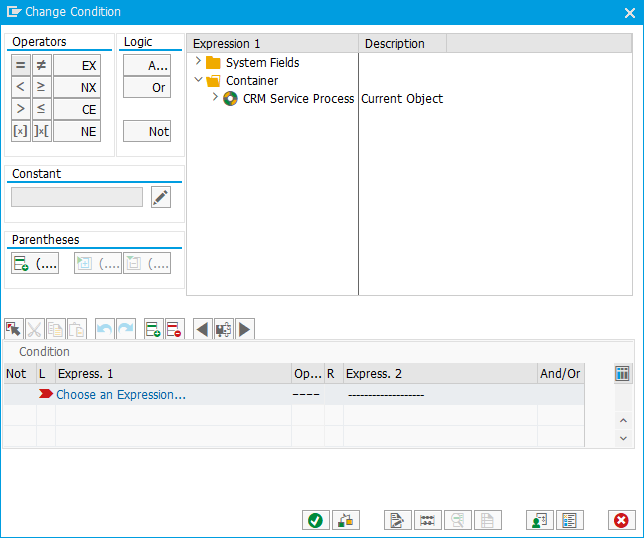
Click the Condition Definition field to edit it. The following dialog is displayed.
-
In the Expression 1 field, select CRM Service Process > Functional Methods > User Status.
-
In the Operators field, select
. -
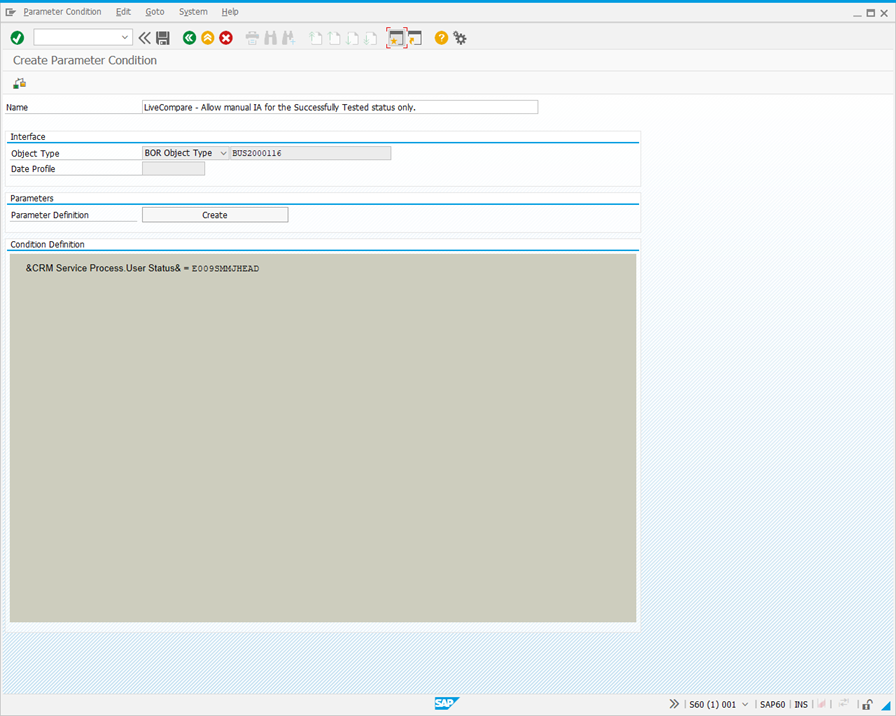
Enter <ESTAT value><STMA value>HEAD in the Constant field.
Example: E009SMMJHEAD
-
Press <Return> and click
. The Create Parameter Condition screen looks like this.
-
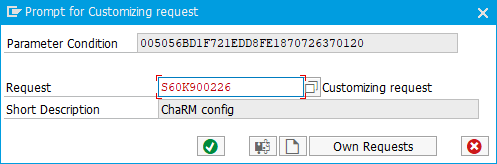
Click
. The following dialog is displayed.
-
Click
to add the request to a transport. -
Click
in the Conditions for Actions: Change screen to save your changes.
Debug logging
ChaRM’s integration with LiveCompare is recorded in the SAP System Log (accessible via transaction SM21), using Message ID IM0.